How to Cancel YouTube TV: Pause, Refunds, DVR, and NFL Sunday Ticket
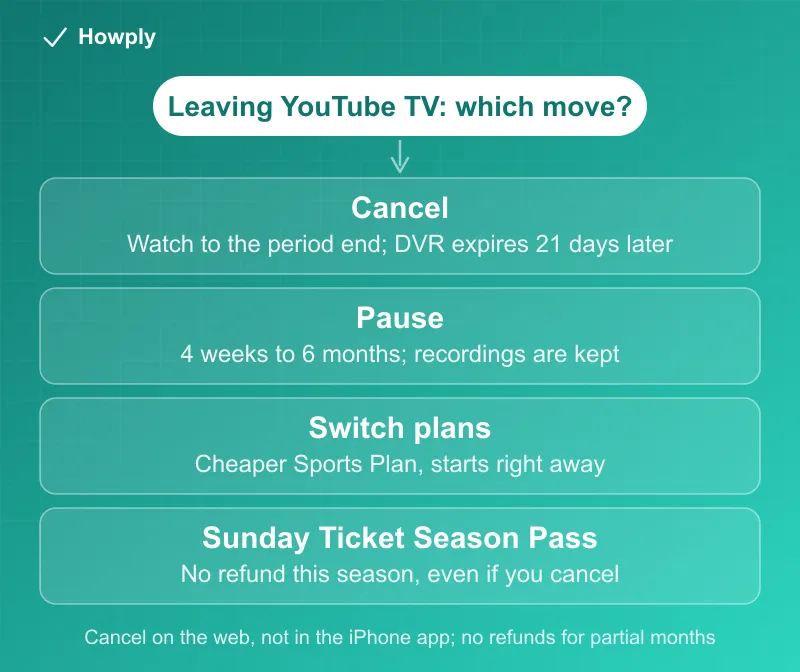
Cancel on the web, not in the iPhone app. Access runs to the end of the period, recordings expire 21 days later, and a Sunday Ticket Season Pass keeps billing.
Canceling YouTube TV takes five clicks on the web, but the cancel button is not the whole decision. The main plan costs $82.99 plus tax a month, YouTube TV does not refund unused days, your recordings start a 21-day clock once the paid period ends, and in football season a Sunday Ticket Season Pass keeps billing even after the membership is gone. Here is the exact path on each device, what happens afterward, what YouTube TV will and will not refund, and the two cheaper moves it offers instead: pausing and switching plans.
The quick answer
- Cancel at: tv.youtube.com > profile photo > Settings > Membership > Manage > Cancel membership. On an iPhone or iPad the steps start in a browser, not the app: “Go to YouTube TV using a computer or your mobile web browser”
- You keep watching until the period ends, trial included: “Canceling YouTube TV does not immediately remove your access to the service, even during the free trial period”
- No refund for the rest of the month: “We do not give refunds or credits for partial billing periods.” Refunds are for features that “are defective, or do not perform as stated,” and a granted refund ends access immediately
- Recordings expire 21 days after the paid period ends, and add-ons end with the plan
- A Sunday Ticket Season Pass does not stop: “you can’t cancel your membership or get a refund for the current season, even if you cancel your YouTube TV membership”. Prices, installments and the renewal rules are in our NFL Sunday Ticket guide
- Cheaper than canceling: pause for 4 weeks to 6 months, or switch to a lower-priced plan such as the Sports Plan, where “your new plan starts right away”
- Billed by your phone or internet company? Cancel and ask for refunds through them. YouTube “cannot grant a refund” on those bills, and pausing is not available
Key facts at a glance
| Question | Answer |
|---|---|
| Where to cancel | tv.youtube.com > profile photo > Settings > Membership > Manage > Cancel membership |
| iPhone or iPad | Use a web browser; the iOS steps do not run in the app |
| Price | $82.99 + tax per month for the main plan |
| Access after canceling | Until the end of the payment or free trial period |
| Refund for unused days | None: no refunds or credits for partial billing periods |
| Recordings | Expire 21 days after the paid period ends |
| Add-ons | Canceled automatically with the plan |
| Sunday Ticket Season Pass | No cancellation or refund for the current season |
| Pause instead | 4 weeks to 6 months, starting after the current billing cycle |
| Switch plans instead | Starts right away, with credit for unused time; a promo price is lost |
| Help line | Chat, or call +1 833-389-2054 |
How to cancel, by device
YouTube TV’s cancel and pause page gives a slightly different path for each device.
On a computer:
- Go to tv.youtube.com in a web browser
- Select your profile photo
- Go to Settings > Membership
- Click Manage
- Click Cancel membership, then Cancel to confirm
On an Android phone or tablet: the same steps work in the YouTube TV app or in a browser.
On an iPhone or iPad: open tv.youtube.com in Safari or another browser (or use a computer), then profile photo > Settings > Membership > Manage > Cancel membership.
Two variations are worth knowing. To drop a single add-on network and keep the plan, remove just that add-on from the same Membership page; the help page notes that add-ons “can also” be removed “individually.” And if you want access cut off today rather than at the end of the period (a shared household account, for example), the page says to contact support: “If you’d like to cancel and remove access to YouTube TV right away, get in touch with our support team.”
What happens after you cancel
Per the same page, “you can still access YouTube TV until the end of your payment or free trial period.” After that date:
- Add-ons end. You lose add-on networks “and you won’t be able to add networks without a membership”
- Recordings get 21 days. “Recorded programs in your library will expire after 21 days,” while your library preferences are saved in case you come back
- Coming back can cost more. If you restart, “you may not be eligible for promotional prices and may not have access to previous recordings.” YouTube TV’s new-user deals exclude anyone who has subscribed or trialed before, as our new user deal explainer covers
- Google keeps a little billing data, such as your home zip code, “for billing and fraud prevention purposes”
Refunds: what YouTube TV will and won’t give back
The refund page is short and strict:
- Unused time is not refunded. “We do not give refunds or credits for partial billing periods,” and canceling simply lets access run to the end of the period you paid for
- Broken service can be. If features “are defective, or do not perform as stated,” there is a refund request button. The trade-off: “If you’re granted a refund, you’ll lose access to YouTube TV immediately”
- Timing: credit card refunds “typically take 3-5 business days” and can take up to 10. If the card is closed, the money goes to the bank that issued it; our guide to refunds to a closed or expired card covers getting it back
- Phone or internet company billing: “YouTube cannot grant a refund.” The provider’s refund policies apply, so the request goes to them
- Apple billing: “YouTube can’t grant refunds for purchases made on an Apple device or through Apple billing.” Apple handles those requests
If the charge itself is the surprise, YouTube TV’s billing charges page lists the usual causes: a free trial charge when you were not eligible (“Only first-time subscribers are eligible for free trials”), an authorization hold that looks like a charge but is not one, or a second Google account with its own membership. Our guide to being charged for a free trial walks through the next steps.
NFL Sunday Ticket: the charge that survives canceling
This is the trap in football season. Sunday Ticket on YouTube TV “requires an active YouTube TV plan,” yet a Season Pass does not end or refund when the plan does. From YouTube TV’s Sunday Ticket renewals page:
- Season Pass: “Once your Season Pass subscription renews, you can’t cancel your membership or get a refund for the current season, even if you cancel your YouTube TV membership”
- Season Pass paid in installments: monthly installments represent “a full-season commitment,” so “you cannot cancel mid-season to stop your monthly payments”
- Month-to-Month: cancel any time and keep access until your next billing date, but “We do not offer refunds”
- Next season: canceling YouTube TV also cancels the Sunday Ticket renewal. If you only want to stop the renewal, you can remove it on its own before the next season, but not while your YouTube TV membership is paused
Put those rules together and canceling YouTube TV mid-season with a Season Pass means paying for Sunday Ticket you can no longer watch on YouTube TV. If the goal is a smaller bill until January, switching to the Sports Plan (below) keeps your local channels and Sunday Ticket: YouTube TV says of that plan, “You can also pair this plan with NFL Sunday Ticket.”
Cheaper than canceling: pause or switch plans
Pause. Pick 4 weeks up to 6 months on the Membership page. The pause starts “after the end of your current billing cycle”; while paused, “YouTube TV can’t be accessed and no new programs will be recorded,” but “your previous recordings will be saved until the end of the paused state” (still subject to the standard 9-month recording expiration). When it ends you are charged the normal monthly price automatically, and that date becomes your new billing date. A pause cannot be extended, but you can resume early and pause again. It is also YouTube TV’s own suggestion for a tight month: “If you don’t have the funds to make your next scheduled payment, you can pause your YouTube TV membership.” How this compares with other services is in our guide to pausing instead of canceling.
Switch plans. The plans page now lists lower-priced genre plans (Sports, News, Entertainment, and Family combinations) alongside the main plan, which “includes over 100 channels.” The Sports Plan is described as “a lower-priced option that only includes all the sports channels from the main plan, plus your local channels.” The switching rules:
- “When you switch your plan, your new plan starts right away,” and you are charged for the new plan minus a credit for unused time on the old one
- “If you are on a promotional price and switch plans, you will lose the promotion”
- Add-ons carry over automatically
- Recordings from channels you lose are removed, but they come back if you upgrade again “within 21 days”
- Switching is done in Settings > Membership in YouTube TV, but “Plan switching is also not available on the iOS or Android apps,” and carrier or internet-provider customers switch through their provider
If you are comparing live TV services, our cancel guides for Fubo and Hulu, including Live TV show how their trials and cancellations differ.
If your phone or internet company bills you
Some carriers and internet providers bill YouTube TV on your monthly statement. Per YouTube TV’s integrated billing page, in that case “you can’t currently pause your YouTube TV plan,” refunds go through the provider, and a reminder for later: “if you cancel through YouTube TV and decide to re-sign up, you’ll be automatically billed through Google billing instead of your mobile carrier or internet provider.” If a bundle discount depends on that billing, check with the provider before canceling.
Quick answers to what people search
Can I cancel YouTube TV in the iPhone app? Not in the app. The iPhone and iPad steps begin in a browser: “Go to YouTube TV using a computer or your mobile web browser,” then Settings > Membership > Manage > Cancel membership.
If I cancel during the free trial, can I keep watching? Yes. Access continues “until the end of your payment or free trial period,” and canceling “does not immediately remove your access to the service, even during the free trial period.”
If I cancel, do I get a refund for the rest of the month? No. “We do not give refunds or credits for partial billing periods.” You keep access until the period you paid for ends.
If I cancel YouTube TV, do I lose my recordings? After the paid period ends, recordings “expire after 21 days.” A pause keeps them until the pause ends, subject to the 9-month limit.
Does canceling YouTube TV cancel NFL Sunday Ticket? It cancels the renewal for next season. A current-season Season Pass is not refunded “even if you cancel your YouTube TV membership,” and installment payments continue.
Can I cancel and sign up again for the new-user price? Generally no. A restarted membership “may not be eligible for promotional prices,” and new-user offers exclude past subscribers and past trial users.
Is there a phone number? YouTube TV lists chat and a phone line, +1 833-389-2054, on its cancel, plans, and Sunday Ticket pages.
Bottom line
Cancel on the web (tv.youtube.com > Settings > Membership > Manage > Cancel membership), not in the iPhone app, and do it right before the renewal date, since unused days are never refunded and access runs to the end of the period anyway. Watch or save anything you care about within 21 days of that date. If you hold a Sunday Ticket Season Pass, canceling will not stop that bill this season, so the Sports Plan is the cheaper way to cut costs until January. And if the problem is one expensive month, a 4-week to 6-month pause keeps your recordings and your plan waiting.
Cancel, pause, refund, plan-switching, billing, and NFL Sunday Ticket rules verified against the YouTube TV Help Center articles linked above on September 27, 2026, including each device’s cancel steps. The $82.99 monthly price matches both the billing help page and tv.youtube.com on the same date. If the process changes, this guide will be updated with the revision noted.
Official sources
- YouTube TV Help: Cancel or pause your YouTube TV membership
- YouTube TV Help: Request a refund for YouTube TV
- YouTube TV Help: Manage renewals, payments, and cancellations for NFL Sunday Ticket
- YouTube TV Help: NFL Sunday Ticket pricing & billing
- YouTube TV Help: Learn about YouTube TV Plans
- YouTube TV Help: YouTube TV Sports Plan
- YouTube TV Help: Update billing & payments for YouTube TV
- YouTube TV Help: Pay for YouTube TV using your mobile carrier or internet provider
- YouTube Help: Refunds for YouTube purchases made through Apple
- YouTube TV Help: Understand unexpected billing charges