How to Cancel YouTube Premium on Any Device (Web, Android, iPhone)
YouTube Premium cancellation lives at youtube.com/paid_memberships, with a separate path for Apple billing. The exact steps, plus the pause option most people miss.
Canceling YouTube Premium is quick, but the right path depends on which device you signed up with, and iPhone users hit a special catch. Here is the exact route for every setup, what happens to the time you already paid for, and the pause option YouTube does not advertise loudly.
The quick answer
- On a computer: go to youtube.com/paid_memberships > Deactivate > Continue to cancel > pick a reason > Yes, cancel
- On Android: profile picture > Paid memberships > select the membership > Continue to cancel
- On iPhone/iPad, billed through Apple: Settings > your name > Subscriptions > YouTube Premium > Cancel
- iPhone users billed through Google: the iOS app cannot cancel it; use a computer or phone browser
- Access: Premium benefits continue until the end of the billing cycle you already paid for
Key facts at a glance
| Question | Answer |
|---|---|
| Billed by Google | youtube.com/paid_memberships > Deactivate > Continue to cancel > Yes, cancel |
| Billed through Apple | Settings > your name > Subscriptions > YouTube Premium > Cancel |
| iPhone, Google-billed | The iOS app cannot cancel it; use a browser instead |
| When it takes effect | End of the paid billing cycle; Premium and YouTube Music work until then |
| Your data | Playlists, subscriptions, and history are untouched on the free tier |
| Pause instead | 1 to 6 months; starts at the end of the current cycle; resumes automatically |
| Who cannot pause | Annual plans, and Apple-billed members |
| Price during a pause | Not locked; you resume at the then-current price |
| Android signups since 2022 | Billed via Google Play; cancel and refund through Play |
| Family plan | Only the family manager can cancel, and it ends Premium for every member |
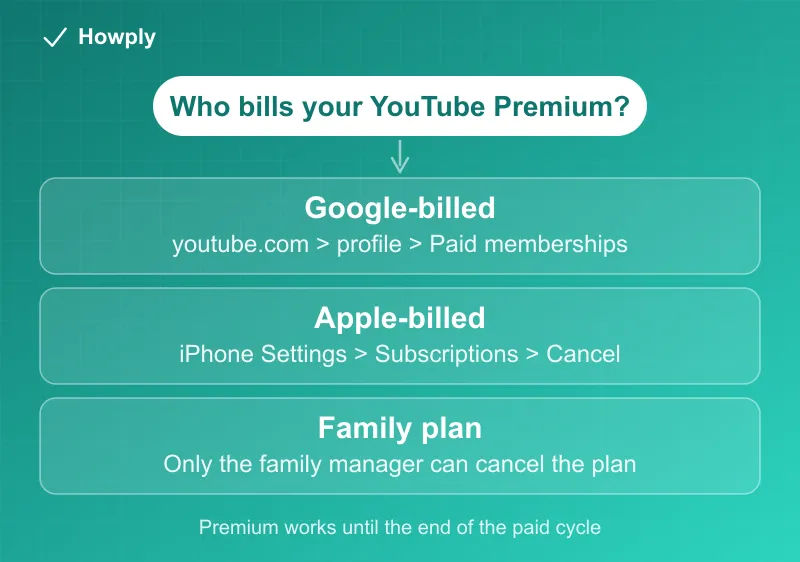
Step 1: Figure out who bills you
Check your card or bank statement. A charge from Google/YouTube means you cancel through YouTube’s own membership page. A charge through Apple means Apple controls the billing and only Apple’s subscription settings can stop it. This one check prevents the most common frustration, an iPhone user hunting for a cancel button that is not there.
On a statement, YouTube Premium appears as GOOGLE *GOOGLE; our GOOGLE * charge guide has the full lookup table.
Method 1: Billed by Google (most subscribers)
- Open youtube.com/paid_memberships in a browser and sign in with the account that pays
- Next to your Premium membership, click Deactivate (or Manage membership > Deactivate)
- YouTube will offer alternatives; choose Continue to cancel
- Select a reason, click Next, then confirm with Yes, cancel
- You will see an on-screen confirmation and receive a cancellation email shortly after
The same flow works in the Android app under profile > Paid memberships.
Method 2: Billed through Apple
If you subscribed inside the iOS app back when Apple billing was offered, cancel in Settings > your name > Subscriptions > YouTube Premium > Cancel Subscription. Google cannot end an Apple-billed plan, and Apple cannot end a Google-billed one.
Method 3: Billed through Google Play
There is a third biller most guides skip: per YouTube’s official pause page, new subscribers who signed up on Android from 2022 onward are billed via Google Play, not YouTube directly. If that is you, the membership lives in Play Store > profile > Payments & subscriptions > Subscriptions, and refund requests follow Google Play’s process, covered in our Google Play refund guide. Not sure which Google door bills you? payments.google.com lists recent charges and names the biller.
What happens after canceling
- Premium features (ad-free, downloads, background play, YouTube Music) keep working until the end of the current billing period, so canceling early in the cycle loses nothing
- Your account, subscriptions, playlists, and history are untouched; you simply return to the free, ad-supported experience
- Downloads saved for offline viewing stop working once Premium lapses
The pause option, with the fine print that matters
On the same membership page (Deactivate, then Pause instead), YouTube offers a 1 to 6 month pause on a slider. Billing stops, and the membership resumes automatically when the pause ends. For a tight month or a long trip it beats canceling, but the official pause page carries four details most people learn the hard way:
- The pause starts at the end of your current billing cycle, not the moment you click. You keep benefits (and the clock keeps running) until then
- Pausing does not freeze your price. YouTube states you are “billed at the new price when you resume,” so a pause taken across a price increase resumes at the higher rate (increases come with at least 30 days of email notice)
- Downloads survive but lock: offline videos and music are retained during the pause, and inaccessible until you resume. Family members on your plan lose benefits during the pause too
- Who cannot pause at all: annual plans, and anyone billed through Apple. For those two, the choice is binary, keep or cancel
You can resume early anytime, and you can still cancel outright mid-pause, so pausing costs you no options.
Family plan note
If you are on a family membership, only the family manager can cancel the plan, and canceling ends Premium for every member at once. Individual members leaving the family group lose Premium but do not stop the manager’s billing.
Bottom line
Google-billed subscribers cancel in two minutes at youtube.com/paid_memberships, Apple-billed subscribers cancel in iPhone Settings, and everyone keeps Premium until the paid period ends. Check who bills you first, and consider the one-to-six-month pause if you might come back. If the price is the reason, our social subscriptions price comparison shows YouTube Premium costs $5 a month less on the web than through the App Store, and our music streaming price guide lists the alternatives. The three YouTube plans and what each covers, including the cheaper Premium Lite, are in our YouTube Premium plans guide.
Steps, pause rules, and billing branches verified against YouTube’s official Help documentation as of August 10, 2026. If the process changes, this guide will be updated with the revision noted.