How to Cancel LinkedIn Premium: Trials End Instantly, Refunds Have 7 Days
A paid plan runs to the end of the cycle; a free trial ends the moment you cancel. Steps for desktop, iOS, Android, and app-store billing, plus the 7-day refund rule.
LinkedIn Premium cancels in a few clicks, but two of its rules run the opposite way from what most people expect. Cancel a paid plan and you keep Premium until the billing cycle ends; cancel a free trial and “the trial will end immediately, and Premium access will stop right away.” And the refund window is short: seven days from the charge, and only if you have not used Premium features. Here is the cancel path for each way you might have paid, the one-day-before deadline, what you lose, and how the refund rules read.
The quick answer
- Desktop: Me > Premium features > Manage subscription > (in LinkedIn Admin Center) Purchases > your active subscription > Cancel subscription > Confirm cancel
- Mobile app: profile photo > Premium features > Manage your subscription > Cancel subscription
- Deadline: “cancel your plan at least one day before your next scheduled billing date”
- Paid plan: “your plan will remain active until the end of your current billing cycle.” Free trial: it “will end immediately,” and canceling makes you ineligible for another trial “for at least 12 months”
- Bought on iPhone through the mobile web? LinkedIn bills you, and “Cancellation must be done on desktop and not on the iOS app”
- Bought in the Apple App Store or Google Play? Cancel in the LinkedIn app or through the store; for App Store purchases, refunds come from Apple, not LinkedIn
- Refunds: Premium “may be refundable within 7 days from the date the subscription is charged without Premium usage”
Key facts at a glance
| Question | Answer |
|---|---|
| Cancel deadline | At least one day before the next billing date |
| Access after canceling a paid plan | To the end of the current billing cycle |
| Access after canceling a free trial | Ends immediately |
| Another free trial after canceling one | Not for at least 12 months |
| iOS mobile-web purchase | Cancel on desktop only |
| Apple App Store purchase | Cancel in the LinkedIn app on your Apple device; Apple handles billing and refunds |
| Google Play purchase | Cancel on LinkedIn desktop, the LinkedIn app, or Google Play |
| Refund window | 7 days from the charge, without Premium usage; a previous refund can affect eligibility |
| InMail credits you saved up | Lost at the end of the cycle; “they can’t be credited back” |
| Promotional price | Lost on cancellation; cannot be re-purchased |
| Cancel without signing in | Available in the United States and Germany through a form |
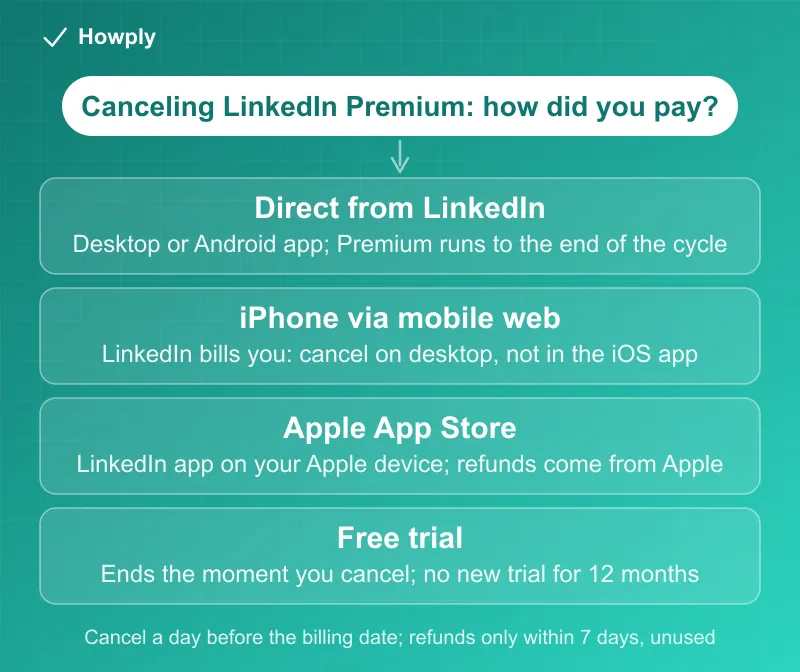
Step 1: know how you paid
LinkedIn’s cancel page says “The cancellation steps vary based on your original purchase method,” and there are four cases:
- Direct purchase from LinkedIn (desktop or mobile web): cancel on the LinkedIn desktop site or in the LinkedIn app on Android
- iPhone purchase through the mobile web: LinkedIn processes the payment, but “Cancellation must be done on desktop and not on the iOS app”
- Apple App Store purchase: cancel “using the LinkedIn mobile app on an Apple device,” or through Apple’s own subscription settings
- Google Play purchase: cancel on “the LinkedIn desktop site, LinkedIn mobile app, Google Play desktop or the Google Play mobile app”
If you are not sure, the receipt tells you: an Apple or Google receipt means the store billed you; a LinkedIn receipt means LinkedIn did.
Step 2: cancel
On desktop (direct purchases):
- Click the Me icon at the top of your LinkedIn homepage
- Select Premium features from the dropdown
- Click Manage subscription on the left pane under Plan Details; you are taken to LinkedIn Admin Center
- Click Purchases on the left pane and select your active subscription
- Click Cancel subscription under Actions, then Confirm cancel
In the mobile app:
- Tap your profile photo
- Tap Premium features
- Tap Manage your subscription
- Tap Cancel subscription and follow the prompts
For a Google Play purchase, the desktop path starts at Subscription details under Resources instead of Manage subscription, then continues through Admin Center the same way. For an Apple App Store purchase, use the app steps above on your Apple device, or Apple’s Subscriptions screen; our guide to canceling a subscription on iPhone covers that path, and LinkedIn notes it “can’t provide any billing support for Apple App Store purchases.” For Google Play billing, LinkedIn “can’t provide purchase history for your subscriptions through Google,” so the order record lives in Google’s order history; see our Google Play cancel guide.
Without signing in: “If you’re in Germany or the United States, some subscriptions can be canceled without signing in,” through a form linked from the cancel page. It is the route to use if you have lost access to the account but the charges continue.
Timing: one day before, and the trial exception
Two rules from the cancel page decide the money:
- The deadline is a day early. “To avoid getting charged for another billing cycle, you need to cancel your plan at least one day before your next scheduled billing date.” Your billing date is shown on the Manage Premium account page, and plans run monthly, quarterly, or annually
- Paid plans wind down; trials stop dead. “If you cancel a paid Premium subscription, your plan will remain active until the end of your current billing cycle,” but “If you cancel a Premium free trial, the trial will end immediately, and Premium access will stop right away.” If you want the rest of the free days, cancel on the last day of the trial rather than the first, and set a reminder for it
Canceling a trial also locks the door: “you won’t be eligible to sign up for another free trial for at least 12 months.” How other services treat early trial cancellations is in our guide to canceling a free trial early.
What you lose, and what you keep
From LinkedIn’s cancellation FAQ, after the cycle ends “you’ll return to a Basic (free) account and retain your profile, connections, and other data,” and lose the Premium features, including:
- “InMail Message credits that you’ve accumulated (they can’t be credited back)”
- Additional insights on job postings and Premium insights on LinkedIn Pages
- “The full list from the Who’s viewed your profile feature and specific viewer details”
- Access to LinkedIn Learning
- Unlimited people browsing (“you may encounter the commercial use limit”)
Two more consequences are easy to miss. A promotional price is gone for good: “If you cancel a promotion or a plan that is no longer offered, you will lose your discounted price. You won’t be able to re-purchase it again.” And your saved card stays until the cycle ends: “You won’t be able to delete it if you have an active paid subscription,” but you can after.
If the goal is a smaller bill rather than no bill, the FAQ offers a downgrade instead of a cancellation: “You can downgrade your Premium subscription from your existing plan and choose a plan that better suits your needs. This feature is available on the LinkedIn desktop website only.”
Refunds: 7 days, unused, and not for App Store purchases
LinkedIn’s refund policy is narrow. Premium subscriptions “may be refundable within 7 days from the date the subscription is charged without Premium usage,” and “A previous refund may affect your eligibility.” Requests go through the refund request form on that page. If you were charged after a trial you meant to cancel, that is the window to use, and it starts on the charge date, not the day you notice.
Store purchases are different: “If your subscription was purchased via the LinkedIn iOS app, please Contact Apple to inquire about cancellations and refunds. All iOS refunds must be issued by Apple.” Our Apple refund guide covers that request.
Some countries add rights on top. The policy says EU citizens “are entitled to a full refund during the 14 days after the subscription begins,” with the note that the 14 days start “on the first day of your free trial,” and that in Denmark, the Netherlands, and Germany LinkedIn will cancel with a month’s notice and refund the remaining period (in Germany, “excluding the first year of an annual subscription”).
Quick answers to what people search
If I cancel LinkedIn Premium, do I keep it until the end of the month? For a paid plan, yes: it stays active “until the end of your current billing cycle.” For a free trial, no: access “will stop right away.”
Why can’t I cancel LinkedIn Premium on my iPhone? If you bought it on iPhone through the mobile web, LinkedIn requires canceling on desktop. If you bought it through the App Store, cancel in the LinkedIn app on your Apple device or in your iPhone’s Subscriptions settings.
Can I get a refund on LinkedIn Premium? Within 7 days of the charge and without Premium usage, possibly; LinkedIn says such subscriptions “may be refundable.” App Store purchases are refunded by Apple only.
I canceled but was charged again. Why? The cutoff is one day before the billing date. A cancellation on the billing date itself can land after the charge. Check the date on the Manage Premium page, then use the 7-day refund window if you qualify.
Do I lose my InMail credits? Yes, at the end of the cycle, and “they can’t be credited back.”
Can I close my LinkedIn account with Premium active? No. “If you’d like to close your personal LinkedIn account and you have an active subscription, you’ll need to cancel your subscription first.” What closing the account itself does to your profile, and the 14-day reopen window, is in our delete vs deactivate comparison.
Bottom line
Cancel from the desktop site (Me > Premium features > Manage subscription > Purchases > Cancel subscription) or the Android app, at least one day before your billing date. A paid plan runs to the end of the cycle; a free trial ends the moment you cancel, so time that one for the trial’s last day. Refunds exist only for seven days after a charge, unused, and only from LinkedIn if LinkedIn billed you; App Store purchases go through Apple. LinkedIn does not publish a US price on its public pages; our social subscriptions price comparison shows what the App Store listing charges for Premium Career and how the other paid social tiers compare.
Cancellation steps, timing, trial, refund, and app-store rules verified against the LinkedIn Help articles linked above on September 29, 2026. If LinkedIn changes the process, this guide will be updated with the revision noted.
Official sources
- LinkedIn Help: Cancel LinkedIn Premium subscription
- LinkedIn Help: Cancel LinkedIn Premium subscription FAQ
- LinkedIn Help: Cancel LinkedIn Premium subscription purchased via Apple App Store
- LinkedIn Help: Cancel LinkedIn Premium Subscription purchased via Google Play Store
- LinkedIn Help: LinkedIn refund policy
- LinkedIn Help: LinkedIn Premium subscription FAQ