How to Cancel a Google Play Subscription on Android (Uninstalling Won't)
Deleting the app does not cancel it. Where to cancel on Android or the web, what you keep after canceling, pausing, the payment-plan catch, and the 48-hour refund line.
The most common Google Play subscription mistake is also the easiest one to make: deleting the app and assuming the charges stop. They do not. Google’s subscription help page puts it in one line: “When you uninstall the app, your subscription won’t cancel.” Subscriptions on Google Play run “for an indefinite term” and bill at the start of each cycle “unless you unsubscribe.” Here is the cancel path on Android and on a computer, what you keep after canceling, the pause option some apps offer, the payment-plan exception, and where the 48-hour refund line falls.
The quick answer
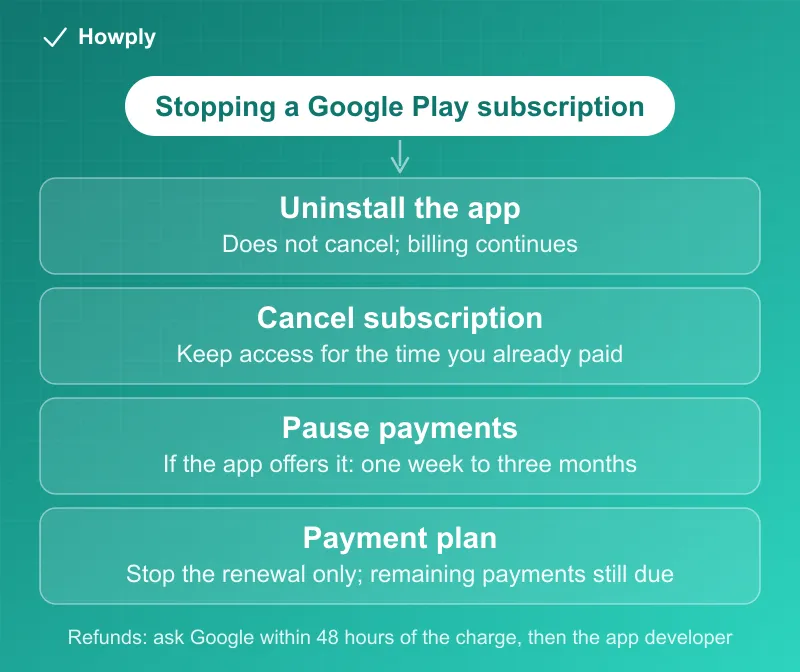
- Uninstalling does not cancel. “When you uninstall the app, your subscription won’t cancel”
- Cancel at: the Subscriptions page in Google Play > the subscription > Cancel subscription, signed in to “the Google Account that has your subscriptions”
- You keep what you paid for: “When you cancel a subscription you’ll still be able to use your subscription for the time you’ve already paid”
- Some apps let you pause instead, for “one week to three months,” starting at the end of the current billing period
- Payment plans are the exception: once a plan is charged, “you can’t cancel any remaining payments”; you can only stop it from renewing
- Refunds are narrow: “Google doesn’t give refunds for most Google Play purchases.” Within 48 hours you can ask Google; after that, the app’s developer decides
- Can’t find it? “it may be on a different account,” so check every Google Account you use
Key facts at a glance
| Question | Answer |
|---|---|
| Does uninstalling cancel? | No |
| Where to cancel | Google Play > Subscriptions > the subscription > Cancel subscription |
| Access after canceling | For the time you already paid |
| Pause | Only if the app offers it; one week to three months |
| Payment plans | Remaining payments can’t be canceled; you can stop the renewal |
| Prepaid plans | Expire on their own; unused ones can be refunded |
| Refund window | Within 48 hours: request from Google. After: ask the developer |
| Refund decision | Usually within one day, up to four days |
| Charge you didn’t make | Report it within 120 days |
| Renewal hold | An authorization hold can appear up to 48 hours before renewal |
How to cancel
Make sure you are signed in to the Google Account that pays for the subscription, then:
On an Android phone or tablet:
- Open the Subscriptions page in Google Play
- Select the subscription you want to cancel
- Tap Cancel subscription
- Follow the instructions to confirm
On a computer:
- Go to the same Subscriptions page at play.google.com
- Next to the subscription, click Manage
- Click Cancel subscription
- Choose a reason in the pop-up, then click Continue
One detail about deleted apps works in your favor: “If you have a subscription with an app and the app gets removed from Google Play, your future subscription will be canceled.” Payments already made are not refunded in that case, apart from the exceptions in Google’s refund policies. On an iPhone, subscriptions billed by Apple cancel in Settings instead, covered in our guide to canceling a subscription on iPhone.
What happens after you cancel
You keep access for the period you paid. Google’s own example: buy a one-year subscription on January 1 for $10, cancel on July 1, and “you’ll have access to the subscription until December 31,” with no charge the next January 1.
Three special cases:
- Prepaid plans “last for a limited time, so you don’t need to cancel them. They automatically expire at the end of the billing period.” If a prepaid plan hasn’t been used, you can request a refund for it
- Play Pass: apps you installed through it stay on your device, but paid apps prompt you to buy or resubscribe, in-app purchases unlocked by Play Pass are removed, and ads come back
- Changing your mind: you can tap Resubscribe on the Subscriptions page, though “some subscriptions may not be available to resubscribe”
Pause instead, if the app allows it
“Some apps let you pause your subscription,” and the pause “pauses at the end of your current billing period.” The length depends on the app, from one week to three months. To set it up, open the subscription on the Subscriptions page, choose Manage > Pause payments, pick the period, and confirm. You can resume at any time from the same page. If you do not see the pause option, that app does not offer it, and canceling is the way to stop billing. How pausing compares across services is in our guide to pausing instead of canceling.
The payment-plan catch
Some subscriptions are bought as a payment plan: a commitment to several payments. For those, “once your payment method is charged for a payment plan, you can’t cancel any remaining payments for that payment plan.” What you can do is stop the plan from auto-renewing, which means no charge at the next renewal date and access until then, but “you’ll still be responsible for any remaining payments on your current payment plan.” If you are not sure whether you are on one, the Subscriptions page and your email receipt show the renewal date and terms.
Timing: holds and declined cards
- A hold can come early. “An authorization hold may be placed on your form of payment up to 48 hours prior to the beginning of the next renewal period.” If you do not want even a temporary hold on your card, cancel at least two days before the renewal date
- A declined card may end the subscription, but do not count on it. Google says a subscription “may be cancelled” when the payment method is declined or short of funds. Canceling on the Subscriptions page is the only step that reliably stops the next charge
To decode a GOOGLE * line on your statement, including a temporary hold, see our GOOGLE * charge guide.
Refunds: the 48-hour line
Google’s refund policy for apps and subscriptions starts with “Google doesn’t give refunds for most Google Play purchases,” then draws one line:
- Within 48 hours of the purchase: “You may be able to get a refund depending on the details of the purchase.” Request it from Google
- After 48 hours: “Contact the developer to troubleshoot and find out if you can get a refund.” Most Play apps are made by third-party developers, who process refunds under their own policies
To request a refund from Google on the web: at play.google.com, click your profile picture > Payments & subscriptions > Budget & order history, then Report a problem next to the order, pick the option that fits, note that you want a refund, and submit. “You’ll usually get a decision within one day but it can take up to four days,” and repeat requests do not speed it up. If a refund is approved and the money is slow to arrive, our guide to a Google Play refund that hasn’t shown up covers the timelines.
A charge you did not make is a different process: report an unauthorized charge within 120 days of the transaction. If a friend or family member made it with your account by accident, Google says to request a refund instead.
Quick answers to what people search
Does deleting an app cancel the subscription on Android? No. “When you uninstall the app, your subscription won’t cancel.” Cancel on the Subscriptions page in Google Play.
If I cancel, do I lose access right away? No. You keep the subscription “for the time you’ve already paid,” to the end of the current period.
Can I get my money back after canceling? Only in limited cases. Within 48 hours of the charge you can request a refund from Google; after that, ask the developer. Canceling on its own does not refund the current period.
Why can’t I find my subscription in Google Play? Most often it is on another Google Account: “If you can’t find your subscription, it may be on a different account.” Switch accounts and check each one. If it is in none of them, Google Play is not the one billing you; check your card statement for the company’s name, and see our guide to finding all your subscriptions.
Can I stop the rest of a payment plan? No. You can stop the renewal, but the remaining payments on the current plan are still due.
How do I restart a subscription I canceled? On the Subscriptions page, tap Resubscribe. If that option is missing, set the subscription up again from the app.
Bottom line
Uninstalling an app never stops a Google Play subscription; the Subscriptions page does. Cancel there, signed in to the right Google Account, and you keep access to the end of the period you paid for. If the app offers a pause, it is the lighter option for a short break. Payment plans cannot be cut short, only stopped from renewing. And if you want money back, move fast: Google handles refund requests within 48 hours of the purchase, and after that the developer decides.
Cancel, pause, payment-plan, prepaid-plan, and refund rules verified against the Google Play Help Center articles linked above on September 27, 2026, in both the Android and computer versions of the subscription page. If Google changes the process, this guide will be updated with the revision noted.