How to Cancel Hinge+ or HingeX, and When Deleting Your Account Does It
Cancel where you paid: App Store, Google Play, or Hinge payment. Deleting the app never cancels; deleting the account does, but only on Hinge payment. Refund rules.
Hinge has one rule that trips up almost everyone who leaves: whether deleting your account cancels your subscription depends on how you paid. On the App Store or Google Play, it does not, and the charges keep coming. On Hinge’s own checkout, it does, immediately, and whatever time you had left is gone. Hinge’s cancel page spells out both, along with the 24-hour renewal deadline and a little-known right to a full refund in twelve states. Here is how to tell which checkout you used, the steps for each, and what to do before you delete anything.
The quick answer
- Cancel where you paid. iPhone users pay either through the App Store or through Hinge payment (powered by Stripe); Android users pay through Google Play
- App Store: iPhone Settings > your name > Subscriptions > Hinge > Cancel Subscription. Google Play: Play Store Subscriptions > Hinge > Cancel Subscription. Hinge payment: Hinge app > Gear icon > Cancel Subscription
- Deadline: “Subscriptions renew automatically unless canceled at least 24 hours before the next billing period”
- Deleting the app never cancels. Deleting the account cancels only a Hinge payment subscription, and then “you will permanently lose access to any remaining subscription benefits”
- Pausing your profile does not pause billing: “Pausing your account will not pause your subscription”
- Refunds: most purchases are nonrefundable and Roses and Boosts are final; subscriptions bought in the last 14 days go to Apple, Google, or Hinge depending on the checkout. In twelve states you can get a full refund within 3 business days of subscribing
Key facts at a glance
| Question | App Store (iPhone) | Google Play (Android) | Hinge payment (Stripe, iPhone) |
|---|---|---|---|
| Where to cancel | Settings > your name > Subscriptions > Hinge | Play Store > Subscriptions > Hinge | Hinge app > Gear icon > Cancel Subscription |
| Deleting the app cancels? | No | No | No |
| Deleting the account cancels? | No | No | Yes, immediately, remaining time lost |
| Refund within 14 days | Apple decides | Google decides | Ask Hinge Support |
| 3-day right to cancel (12 states) | Through Apple | Written notice to Hinge | Written notice to Hinge |
| Question | Answer |
|---|---|
| Renewal deadline | Cancel at least 24 hours before the next billing period |
| Renewal charge | ”within 24 hours of the current period ending” |
| Pause your profile | Hides you from new people; billing continues |
| Downgrade HingeX to Hinge+ | Cancel HingeX first, then subscribe to Hinge+ |
| Roses and Boosts | Final and nonrefundable |
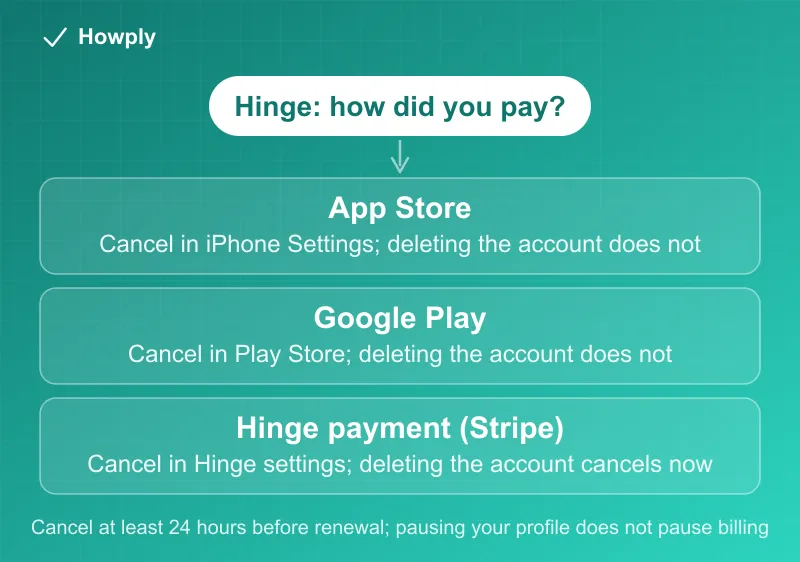
Step 1: which checkout did you use?
Per Hinge’s subscription page, iPhone users see two options when they subscribe: “Hinge payment (powered by Stripe),” where “your payment will be processed securely through Hinge,” and “Subscribe with App Store,” where Apple charges the card on your Apple ID. On Android, “your payment will be processed through Google Play.” Hinge payment is “currently limited to the US.”
The quickest check on an iPhone: open Settings > your name > Subscriptions. If Hinge is listed there, Apple bills you. If it is not, and you subscribed on that phone, you are most likely on Hinge payment.
Step 2: cancel on that channel
App Store (Apple ID):
- Open the Subscriptions page in iPhone Settings (Settings > your name > Subscriptions)
- Tap Hinge
- Tap Cancel Subscription
If Hinge is missing from the list, our guide to canceling a subscription on iPhone covers the other accounts and billers it could be on.
Google Play:
- Open the Subscriptions page in the Google Play Store
- Tap Hinge
- Tap Cancel Subscription and follow the instructions
What Google allows after that, including access for the time already paid, is in our Google Play cancel guide.
Hinge payment (Stripe):
- Open the Hinge app
- Tap the Gear icon to open Account Settings
- Tap Cancel Subscription and follow the prompts
No longer have the app? Hinge says you can cancel “by following the steps provided through Stripe,” and to “use the email address where you receive Hinge Subscription emails, even if it’s different from the email linked to your Hinge account.”
The deadline: 24 hours before renewal
Hinge bills weekly, monthly, three-month, and six-month plans, and every one renews on its own. The rule is the same on all three checkouts: cancel “at least 24 hours before your renewal date to avoid charges,” which Hinge says “is required by Apple, Google, and Hinge payment (powered by Stripe) and cannot be changed.” The renewal itself is charged “within 24 hours of the current period ending,” so a cancellation on the last day can miss it. You can see your renewal date in Hinge under the Gear icon > Subscription.
Deleting, uninstalling, and pausing: what each really does
- Uninstalling the app cancels nothing on any checkout, and it does not delete your account either: “Uninstalling the app won’t delete your account”
- Deleting the account with an App Store or Google Play subscription: “Deleting the Hinge app or your account does NOT cancel your subscription.” Cancel with Apple or Google first
- Deleting the account with a Hinge payment subscription: “Deleting your Hinge account DOES immediately cancel your subscription.” You lose the rest of the paid period, and if you “create a new Hinge account during the original subscription period, you will not be able to reaccess your subscription benefits.” If you have weeks left, cancel the renewal and delete the account after the period ends
- Pausing your profile hides you from new people while you keep chatting with matches, but “Pausing your account will not pause your subscription”
Tinder handles this differently: deleting a Tinder account never cancels a subscription on any checkout, as our Tinder cancel guide explains. Bumble’s rules, including Snooze Mode, are in our Bumble cancel guide. Match’s rules differ again, starting with a free trial that ends the moment you cancel (Match cancel guide).
The account deletion steps, once billing is handled: tap your Photo icon, then the Gear icon, scroll to the bottom, and tap Delete Account (Hinge’s deletion page).
Refunds
Hinge’s refund page starts with “Most purchases are nonrefundable, but some exceptions may apply,” and “Any purchase of virtual items, such as a Rose or Boost, are final and nonrefundable.” For a subscription bought in the last 14 days:
- Google Play: “Google manages refund requests for purchases made through Google Play,” through Google’s refund page
- App Store: “Hinge cannot issue refunds for iOS purchases, these are handled directly by Apple.” Our Apple refund guide covers the request at reportaproblem.apple.com
- Hinge payment: “If you purchased a subscription in the last 14 days, contact our Support Team with your refund request”
The 3-day right to cancel in twelve states
Hinge lists a special case: “If you live in one of the following states, you can request a full refund within 3 business days of subscribing.” The states are Arizona, California, Colorado, Connecticut, Illinois, Iowa, Minnesota, New York, North Carolina, Ohio, Rhode Island, and Wisconsin.
- App Store subscribers still go through Apple
- Hinge payment or Android subscribers: “Requests must be submitted in writing.” Mail or deliver “a signed and dated notice stating you are canceling your subscription,” with the email or phone number on your Hinge account and your order number, to Hinge, Attn: Cancellations, P.O. Box 25472, Dallas, Texas 75225. California and Ohio residents may also email hello@hinge.co or fax (972) 892-9570
Three business days is short, so if you regret a subscription the day you bought it, send the notice right away.
Downgrading or upgrading instead
- HingeX to Hinge+: there is no direct downgrade. “You’ll need to cancel your HingeX subscription first, then subscribe to Hinge+”
- Hinge+ to HingeX: the new subscription “will start immediately.” On the App Store, “Apple will automatically issue a prorated refund for any remaining Hinge+ time”; on Hinge payment, the unused time becomes a credit toward HingeX; on Android, remaining time is credited to the new subscription
- Changing the plan length (weekly to monthly, say) also takes a cancel and a new subscription at the length you want
Quick answers to what people search
Does deleting Hinge cancel my subscription? Deleting the app never does. Deleting the account does only if you paid with Hinge payment, and then it cancels immediately and forfeits the remaining time. App Store and Google Play subscriptions keep renewing until you cancel them there.
I paused my Hinge profile. Am I still being charged? Yes. “Pausing your account will not pause your subscription.”
How do I cancel Hinge without the app? App Store: iPhone Settings > your name > Subscriptions. Google Play: the Play Store’s Subscriptions page. Hinge payment: follow Stripe’s cancellation steps, using the email where your Hinge subscription emails arrive.
Can I get a refund on Hinge? For a subscription bought in the last 14 days, ask whoever billed you: Apple, Google, or Hinge Support for Hinge payment. In the twelve listed states, a written request within 3 business days of subscribing gets a full refund. Roses and Boosts are never refunded.
When do I have to cancel to avoid the next charge? At least 24 hours before the renewal date; the renewal is charged within the last 24 hours of the period.
Bottom line
Find your checkout first: Hinge in your iPhone Subscriptions list means Apple, an Android phone means Google Play, and anything else on an iPhone is most likely Hinge payment. Cancel there at least 24 hours before renewal. Never count on deleting the app, and only delete the account after canceling, because on Hinge payment deletion ends your paid time on the spot, while on Apple and Google it does not stop the billing at all. If you just subscribed and live in one of the twelve right-to-cancel states, a written notice within 3 business days gets a full refund.
Cancel, deletion, pause, refund, and right-to-cancel details verified against Hinge’s Help Center articles linked above on September 28, 2026. If Hinge changes the process, this guide will be updated with the revision noted.