How to Cancel Canva Pro: Billing Page Steps, 3-Month Pause, Refund Rules
Canva-billed plans cancel from Settings > Billing; app-store plans cancel in Google Play or the App Store. Why refunds are rare, the 3-month pause, and the Teams trap.
Canceling Canva takes under a minute once you know who bills you. Canva’s help center splits the instructions three ways, Canva itself, Google Play, or the Apple App Store, and warns that a plan bought in an app store cannot be canceled from inside Canva at all. Two other things in those articles matter more than the clicks: Canva says refunds are rarely granted, and canceling a Canva Teams plan is permanent. Here is the full picture from Canva’s own pages.
The quick answer
- Billed by Canva: profile menu > Settings > Billing > Cancel plan > Continue cancellation, pick a reason, then Cancel subscription. A confirmation email follows.
- Billed by Google Play: Play Store > profile > Payments & subscriptions > Subscriptions > Canva > Cancel subscription.
- Billed by Apple: Settings > your name > Subscriptions > Canva > Cancel Subscription.
- Who can cancel: someone signed in to the account or team that holds the plan. Canva’s first step is “Make sure to log in to the right Canva account or team,” and its troubleshooting list names “You’re not in the team with the subscription.” as a reason the cancel option is missing
- What you keep: paid features until the end of the current billing period, then every design on Canva Free.
- Refunds: rarely. Canva reviews each request but says most subscriptions are not refundable.
- Alternative: pause Canva Pro, Teams, or Business for up to 3 months at no charge.
Key facts at a glance
| Question | Answer |
|---|---|
| Find who bills you | Check the billing email or the bank statement: Canva, Google, Apple, or PayPal |
| Canva-billed cancel path | Settings > Billing > Cancel plan |
| App-store plans | Cancel in Google Play or the App Store; the Canva app cannot do it |
| Does uninstalling cancel? | No; Canva says so explicitly for mobile subscriptions |
| Access after canceling | Paid features until the billing period ends; designs stay on Canva Free |
| Pause option | Up to 3 months for Pro, Teams, or Business; no charge; auto-resumes with an email reminder |
| Undo a cancellation | Billing page > Stay on Canva Pro (or Teams, Business, Pro Lite) while the plan is still active |
| Refund likelihood | Rare; every request is reviewed |
| Refund timing if approved | Credit cards 5 to 10 business days; PayPal 3 to 5; other methods up to 20 |
| Canva Teams | Canceling is permanent; you cannot resubscribe to Teams |
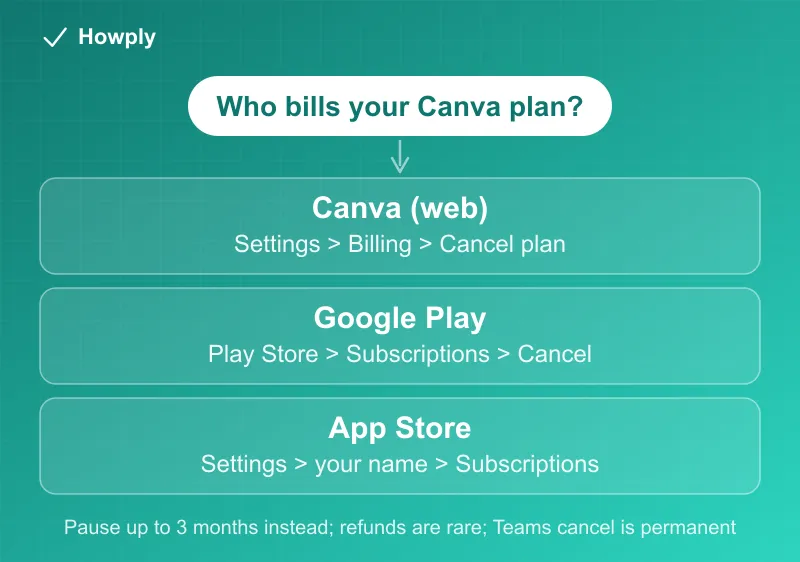
Step 1: Find out who bills you
Canva’s cancel article starts here: look at your billing email or bank statement to see whether the charge comes from Canva, Google, Apple, or PayPal, and follow the path for that platform. This matters because an App Store or Google Play subscription does not show a cancel option inside Canva. Canva’s troubleshooting list for “I can’t cancel my subscription” names exactly three causes: wrong Canva account, wrong team, or a subscription bought through Google Play or the App Store.
Step 2: Cancel on the right platform
Canva-billed plans (desktop or web). Log in to the account or team that holds the plan. From the homepage, open your account profile menu, select Settings, go to Billing, then on your plan select Cancel plan. Select Continue cancellation, choose a reason, select Continue cancellation again, optionally leave feedback, then select Cancel subscription. Canva sends a confirmation email; keep it, because its absence is one of Canva’s listed reasons a plan keeps billing.
Google Play. On the Android device, open the Play Store, tap your profile icon, tap Payments & subscriptions, then Subscriptions, find Canva, and tap Cancel subscription. If Canva is missing from the list, Canva suggests you may be signed in to a different Google account. Our Google Play subscription guide covers that screen in more detail.
App Store. On the iPhone or iPad, open Settings, tap your name, tap Subscriptions, tap Canva, then Cancel Subscription. Canva’s warning for both stores: “For mobile subscriptions, uninstalling the app doesn’t cancel your plan.” The same screen is covered in our iPhone subscription cancel guide.
Changed your mind? While the plan is still active after a cancellation request, the Billing page shows a Stay on Canva Pro, Canva Teams, Canva Business, or Canva Pro Lite option.
What happens after you cancel
Canva’s FAQ puts it in one line: “Cancelling stops future payments.” Paid features remain until the end of the current billing period. After that, all designs stay accessible on Canva Free, the account stays active, and Affinity remains free with the Canva account.
For a Teams or Business plan, members lose paid features at the end of the period, designs, Brand Kit content, and shared folders are kept on Canva Free, the workspace moves to the free plan, and the team admin stays the owner. Then the sentence that should stop you before clicking: “Cancelling Canva Teams is permanent.” Canva says you cannot resubscribe to Teams afterward and suggests switching to Canva Business instead if a team plan might be needed later.
Consider the pause first
Canva’s own advice at the top of the cancel article is to consider pausing. Canva Pro, Teams, and Business plans can be paused for up to 3 months, with no charges during the pause, and the plan resumes automatically after an email reminder. For a seasonal project gap, that keeps your Brand Kit and paid templates intact. Our general guide on pausing instead of canceling explains when a pause beats a clean break.
The refund reality
Canva’s refund article is unusually direct: in most cases subscriptions are not refundable under the Terms of Use. Then: “That said, we review every refund request. We sometimes help depending on the situation.” A declined request means Canva judged it ineligible after review. If a refund is approved, timing depends on the payment method: 5 to 10 business days for credit cards, 3 to 5 for PayPal, up to 20 for other methods, and up to 30 for eBanx. Subscriptions bought through Apple are refunded by Apple only; Canva cannot process those. Canceling itself stops future charges and keeps premium features until the period ends.
Still being charged?
Canva lists three causes: you have more than one Canva account and canceled only one, you subscribed through Google Play or the App Store, or the cancellation never went through. Its fixes: search your inbox for Canva billing emails to find a second account, cancel through the app store if that is the biller, and look for the confirmation email; if there is none, cancel again. One more detail from the same article explains a lot of mystery charges: “Some banks may keep recurring subscriptions active, even if the physical card is canceled or expired.” Card-updater services exist precisely to keep subscriptions going, so a dead card is not a cancellation. If the charge persists, our canceled-but-still-charged guide covers the paper trail, and the cannot-log-in guide helps when the account holding the plan is one you can no longer open.
Bottom line
Check who bills you, then cancel there: Canva’s Billing page, the Play Store, or iPhone Settings. Sign in to the account or team that holds the plan, expect a confirmation email, and remember that uninstalling the app does nothing. You keep paid features to the end of the period and every design after that. Do not expect a refund, do not cancel Canva Teams unless you are sure, and if the break is temporary, Canva’s free 3-month pause is the better button.
Steps verified against Canva’s official Help Center articles on October 12, 2026. On October 25, 2026 the cancel article no longer stated that only owners and admins can cancel, so that line was replaced with the article’s current sign-in guidance. Both articles were rechecked as of October 31, 2026 with no further change. If the process changes, this guide will be updated with the revision noted.