How to Cancel Xbox Game Pass (and When You Can Get a Refund)
Xbox Game Pass cancels from your Microsoft account page or the console, and refund rules depend on your country. Here are the exact steps and what to check first.
Canceling Xbox Game Pass is quick once you know where Microsoft hides the button, and there is one detail worth checking before you do anything: whether your subscription is even set to renew. Here is the exact path on the web and on the console, what happens to your access, and how Microsoft’s refund rules actually work.
The quick answer
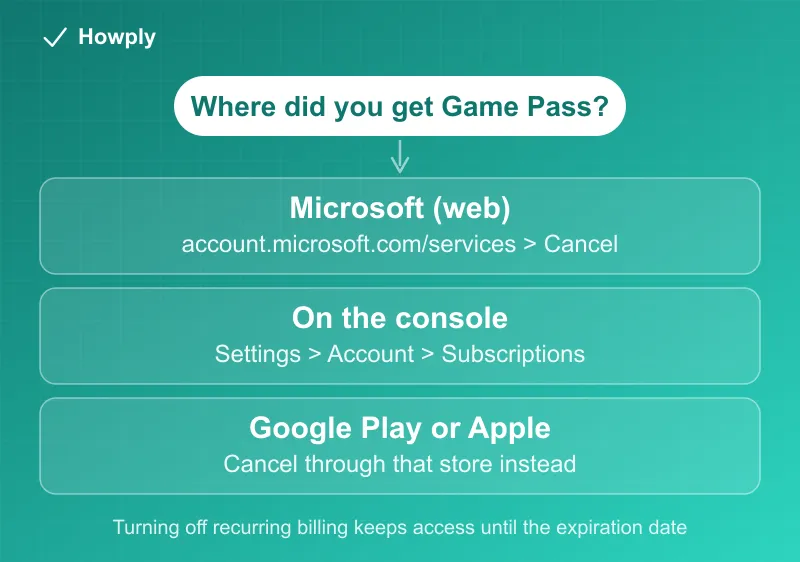
- On the web: sign in at account.microsoft.com/services > find Game Pass > Manage > Cancel, then follow the prompts
- On the console: the cancel option lives under Settings > Account > Subscriptions
- See “Turn on recurring billing” instead of Manage? Your subscription is already set to expire on the date shown; no further charges, nothing to do
- Access: turning off recurring billing keeps your benefits until the expiration date
- Bought through Google Play or Apple? Cancel through that store, not Microsoft
- Refunds: a fresh renewal can be refunded if you cancel within 30 days of the charge, one time per account per product, in any country. Prorated refunds beyond that exist only in listed countries (not the US)
- Your saves are safe: game progress lives in the cloud and survives cancellation, per Microsoft’s FAQ
Key facts at a glance
| Question | Answer |
|---|---|
| Where to cancel (web) | account.microsoft.com/services > Game Pass > Manage > Cancel |
| Where to cancel (console) | Settings > Account > Subscriptions |
| ”Turn on recurring billing” showing? | Already set to expire on the date shown; you will not be charged again |
| When it takes effect | Benefits continue until the subscription’s expiration date |
| Refund on a fresh renewal | Cancel within 30 days of the charge; one time per account per product |
| Refund on a new subscription | Within 30 days of purchase or before the first renewal, whichever is sooner |
| Prorated refunds | Only in listed countries (Canada, France, Korea, and others); not the US |
| Game saves after cancel | Kept; progress is always saved to the cloud |
| Bought via Google Play or Apple | Cancel and request refunds through that store instead |
Method 1: Cancel on the web
- Go to account.microsoft.com/services and sign in with the Microsoft account that pays for Game Pass (households often have more than one account; the buyer’s account is the only one that can cancel)
- Find your Game Pass subscription in the list and select Manage
- On the next page, select Cancel (Microsoft sometimes labels it Upgrade or Cancel)
- Scroll through the prompts and confirm the cancellation
- Save the confirmation email and note your expiration date
One important branch: if the page shows Turn on recurring billing instead of a Manage link, your subscription is already scheduled to end on the date displayed. You will not be charged again, and you keep playing until that date. There is nothing further to cancel.
Method 2: Cancel on the console
Microsoft’s support documentation also covers canceling directly on an Xbox: open Settings, then Account, then Subscriptions, select your Game Pass subscription, and follow the prompts to manage or cancel it. The result is the same as the web path.
Bought Game Pass through an app store?
If you subscribed through Google Play or the Apple App Store (for example via the Xbox app on mobile), Microsoft does not control that billing. Cancel and handle refunds through the store you purchased from: Google Play’s subscription settings or Apple’s subscription settings on your device.
The refund rights Microsoft actually grants
This is the part most cancellation guides get wrong, because the official policy grants more than people assume. Three layers, from most to least universal:
- New subscription: you can get a refund within 30 days of the initial purchase, or before your first recurring billing date, whichever comes sooner, by canceling through the normal flow
- A renewal you did not want: you are “entitled to a refund of your most recent recurring billing charge” if you cancel within 30 days after the payment. The catch that matters: this right is one time per Microsoft account, per subscription product. Spend it on a real mistake, not on a charge you would have shrugged off
- Prorated-refund countries: Canada, Denmark, France, Israel, Korea, and Türkiye get a prorated refund of the last charge on immediate cancellation; Finland, Germany, the Netherlands, Poland, and Portugal get it for terms longer than one month. The US is not on this list, so US subscribers rely on layers 1 and 2
Two boundary rules from the same page: refund requests made outside the cancellation flow are not eligible, so do not cancel first and ask separately later. And prepaid retail code subscriptions follow the retailer’s return policy, not Microsoft’s. For refunds on games rather than subscriptions, the desk and the rules are different: see our Xbox refund guide.
What actually survives cancellation
The fear behind most hesitation is losing progress, and the official FAQ answer is better than expected:
- Saves survive everything. Microsoft’s own wording: “Your game progress is always saved to the cloud.” Resubscribe later, buy the game, or play on another console, and you pick up where you left off
- Anything you bought stays yours: games purchased outright, plus add-ons and DLC, even if the base game later leaves the catalog
- What you lose is access to the catalog itself, and on Ultimate the extras: cloud gaming, perks, and the included EA Play
- The buy-before-you-go discount: subscribers get member discounts on catalog games, and the size follows the game’s age; per the FAQ, no discount in the first month after release, a small one in months 2 and 3, and a larger one after 3 months. If one catalog game is the reason you stayed, buying it at the member price on the way out is often cheaper than one more renewal
Charged after you canceled?
Microsoft’s FAQ lists exactly four causes, worth checking in order: the cancellation did not process in time (you canceled too close to the billing date), you canceled the next renewal rather than the current term (that charge was already agreed), a second subscription exists on another Microsoft account in the household, or a previously failed payment was retried. The FAQ also notes most such refund requests must come within 14 days of the charge without significant use. If none of the four fits, the escalation path is the one in our canceled but still being charged guide.
Downgrading instead, and the conversion trap
If the problem is price rather than the service, two facts before you cancel outright:
- Plans can be changed, not just ended, from the same subscriptions page (Ultimate down to a cheaper tier keeps the library basics at a lower bill). Note that in April 2026 Microsoft lowered Ultimate and PC Game Pass prices in select regions, applying from each subscriber’s next renewal after April 22, so check your next-charge amount before canceling over cost
- Prepaid time converts with hard caps: upgrading applies existing prepaid time up to 13 months on Premium and 36 months on Ultimate, anything beyond the cap is not credited, and the FAQ warns conversion is “final and non-refundable” with ratios that can change. Do not stack redeem codes right before an upgrade
Bottom line
Cancel at account.microsoft.com/services with the account that pays, or on the console under Settings > Account > Subscriptions. Your cloud saves and purchases survive regardless. If an unwanted renewal just landed, you likely hold a one-time 30-day refund right on it even in the US; use the cancellation flow itself to claim it, and check the member discount on any catalog game you cannot let go before the clock runs out. On the Sony side, the web, PS5, and PS4 steps are in our PlayStation Plus cancel guide.
Steps, refund rights, and FAQ details verified against Xbox Support’s official cancellation and Game Pass FAQ pages as of August 9, 2026. If the process changes, this guide will be updated with the revision noted.