APPLE.COM/BILL on Your Statement: What It Is and How to Find the Purchase
APPLE.COM/BILL is Apple billing for an app, subscription, or media buy. Match the amount at reportaproblem.apple.com, see why one charge bundles several, fix each cause.
A line reading APPLE.COM/BILL (sometimes with a phone number after it) is Apple’s billing name for everything sold through its stores: apps, in-app purchases, subscriptions, music, movies, iCloud storage, and Apple’s own services. The name never tells you which of those it was, and the amount often does not match any single price you remember, because Apple can roll several purchases into one charge. Here is the two-minute way to put a name on the charge, the four reasons it looks wrong, and the fix for each.
The quick answer
- APPLE.COM/BILL = an Apple media or services purchase, per Apple’s official page: apps, subscriptions, music, movies, and more
- Match it in one place: sign in at reportaproblem.apple.com and search for the dollar amount. Apple’s own instruction for “not sure what you were charged for” is exactly that
- One charge can bundle several purchases, and it can post a few days after the purchase, which is why the amount and date rarely line up with a single receipt
- Family Sharing organizer? Tap the Apple Account button and pick a family member; their purchases on your shared payment method appear
- Still cannot find it: check your other Apple Accounts, then the App Store app’s Purchase History (filter beyond “Last 90 days”), then treat it as unauthorized
Key facts at a glance
| Question | Answer |
|---|---|
| What is APPLE.COM/BILL | Apple’s billing descriptor for App Store, subscriptions, iTunes, iCloud, and Apple services |
| Fastest lookup | reportaproblem.apple.com > search the amount |
| Why the amount looks unfamiliar | Several purchases and subscriptions can be grouped into one bill |
| Why the date is off | Charges can appear a few days after the purchase |
| Family purchases | Organizer: Apple Account button > choose the family member |
| Older than 90 days | App Store app > Purchase History > change the “Last 90 days” filter |
| Not yours after all | Change your Apple Account password, then request a refund |
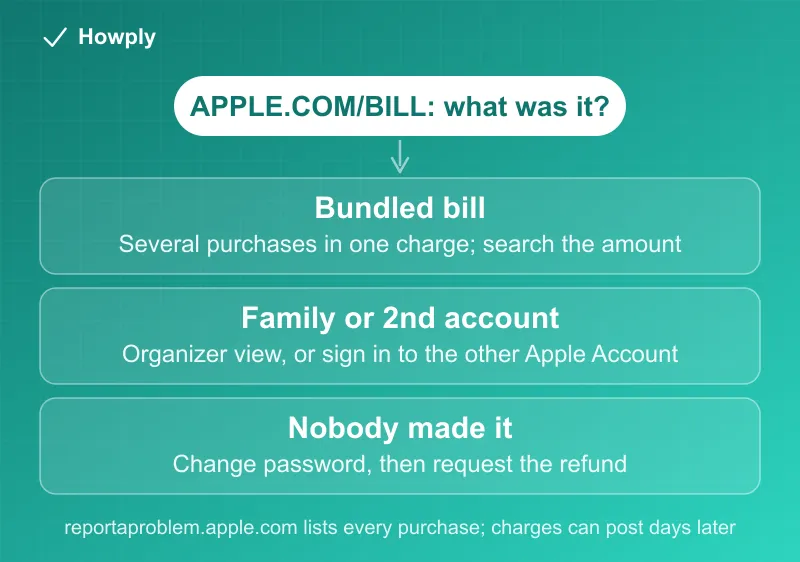
Step 1: search the amount at reportaproblem.apple.com
Apple’s purchase-history page gives one instruction that solves most cases: sign in at reportaproblem.apple.com with your Apple Account, and if you are not sure what you were charged for but know the amount, search for the amount. Every purchase and subscription renewal made with that account is listed, with the item name, date, and what it cost.
A single row from a signed-in account looks like this. For a subscription, the renewal date under the item name tells you at a glance that the charge will come back:

If the amount does not appear as a single line, do not conclude it is not yours yet; the next section explains why.
Why the amount and date do not match anything
Two Apple behaviors, both stated on its own pages, cause most of the confusion:
- Bundling. Multiple purchases and subscriptions might be grouped into one bill, depending on how they were billed. A $14.98 charge could be a $9.99 subscription and a $4.99 in-app purchase from the same few days. Add up recent small items in your history and the mystery number often appears
- Delay. Charges can appear on your statement a few days after the purchases were made, so a charge dated Tuesday may be Saturday’s purchase
The Apple refund not received guide covers the mirror-image problem, where money is coming back on a delay.
Step 2: check the other places the purchase can hide
If the amount search comes up empty, work these in order, all drawn from Apple’s own list:
- A family member’s purchase. With Family Sharing and Purchase Sharing on, the organizer’s card pays for everyone. Tap or click the Apple Account button on reportaproblem.apple.com and choose a family member to see their purchases. If a child made it, our kid-purchase refund guide covers the organizer refund route
- A different Apple Account. If you have more than one, sign in with the other one and recheck. Search your email for “receipt from Apple” or “invoice from Apple” to see which account a receipt names
- Older than 90 days. In the App Store app (Sign-In button or your photo > Purchase History), the view defaults to the last 90 days; change the filter to reach further back
- A suspicious email, not a real charge. If you are reacting to an email “receipt” rather than a line on your bank statement, Apple warns it may not be from Apple at all. Confirm on the statement and in your real purchase history before doing anything the email asks
If the statement line starts with GOOGLE * instead of APPLE.COM/BILL, it is a Google charge, not an Apple one; our GOOGLE * charge guide shows how to match the name to a product and an order.
Step 3: fix it, by cause
- It is a subscription you forgot. Cancel it so the next cycle does not land: the Apple TV cancellation guide shows the shared Subscriptions screen where any Apple-billed subscription is canceled, and our iPhone cancel guide covers the cases where a subscription is not listed. Then request a refund for the charge itself if you want to try; Apple decides case by case
- It is a real purchase you want returned. File through the same site with I’d like to > Request a refund; the full flow and what Apple’s policy actually promises are in the App Store refund guide
- Someone else in the household made it. Ask first, then, per Apple, consider requiring a password for every purchase on shared devices
- Nobody you know made it. Apple’s instruction is direct: if someone else is using your Apple Account and password, change your password. Then request the refund on the unrecognized items and, if Apple declines a genuinely unauthorized charge, the card dispute path in the bank dispute guide exists for exactly that
Bottom line
APPLE.COM/BILL is not a mystery vendor; it is Apple’s single billing name for everything it sells, and one line on your statement can be several purchases posted days later. Search the amount at reportaproblem.apple.com, then check family, second accounts, and the 90-day filter before deciding it is not yours. Cancel any subscription you find, request refunds through the same site, and change your password the moment the charge turns out to be nobody’s.
Verified against the official Apple Support pages linked above as of August 16, 2026. Apple’s billing descriptor and purchase-history screens can change; its pages are the source of truth.