Your Kid Bought Something: How to Get an Apple or Google Play Refund
A child charge on Apple or Google Play is refundable through two specific doors: the family organizer view on Apple and the family-member reason on Play. Then the lock.
A charge shows up from Apple or Google, you did not make it, and the most likely explanation is standing in the next room. Kid purchases are refundable more often than people expect, but the route is different from an ordinary refund: on Apple you file as the family organizer and switch the account view to see the child’s charges, and on Google Play the refund form has a specific answer for exactly this case. Here is each path, then the settings that stop the sequel.
The quick answer
- Apple, child in your Family Sharing group: as the organizer, sign in at reportaproblem.apple.com, tap the Apple Account button and choose All so purchases charged to your shared payment method appear, then request the refund on the child’s item. Apple’s official steps confirm the organizer can do this
- Apple, no Family Sharing: sign in with whichever Apple Account made the purchase; that is the only account that can request it
- Google Play: use the standard refund request and, when asked what happened, choose the option that a family member or friend made the purchase. Google’s refund page states you may be eligible for exactly this reason
- Then lock it: Apple Ask to Buy (on by default and not switchable off for under-18s in many regions) and Google Play purchase verification for every purchase
- Do not file it as fraud: fraud is for a stranger’s card use; a family purchase filed as fraud goes down the wrong lane
Key facts at a glance
| Question | Apple | Google Play |
|---|---|---|
| Who files | The family organizer, or the account that bought it | The account holder whose payment method was charged |
| Where | reportaproblem.apple.com > Apple Account > All | Play refund request; reason: family member or friend made it |
| Decision timing | 24 to 48 hours for an update | Varies by case; status in order history |
| The lock | Ask to Buy (Settings > Family > child > Ask to Buy) | Purchase verification for all purchases |
| Fraud lane | Only if the account itself was compromised | Only for a charge nobody in your household made |
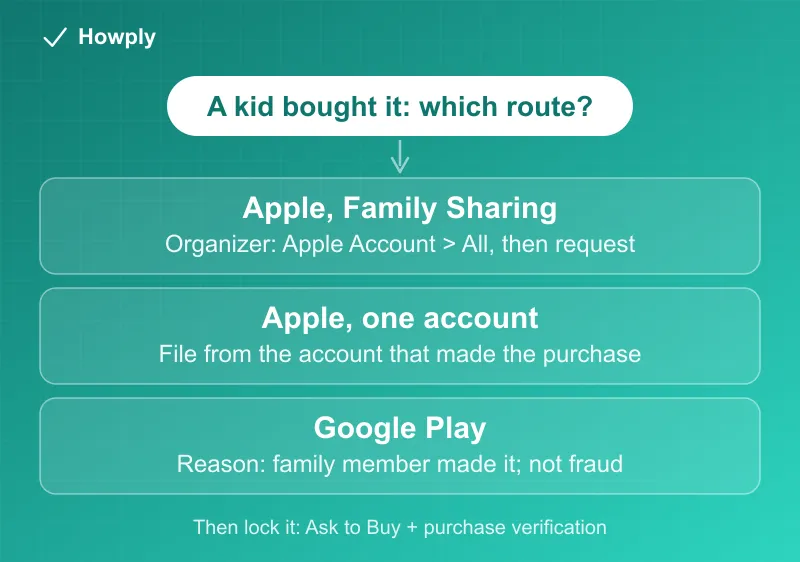
Route 1: Apple, with Family Sharing
Apple’s refund page has one sentence that most parents never see: if the receipt is for a member of your Family Sharing group and you are the family organizer, you can request the refund yourself. The catch is that reportaproblem.apple.com opens on your own purchases, so the child’s charges are invisible until you change the view:
- Sign in at reportaproblem.apple.com with the organizer’s Apple Account
- Tap or click the Apple Account button and choose All. Purchases charged to your shared payment method, including the child’s, now appear
- Choose I’d like to > Request a refund, pick the reason, then the item, and submit
- Wait 24 to 48 hours for the status update; approved funds take additional time to reach your payment method
Apple decides case by case (purchases “might be eligible”), but a clearly described child purchase on a shared payment method is one of the stronger requests, especially the first time. If a subscription was started rather than a one-time item, cancel it as well; the refund does not stop the next renewal, and the Apple TV cancellation guide shows the shared Subscriptions screen where any Apple-billed subscription is canceled.
Route 2: Apple, no Family Sharing
Without Family Sharing there is no organizer role, so the request has to come from the account that made the purchase. If the child used your iPhone signed in as you, that is your account, and the standard flow applies. If the child has their own Apple Account outside a family group, sign in as that account. Apple’s page is explicit that a receipt for a different Apple Account has to be handled from that account, and if you cannot find the charge at all, the Apple refund not received guide walks through the receipt search that identifies which account bought it.
Route 3: Google Play
Google’s refund page carries an “Important” note for this exact scenario: if you suspect a family member or friend made the purchase, you may be eligible for a refund. Go through the standard Play refund request from the account whose payment method was charged and choose that reason when the form asks what happened. Two things to know:
- Google’s page draws a line between this and fraud. Fraud is for charges you truly do not recognize from anyone in your household, and it runs on a separate form with a 120-day window for card and PayPal transactions. Filing a kid’s purchase there is the wrong lane
- Google’s own purchase verification page states that when verification is turned off, “you assume responsibility for all charges including unintended or unauthorized purchases.” That sentence is why the settings section below is not optional if you want the second request to go as well as the first
If the money was for a subscription, the Google Play refund not received guide covers what happens after approval and where the funds land.
The lock, so it does not happen again
Apple: Ask to Buy. With Family Sharing, the organizer turns it on per child (Settings > Family > child’s name > Ask to Buy > Require Purchase Approval), and from then on the child sends a request for every app download and in-app purchase, regardless of the app’s age rating. Approving means you sign in and make the purchase yourself; declining means no purchase happens. Apple notes that in some regions Ask to Buy is on by default and cannot be turned off for a child under 18. Another adult in the group can be set as Parent/Guardian to approve requests too.
Google Play: purchase verification. In the Play Store, set verification to apply to all purchases through Google Play’s billing system, using your account password or biometrics. It is device-specific, so set it on every device a child touches, and if you run a Google family group, remember the family payment method is exactly what the kids can spend from.
When the answer is no
A denial on either platform is per request, not permanent, and the reason you chose on the form matters. If the platform declines and the purchase was a subscription, cancel it immediately so the loss stops at one cycle. For a charge the platform will not return, the general escalation, including the written bank dispute and its 60-day clock, is in the dispute with your bank guide, with the caveat that a dispute against your own family’s purchase is a hard case to win.
Bottom line
Kid charges are refundable through two specific doors: the family organizer view on Apple (Apple Account > All) and the family-member reason on Google Play. File it truthfully as a family purchase, not as fraud, cancel any subscription it started, and then turn on Ask to Buy and purchase verification, because the platforms are far more generous with the first request than with the third.
Steps verified against the official Apple and Google Play support pages linked above as of August 15, 2026. Refund decisions are case by case on both platforms; their pages are the source of truth.