How to Cancel Apple TV (Formerly Apple TV+) on Any Device
Apple TV+ is now just Apple TV, and canceling depends on how you subscribed. The exact web and iPhone steps, the Apple One catch, and how free trials convert.
Quick name note first: Apple dropped the plus, so what used to be Apple TV+ is now just Apple TV. Same service, same login, same cancellation flow. Here is exactly how to cancel on the web or your iPhone, plus the Apple One bundle catch and how free trials convert to paid.
The quick answer
- On the web: tv.apple.com > Sign In > account icon > Settings > Subscriptions > Manage > Cancel Subscription
- On iPhone/iPad: Settings > your name > Subscriptions > Apple TV > Cancel Subscription
- Billed through Google Play or Amazon: cancel through that platform instead
- Access: continues until the end of the current billing period
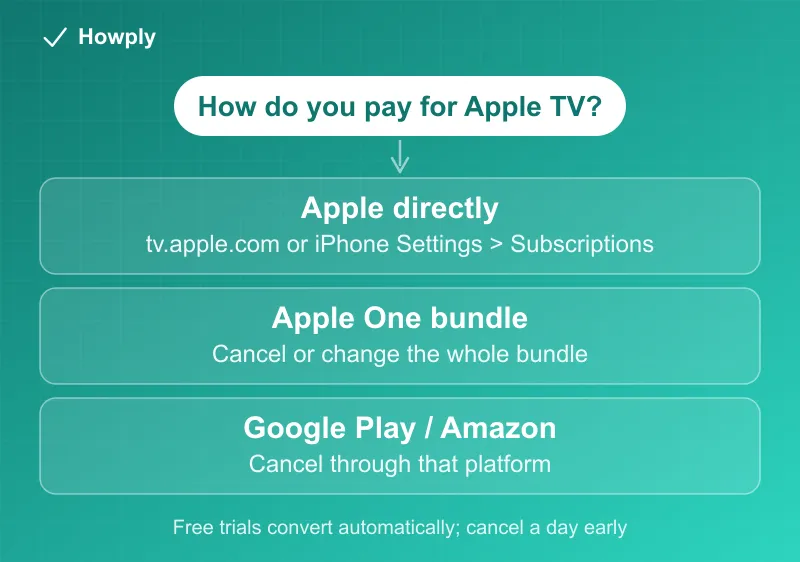
- On Apple One? Apple TV is bundled in; you cancel the whole bundle or downgrade, not Apple TV alone
Key facts at a glance
| Question | Answer |
|---|---|
| On the web | tv.apple.com > account icon > Settings > Subscriptions > Cancel Subscription |
| On iPhone or iPad | Settings > your name > Subscriptions > Apple TV > Cancel Subscription |
| Billed via Google Play or Amazon | Cancel through that platform, not Apple |
| When it takes effect | End of the current billing period; access continues until then |
| On Apple One | Cancel or change the whole bundle; there is no standalone Apple TV to cancel |
| Free trials | Convert to paid automatically; cancel before the trial ends to skip the first charge |
Method 1: Cancel on the web
- Go to tv.apple.com and choose Sign In
- Click the account icon at the top of the page, then Settings
- Scroll to Subscriptions and choose Manage
- Choose Cancel Subscription and confirm
- Look for the confirmation and note when your access ends
Method 2: Cancel on an iPhone or iPad
Since most Apple TV subscriptions are billed through your Apple Account, the fastest route is in device settings:
- Open Settings and tap your name at the top
- Tap Subscriptions
- Tap Apple TV, then Cancel Subscription
One diagnostic straight from Apple’s cancellation page: if there is no Cancel button, or you see an expiration date in red text, the subscription is already canceled and there is nothing left to do. If neither applies and you still cannot find it, the billing lives elsewhere (see below).
Canceling a channel is not canceling Apple TV
If you subscribed to Paramount+, Starz, or another Apple TV channel inside the Apple TV app, each channel is its own Apple subscription in the same list. Canceling Apple TV does not touch them, and they keep billing separately. The full inventory lives at tv.apple.com > account icon > Settings > Subscriptions > Manage (or Settings > Subscriptions on your iPhone), which shows every TV-related subscription in one place; cancel each one you no longer want individually.
Billed through Google Play or Amazon?
If you subscribed to Apple TV through an Android device or Amazon, Apple cannot stop that billing:
- Google Play: cancel in the Apple TV app on Android, or at play.google.com under Subscriptions
- Amazon: cancel through your Amazon account’s memberships and subscriptions
The Apple One catch
Apple TV is included in the Apple One bundle. If you subscribe to Apple One, there is no separate Apple TV subscription to cancel: you either cancel the entire Apple One bundle or change your Apple One plan. Check Settings > your name > Subscriptions to see whether you have a standalone Apple TV subscription or Apple One.
Free trials convert automatically, and the deadline is early
Apple TV trials, including the ones bundled with a new device purchase, roll into a paid subscription unless you cancel, and Apple’s official instruction sets the deadline a full day early: cancel “at least 24 hours before the trial ends” to avoid the charge. A 7-day device trial is really a 6-day decision, the same rule covered in our free trial charge guide. Cancellation takes effect at the period’s end, so canceling on day one of a paid cycle costs you nothing.
After you cancel
Confirm on your next statement that the charges stopped. If a charge appears after your end date, use Apple’s Report a Problem tool at reportaproblem.apple.com or contact Apple Support, and dispute with your card issuer if unresolved.
Bottom line
Ignore the name change; Apple TV and Apple TV+ are the same service. Cancel at tv.apple.com or in iPhone Settings > Subscriptions, keep access to the end of the cycle, and remember that Apple One subscribers cancel the bundle, not Apple TV on its own. How Apple TV’s 7-day trial compares with other services’ offers is in our streaming free trials guide.
Steps, the 24-hour trial deadline, and the channel mechanics verified against Apple’s official support documentation as of August 11, 2026. If the process changes, this guide will be updated with the revision noted.