How to Find Out What a Microsoft or Xbox Charge Was (and Stop the Next One)
Microsoft lists five causes for a charge you do not recognize, and its Investigate tool finds other accounts on your card. The five routes, the refund path, and the lock.
A line reading MICROSOFT or MSFT on your statement, for an amount you cannot place, has a shorter list of explanations than it feels like. Microsoft’s own billing-charge page names five causes, and it ships a tool most people never find: an Investigate button on the Manage your payments page that searches for other Microsoft accounts using your card, which is how a household’s second Xbox turns into a mystery charge. Here are the five causes in the order to check them, the Investigate route, and the settings that stop repeats.
The quick answer
- Start at account.microsoft.com > Payment & billing > Manage your payments > Investigate. Microsoft’s instruction for any charge you do not recognize, and the only tool that surfaces purchases made on other accounts with your card
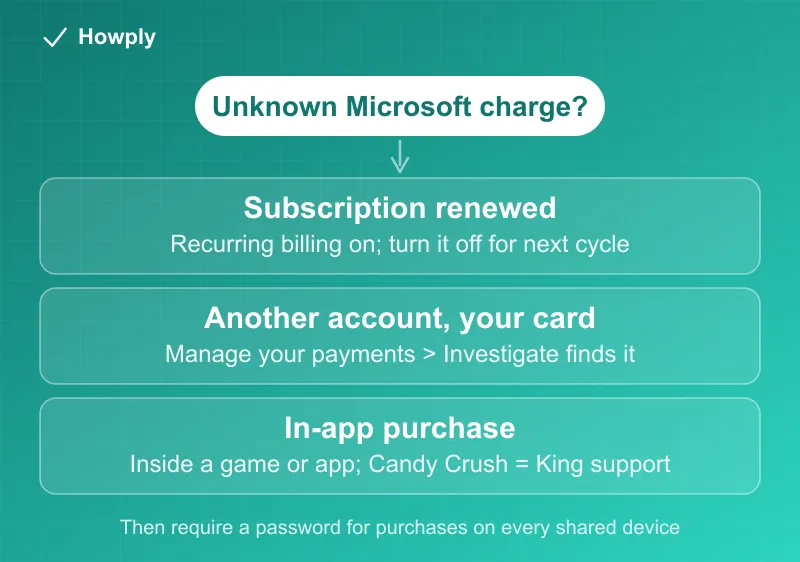
- The five official causes: (1) a Microsoft subscription with recurring billing on, (2) someone you know, such as a family member, bought something with your card, (3) a previously declined charge was retried, (4) a pre-order or split order shipped, (5) an in-app purchase inside an app or game
- The Candy Crush tell: charges labeled MICROSOFT*CANDY CRUSH are King’s in-app purchases, and Microsoft points you to King support, not its own
- Then lock it: require a password or passkey for every purchase, on every shared device (Windows: Microsoft Store > Profile > App settings > Purchase sign-in; Xbox: sign-in and security preferences > Ask for my passkey to make purchases)
- Stolen card is a different lane: if you believe someone acquired your payment info, Microsoft’s advice is to tell your bank the card is compromised, not just dispute the charges, because a dispute alone does not stop the next one
Key facts at a glance
| Question | Answer |
|---|---|
| Where to look first | account.microsoft.com > Manage your payments > Investigate |
| Multiple bank charges, one order in history? | Another account (often a family member’s) is using your card; Investigate finds it |
| Recurring subscription | Game Pass, Microsoft 365, and similar renew until recurring billing is turned off |
| Retried charge | A declined payment can be attempted again and post later |
| In-app purchases | Made inside a game or app; Candy Crush shows as MICROSOFT*CANDY CRUSH (King support) |
| The lock, Windows | Microsoft Store > Profile > App settings > turn off Purchase sign-in bypass |
| The lock, Xbox | Settings > Account > Sign-in, security & passkey > Ask for my passkey to make purchases > Passkey required |
| Refundability | Digital goods are non-refundable unless the offer or law says otherwise; case-by-case requests still exist |
Step 1: run Investigate before anything else
Microsoft’s page opens with one instruction in bold: if you do not recognize a charge, go to Manage your payments on the account dashboard and select Investigate. Two things make it the right first move:
- It matches the charge against your order history, which resolves the subscription and in-app cases in seconds
- If your bank statement shows more charges than your order history does, Microsoft states the likely cause is another account using the same card, and Investigate can search for those accounts. A child’s Xbox profile, a partner’s Windows PC, or an old account you forgot all bill to the same card and never appear in your own history
The parallel on other platforms is the family-organizer view on Apple, covered in our APPLE.COM/BILL guide; Microsoft’s version is this button.
Not a Microsoft charge after all? Our guides to APPLE.COM/BILL charges and GOOGLE * charges cover the other two big store billing names.
Step 2: match it to one of the five causes
Per Microsoft, the most likely explanations, in a practical order:
- A subscription with recurring billing on. Game Pass is the usual one; the Game Pass cancellation guide covers turning recurring billing off, and the charge stops at the next cycle, not this one
- Someone you know bought something with your card. Investigate finds the account; then it is a conversation, and Step 3 below is the fix
- A previously declined charge was charged again. Microsoft retries failed payments, so a charge that “already failed” can post days later. Check the order’s payment history before assuming a duplicate; the double-charge guide explains why one purchase can show two lines
- A pre-order or split order shipped. Physical orders bill when they ship, sometimes in parts, so one order can produce two charges on two dates
- An in-app purchase. Made inside a game or app on any Microsoft-billed device. The one Microsoft names specifically: MICROSOFT*CANDY CRUSH, which is King’s purchase, and Microsoft directs you to King support in the app or at community.king.com rather than its own refund desk
If none of the five fits and Investigate finds nothing, that is the point where Microsoft’s compromised-card advice applies (below), not before.
Step 3: lock purchases on every shared device
Microsoft’s prevent-unauthorized-purchases page is blunt that the setting is per device: “repeat these steps for each device you share.”
- Windows 11: Microsoft Store app > Profile (upper right) > App settings > turn off Purchase sign-in (the setting that skips the password at checkout). Windows 10 words it as turning off “I want to buy without a password, for faster checkout”
- Xbox console: press the Xbox button > System > Settings > Account > Sign-in, security & passkey > Change my sign-in & security preferences > Customize > Ask for my passkey to make purchases > Passkey required
- A child’s account: Microsoft’s page points to Family Safety, where an adult can require approval for what a child buys and see the child’s Microsoft Store purchases. That is the Microsoft equivalent of Ask to Buy in our kid-purchase refund guide
If you want the money back
Microsoft’s refund page sets the baseline: digital goods (apps, games, add-ons, subscriptions, movies, books) are not refundable unless the offer or applicable law says otherwise, but requests are reviewed case by case from your order history. Our Xbox and Microsoft Store refund rules guide walks the request and the 14-day, little-to-no-play-time norms that make one succeed. File it as what it is (a family purchase, a duplicate, an accidental in-app buy), not as fraud, unless the card really was compromised.
If the card was actually stolen
Microsoft’s advice here is unusually direct: if you believe someone acquired your payment info, contact your bank and tell them the card was stolen or compromised, because “if you only dispute the charges, there’s nothing to prevent the fraudulent charges from happening again.” A new card number ends it; a dispute alone does not. The dispute itself, when warranted, runs through the process in our bank dispute guide.
Bottom line
Investigate first: it explains most Microsoft charges instantly and is the only tool that finds a family member’s account on your card. Then match the charge to the five causes Microsoft lists (subscription, family, retry, split order, in-app), lock purchases behind a password on every shared device, and request a refund honestly for what it was. Save “stolen card” for when the search truly comes up empty, and then treat it as a card problem, not a Microsoft one. If the charge is a game or subscription you want refunded, the windows and request steps are in our Xbox refund rules guide.
Verified against the official Microsoft Support pages linked above as of August 17, 2026. Menu paths differ slightly across Windows 10, Windows 11, and console generations; Microsoft’s pages are the source of truth.