How to Cancel Peacock (Direct, App Store, and What About Refunds)
Peacock cancellation takes under five minutes on the web, but the path changes if a third party bills you. The steps, the no-refund rule, and the August 2026 price increase.
Canceling Peacock is quick when Peacock bills you directly, and a different route entirely if you signed up through Apple, Amazon, or another provider. Here is the exact path for each, the retention screen everyone hits, and what happens to your access and money afterward.
The quick answer
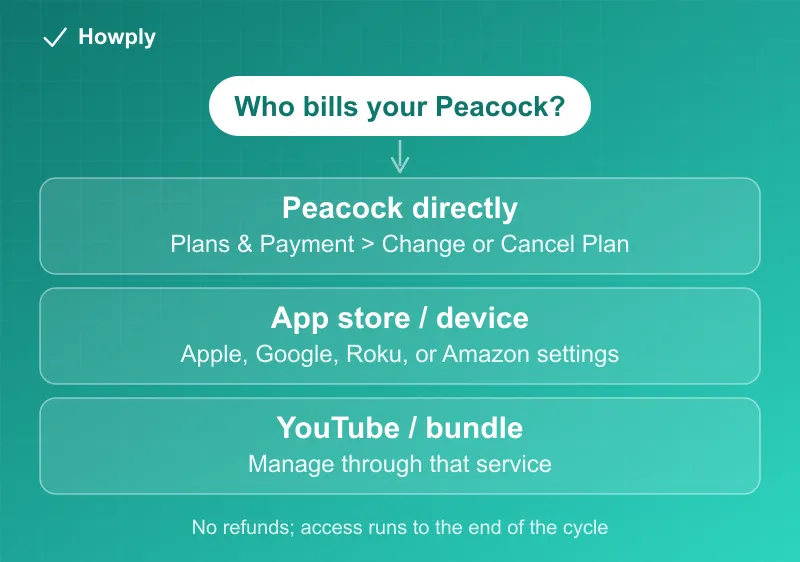
- Billed by Peacock directly: log in at peacocktv.com > Subscriptions tab > Cancel All Subscriptions, then confirm through the retention screens
- “All” means all: that button ends the base plan and every add-on (Starz, sports networks) together; add-ons can also be removed alone via Remove Add-On
- No cancel button? That is Peacock’s own signal that a third party (Apple, Google, Roku, Amazon, DIRECTV, and others) bills you; cancel with them
- Access: continues until the end of the current billing cycle, then the account drops to the limited free tier
- Refunds: “generally non-refundable” per the official policy; time the cancel for after your last watch
Key facts at a glance
| Question | Answer |
|---|---|
| Where to cancel (direct billing) | peacocktv.com > Subscriptions tab > Cancel All Subscriptions |
| What that cancels | The base plan AND every add-on (Starz, sports networks) |
| Drop only an add-on | Subscriptions tab > select the add-on > Remove Add-On |
| No cancel button visible | A third party bills you; cancel with them |
| Cannot log in | Peacock officially supports canceling via chat |
| When it takes effect | End of the current billing cycle; access continues until then |
| Refunds | ”Generally non-refundable”; discretionary exceptions only |
| Have Walmart+? | Peacock Premium may already be included; do not pay twice |
Method 1: Cancel a Peacock-billed plan
Per Peacock’s current help article:
- Open peacocktv.com in a web browser and log in to your account
- On the Subscriptions tab, select Cancel All Subscriptions
- Click through the retention screens and confirm; the on-screen confirmation appears immediately and the email “may take a few hours”
- Your plan does not renew at the end of the current term, and access continues until then
Two things the button name is telling you. First, “Cancel All Subscriptions” means all: it ends your base plan (Select, Premium, or Premium Plus) and every add-on riding on it, such as a Regional Sports Network or Starz. Second, per the official page, if you do not see the Cancel All Subscriptions option at all, a third party bills you, so skip to Method 2. And if you cannot log in, Peacock officially supports canceling through chat on the help page.
Dropping just an add-on, not the plan
The reverse case has its own path: to keep Peacock but drop Starz or a sports add-on, go to the Subscriptions tab, select the add-on, and choose Remove Add-On. It stops renewing at the end of its own term while the base plan continues. (Add-ons cannot outlive the base plan: cancel the plan and every add-on auto-cancels with it.)
Method 2: Billed through an app store or provider
If you subscribed through a device or platform, Peacock cannot stop that billing:
- Apple: Settings > your name > Subscriptions > Peacock > Cancel Subscription
- Google Play: Play Store > profile > Payments & subscriptions > Subscriptions > Peacock
- Roku: Home > highlight Peacock > Star button > Manage subscription > Turn off auto-renew (Roku’s current label for cancelling, per Roku’s support article)
- Amazon: Your Account > Memberships & Subscriptions
- YouTube / other bundles: manage through that service
Not sure who bills you? Your Peacock Account page under Plans & Payment names the billing source, and your card statement shows the charge name.
About refunds
The official policy is two sentences: “Peacock charges are generally non-refundable. Peacock reserves the right to issue refunds at its sole discretion.” The cancellation page adds the legal floor: no refunds or credits “unless required by law.” Because access runs to the end of the cycle you already paid for, the practical move is to cancel right after you finish watching what you came for, then keep streaming until the period expires. If a charge lands after your confirmed end date, the escalation order is in our canceled but still being charged guide.
One decoder worth knowing: Peacock’s help article on the email saying your paid plan was canceled gives two causes for a Premium or Premium Plus plan, either you requested cancellation and reached “the end of your current billing cycle,” or “we’ve had an issue charging your card.” For Xfinity and Spectrum customers it can also mean you lost eligibility after a change of cable or internet package or provider. If you did not cancel, check the payment method before assuming a glitch. After any cancellation you keep a free account with a limited amount of content, so logging in still works.
Already covered by a bundle you pay for?
Before paying Peacock directly, check whether you already own it: Walmart+ includes Peacock Premium with ads as its streaming benefit choice, covered in our Walmart+ guide. The catch is Peacock’s official lapse rule: if you cannot activate a subscription through a third party because you already have one, “you must first cancel the existing subscription then wait until it fully lapses before attempting to activate your new subscription again.” Walmart’s streaming benefits page says the same in its own words: “Any existing subscriptions with the streaming service must be expired before you can activate the Walmart+ benefit.” So cancel the paid Peacock plan and let it fully lapse before connecting the bundle version; the waiting step is not optional.
The August 2026 price increase, and who pays it when
Peacock raised every plan on August 18, 2026, and its official notice sets out exactly who is affected and when:
| Plan | Old | New (Aug 18, 2026) |
|---|---|---|
| Select monthly | $7.99 | $8.99 |
| Premium monthly | $10.99 | $12.99 |
| Premium Plus monthly | $16.99 | $19.99 |
| Select annual | $79.99 | $89.99 |
| Premium annual | $109.99 | $129.99 |
| Premium Plus annual | $169.99 | $199.99 |
- New and returning subscribers pay the new price from August 18
- Existing subscribers keep the old price until their first billing date on or after September 17, 2026, so the higher charge lands on a different day for everyone through late September and October, and the notice arrives by email before it does
- Annual subscribers and anyone on a promotional offer stay at the current price until that plan or promo period ends, then renew at the new rate
Your next billing date and plan type are on the Subscriptions tab of your account, which is also where Peacock’s notice sends you to cancel (“Cancel All Subscriptions,” the flow in Method 1 above). If the increase is the only reason to leave, this is the direct-biller pattern from our price increase guide: nothing changes mid-cycle, downgrading a tier before the renewal date sidesteps the jump, and the retention screen appears in the cancel flow. Bundled access (the Walmart+ Peacock benefit, for example) is priced by the bundle, not by this table.
A cheaper option instead of canceling
If cost is the issue, Peacock’s ad-supported tiers sit well below Premium Plus. Downgrading from the account page keeps your profiles and watchlist intact with no interruption, which beats canceling and re-subscribing later. Note the refund page treats downgrades like cancellations: no credit for the remaining higher-tier time, so downgrade at the end of a cycle, not the start.
Bottom line
Direct subscribers cancel in under five minutes at peacocktv.com, following the on-screen steps, and keep access to the end of the cycle. App-store and provider subscribers cancel where they pay. There are no refunds, so time your cancellation for right after your last watch. What each Peacock tier includes, and the young adult discount, is in our Peacock plan price guide. If a charge keeps coming after you cancel, our Peacock still-charged guide shows how to tell whether Peacock, Xfinity, or an app store bills you.
Steps, add-on mechanics, refund wording, and the lapse rule verified against Peacock’s official help articles linked above as of August 11, 2026; the August 2026 price table and effective dates were added from Peacock’s price-increase notice on August 18, 2026. An earlier version described the previous “Change or Cancel Plan” flow; the current button is “Cancel All Subscriptions.” If the process changes, this guide will be updated with the revision noted.