How to Cancel Paramount+ (Web, App Store, and the Retention Screens)
Paramount+ cancels in about two minutes on the web, but you click through retention screens, and app-store billing needs a different route. The exact steps for each.
Canceling Paramount+ is quick, with one small catch: the cancel button is at the bottom of your account page and the flow runs through a couple of confirmation screens. Here is the exact path when Paramount bills you directly, plus the app-store routes, and what happens to your access afterward.
The quick answer
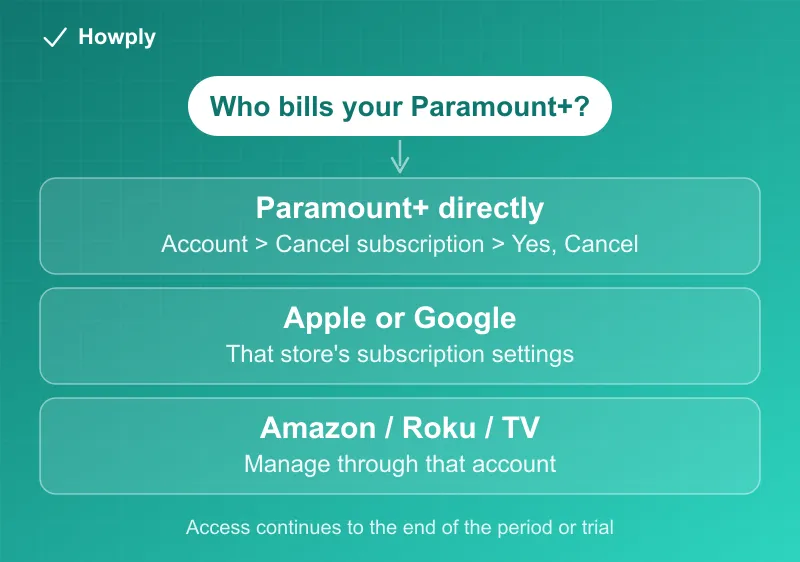
- Billed by Paramount+ directly: paramountplus.com > username (top right) > Account > scroll to Cancel subscription
- Confirm through the screens: Continue to Cancel, then check the terms box and click Yes, Cancel
- Billed through Apple or Google: cancel in that platform’s subscription settings, not Paramount+
- Access: continues until the end of the current billing period or free trial
- No further charges once the subscription ends
Key facts at a glance
| Question | Answer |
|---|---|
| Where to cancel (direct billing) | paramountplus.com > username > Account > Cancel subscription |
| Confirmation steps | Continue to Cancel > check the terms box > Yes, Cancel |
| Billed via an app store | Cancel with Apple, Google, Amazon, Roku, or your TV provider |
| When it takes effect | End of the current billing period or free trial |
| Free trial | Converts to paid automatically; cancel a day early to skip the first charge |
| Cheaper alternative | Essential (ad-supported) via the same Account page keeps profiles intact |
Method 1: Cancel a Paramount+-billed plan
- Go to paramountplus.com in a browser and sign in
- Click your username in the top-right corner, then Account
- Scroll down and click Cancel subscription
- Click Continue to Cancel and move through the retention prompts (a discount or pause may appear)
- On the final screen, check the terms of cancellation box, then click Yes, Cancel
- Refresh the account page to confirm it now shows as canceled, and save the confirmation email
Your subscription stays active until the end of the period you already paid for, so canceling right after you finish a show loses you nothing.
Method 2: Billed through an app store
If you signed up through a device or platform, Paramount+ cannot stop the billing:
- Apple: Settings > your name > Subscriptions > Paramount+ > Cancel Subscription
- Google Play: Play Store > profile > Payments & subscriptions > Subscriptions > Paramount Plus > Cancel subscription
- Amazon, Roku, or a TV provider: manage through that account
Not sure who bills you? Check the charge name on your card statement, or look at the Account page, which names the billing source.
Free trial? Cancel a day early
Paramount+ trials convert to paid automatically. If you only wanted the trial, cancel a day before it ends: you keep access through the trial period and avoid the first charge. The cancellation takes effect at the trial’s end date, not immediately.
The ad-supported alternative
If price is the issue rather than the service, Paramount+ Essential (the ad-supported tier) costs less than the premium plan. Switching plans from the same Account page keeps your profiles and watchlist intact, which beats canceling and resubscribing later.
After you cancel
Watch your next statement to confirm the charges stopped. If a charge appears after your confirmed end date, contact Paramount+ support with your cancellation confirmation, and dispute it with your card issuer if it is not resolved.
Bottom line
Direct subscribers cancel at the bottom of the paramountplus.com Account page, clicking through Continue to Cancel and the terms box to Yes, Cancel. App-store subscribers cancel where they pay. You keep access to the end of the cycle, so time your cancellation for right after your last watch. If a cheaper route would do instead of cancelling, the two plans, the student half-price and the Walmart+ benefit are in our Paramount+ plans guide.
Steps verified against Paramount+‘s official help and account documentation as of July 21, 2026. If the process changes, this guide will be updated with the revision noted.