How to Cancel Google One (and What Happens to Your 15GB)
Google One cancels from one.google.com in three clicks, but the downgrade to 15GB can freeze Gmail and Drive if you are over the limit. The steps and the storage math.
Canceling Google One takes three clicks, and the decision that actually matters happens before that: what your storage number looks like after the downgrade. Your account drops back to the free 15GB shared across Gmail, Drive, and Photos, and going over it freezes more than uploads. Here is the exact path, the refund rule, and the storage math to run first.
The quick answer
- Cancel at: one.google.com > Settings > Cancel membership > confirm
- On Android: Google One app > Menu > Settings > Cancel membership
- Subscribed through the App Store on iPhone? Cancel through Apple instead
- Access: storage and benefits keep working until the end of the billing cycle
- After that: you drop to the free 15GB shared across Gmail, Google Drive, and Google Photos
- Do not need zero, just cheaper? You can downgrade to a smaller paid plan instead of canceling; Google documents “decrease storage” as the official alternative
- Your files are safe for years, not days: per Google, everything in Photos, Drive, and Gmail is kept for at least 2 years after you cancel, even over the limit
- Refunds: in most countries, storage plan purchases are non-refundable; the paid time simply runs out
Key facts at a glance
| Question | Answer |
|---|---|
| Where to cancel (web) | one.google.com > Settings > Cancel membership |
| Where to cancel (Android) | Google One app > Menu > Settings > Cancel membership |
| Subscribed via App Store | Cancel through Apple; refunds also go through Apple |
| When it takes effect | End of the current billing cycle |
| Storage after | Free 15GB shared by Gmail, Drive, and Photos |
| Over the limit? | Gmail send/receive blocked, Drive uploads and sync stop, photo backups halt |
| Downgrade instead? | Yes, switch to a smaller paid tier at one.google.com instead of canceling |
| Are my files deleted? | No; Google keeps Photos, Drive, and Gmail content for at least 2 years after cancellation |
| Refunds | Non-refundable in most countries; you keep what you paid for until it expires |
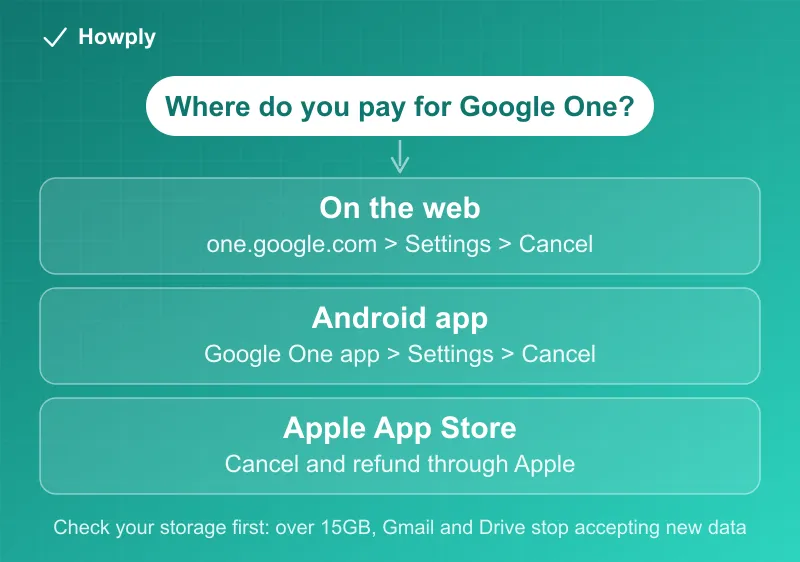
How to cancel
- Go to one.google.com in a browser and sign in with the account that pays
- Click Settings, then Cancel membership
- Confirm with Cancel membership in the dialog
- Watch for the confirmation email Google sends
On Android, the same flow lives in the Google One app under Menu > Settings > Cancel membership. If you originally subscribed on an iPhone or iPad through the App Store, Apple controls the billing: cancel it from your device’s subscription settings, and any refund request goes to Apple as well.
Run the storage math first
This is the step that saves you from a frozen account. Check your usage at one.google.com before canceling:
- Under 15GB total: cancel freely; nothing changes except losing the paid perks
- Over 15GB: once the downgrade lands, Google’s documented consequences kick in: Gmail stops sending and receiving, Drive stops syncing and accepting uploads, new files cannot be created in Docs and Sheets, and Google Photos backups halt until you are back under the limit
Your existing files are not deleted at the moment of downgrade; the account stops accepting new data. But a mailbox that cannot receive email is the practical emergency here, so trim your storage below 15GB before the billing cycle ends, not after.
Fastest trims: empty Drive and Gmail trash, search Gmail for large attachments (has:attachment larger:10M), and clear out Photos videos you have copies of elsewhere.
Downgrade instead: keep headroom, pay less
If your problem is the price rather than the product, canceling outright is not the only move. Google’s own cancellation page points to the alternative: “If you don’t want to cancel your membership, you can decrease storage instead.” At one.google.com, open your plan settings and switch to a smaller paid tier; a 2TB plan dropping to the entry 100GB tier keeps Gmail, Drive, and Photos comfortably out of the 15GB squeeze for a fraction of the price. Run the same storage math against the smaller tier’s limit before switching.
The 2-year clock, and what canceling does not delete
Two facts that defuse most of the fear around canceling:
- Canceling deletes nothing. Your files, photos, and email stay where they are; the account just stops accepting new data once you are over the free limit. Removing the Google One service is not deleting your Google account or its contents
- Even over the limit, Google keeps your content for at least 2 years. That is Google’s own written commitment for Photos, Drive, and Gmail after cancellation. The deadline that matters is the far one: stay over quota long enough past that window and Google’s storage policy allows content cleanup, so treat 2 years as the horizon for getting under the limit or re-subscribing, not 2 weeks
The refund rule
Google’s policy is blunt: in most countries, storage plan purchases are non-refundable. The storage you bought stays yours for the full length of the paid period even after you cancel, and then the plan simply ends. There is no partial refund for unused months on annual plans, so if you prepaid a year, the sensible move is to cancel whenever you decide and let the remaining time run out.
On a statement, Google One appears as “GOOGLE* Google Storage” with a space before the second word; our GOOGLE * charge guide has the full lookup table.
What you keep and what you lose
- Keep: every file, photo, and email already stored; your Google account itself is untouched
- Lose at cycle end: the extra storage headroom and Google One perks (family sharing of storage, member benefits, VPN where offered)
- Family note: if you share your plan, members lose the shared storage pool too, so give them the same warning about the 15GB math
Bottom line
If the Google One plan you are canceling is a Google AI Plus, Pro, or Ultra plan, our comparison of ChatGPT, Claude, and Gemini individual plans shows what each tier costs and includes. Current storage prices are in our Google One price guide; Google’s own AI tiers are compared side by side in our Google AI Plus vs Pro vs Ultra guide, and what free Gemini users lost on October 9 is in our Gemini free tier guide.
Three clicks at one.google.com ends it, benefits run to the end of the cycle, and no refund comes for time already paid. The only real homework is the storage number: get under 15GB before the downgrade, or your Gmail and Drive will stop accepting anything new.
Steps and policies verified against Google One’s official help pages, most recently on August 6, 2026. If the process changes, this guide will be updated with the revision noted.