How to Cancel Dropbox (and What Happens to Your Files)
Dropbox cancels from account settings and downgrades to free Basic at period end. The steps, the mobile purchase catch, and why US refunds are not offered.
Canceling Dropbox is straightforward, and the two things worth knowing before you click are the refund rule (there usually is not one) and what happens to your files when the account drops to the free Basic tier. Here is the exact path on the web and mobile, plus the storage math to run first.
The quick answer
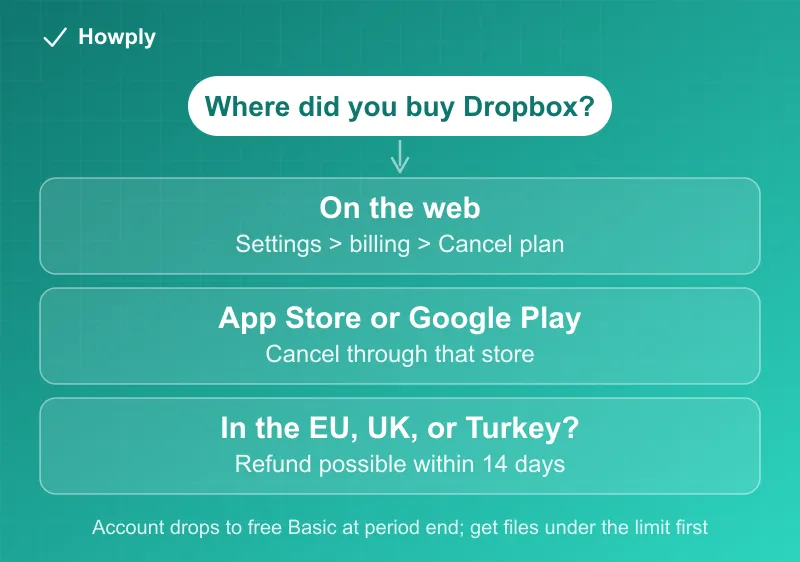
- On the web: dropbox.com > account settings > billing > Cancel plan > confirm through the acknowledgment boxes
- Bought on a phone? Cancel through Apple or Google, not Dropbox
- When it takes effect: end of the current billing period; the account then becomes free Dropbox Basic
- Refunds: in most cases not refundable. EU, UK, and Turkey residents can request one within 14 days of purchase
- Before you cancel: get your files under the Basic storage allowance
Key facts at a glance
| Question | Answer |
|---|---|
| Where to cancel (web) | dropbox.com > account settings > billing > Cancel plan |
| Bought via App Store or Google Play | Cancel and request refunds through that store |
| When it takes effect | End of the current billing period |
| What the account becomes | Free Dropbox Basic |
| Refunds (most regions, incl. US) | Not refundable |
| Refunds (EU, UK, Turkey) | Within 14 days of purchase, via support |
| Access until then | Normal, full use of your paid plan |
Method 1: Cancel on the web
- Log in at dropbox.com with the account that pays
- Open your account settings, then the billing section
- Scroll down and click Cancel plan
- Select a reason and click Continue with cancellation
- Check the acknowledgment boxes, then click Complete cancellation
Those acknowledgment boxes are not filler. They are where Dropbox tells you what changes at the end of the period, and the cancellation does not complete until they are checked.
Method 2: Bought it on a phone
If the subscription started in the Dropbox mobile app, the app store bills you and Dropbox cannot stop it. On Android, Dropbox’s own documented path walks you there: open the app, tap Account, tap Manage your subscription, tap How to cancel, then Cancel plan, which hands you off to Google Play to finish with Cancel subscription. On iPhone or iPad, cancel in Settings > your name > Subscriptions.
Either way the outcome is the same: the account downgrades to Basic at the end of the billing cycle.
Refunds: usually no, with one regional exception
Dropbox’s policy is blunt: in most cases, payments for Dropbox subscriptions are not refundable. There is one documented exception:
- EU, UK, and Turkey residents can request a refund if they cancel a Plus, Family, Professional, or Essentials subscription within 14 days of purchase, by contacting support
US subscribers are not in that group. Canceling stops the next charge; it does not return the current period’s payment. If you bought through Apple or Google, refund requests go to that storefront instead.
One warning worth stating plainly: forcing a chargeback through your bank has consequences beyond the money. Dropbox documents that a chargeback downgrades an individual account to Basic, and puts a team account into a locked state where files are readable but syncing and sharing stop.
Check your storage before the downgrade
This is the step that prevents an unpleasant surprise. When the paid period ends, the account becomes Dropbox Basic, which carries a far smaller storage allowance than any paid plan. Files are not deleted at the moment of downgrade, but an account over the free limit stops behaving normally: syncing and uploads are what break first.
Before your period ends:
- Check your current usage in account settings
- Download anything above the Basic allowance to a local drive or another service
- Turn off camera uploads on phones, which is the most common source of silent growth
- Empty deleted files if your plan retains them, since retained deletions can still count
Bottom line
Cancel in account settings under billing, or at Apple or Google if that is who bills you. Access runs to the end of the paid period, then the account becomes free Basic. Assume no refund unless you are in the EU, UK, or Turkey and inside 14 days, and get your files under the Basic limit before the clock runs out.
Steps and refund rules verified against Dropbox’s official help documentation as of July 28, 2026. If the process changes, this guide will be updated with the revision noted.