Canceling Cloud Storage: What Happens to the Files You Are Over By
Google, Apple, Microsoft, Dropbox, and Adobe all handle an over-quota account differently, and two of them delete files. The deadlines, and what to do first.
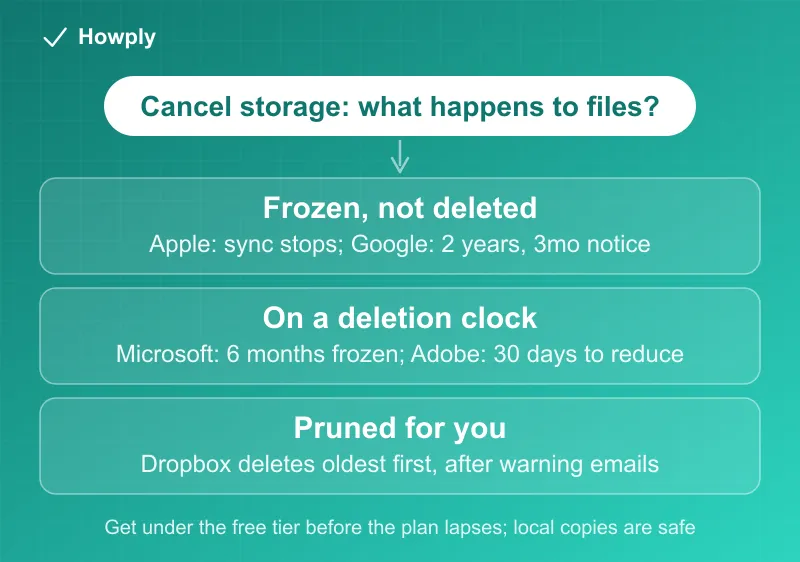
Canceling a storage plan is the one cancellation where the money is not the risk. Your files are. Every service drops you to a free tier that is smaller than what you were using, and what happens next is not the same on any two of them: Apple freezes syncing and leaves everything in place, Microsoft says it “might delete your OneDrive and all files within it” after six months, Dropbox actively deletes your least recently modified files, and Adobe gives you exactly 30 days. Here is each official policy, side by side, and the one step that makes all of it irrelevant.
The quick answer
- Do this first: get under the free tier before the cancellation takes effect. Apple’s page says it outright, and it is the only move that works everywhere
- Google: drops to 15 GB. Over quota means no uploads, no Photos backup, and Gmail “can be impacted.” Deletion only after being over quota for 2 years or longer, with at least 3 months notice
- Apple: drops to 5 GB after the current billing period. Syncing and backups stop; nothing is deleted for being over
- Microsoft: the account gets frozen (read-only, no Outlook.com mail, no Teams attachments), and “after six months, Microsoft might delete your OneDrive and all files within it”
- Dropbox: drops to Basic. Dropbox deletes to get you under, least recently modified first, after multiple email warnings; only files you own
- Adobe: drops to 5 GB, and you have 30 days to reduce usage before you “could lose access.” Lightroom originals are kept for one year
- Local copies are safe everywhere. This is all about the copy on their servers
Key facts at a glance
| Service | Free tier after canceling | What breaks while over | Deletion policy |
|---|---|---|---|
| Google One | 15 GB | No uploads, no Photos backup, Gmail impacted, no new Docs files | Only after 2 years over quota; 3 months notice |
| iCloud+ | 5 GB | Syncing stops, backups do not complete | No deletion for being over |
| Microsoft 365 / OneDrive | Reverts to previous size | Account frozen: read-only, no Outlook.com send/receive, no Teams attachments | ”After six months, Microsoft might delete your OneDrive and all files within it” |
| Dropbox | Basic | Cannot sync, upload, share, move, or preview | Deletes least recently modified first, after multiple emails; owner’s files only |
| Adobe Creative Cloud | 5 GB | Paid apps and services end at period’s end | 30 days to reduce, then “could lose access”; Lightroom originals kept 1 year |
The two safe ones: Google and Apple
Google is the most forgiving. Per Google’s storage page, going over quota costs you function, not files: “You can’t upload new files or images to Google Drive,” “You can’t back up any photos and videos to Google Photos,” and “Your ability to send and receive email in Gmail can be impacted.” You keep access: “You can still sign into and access your Google Account.” Deletion exists but is distant, applying only “if you’re over your quota for 2 years or longer,” and Google says “We will contact you at least 3 months before content is eligible for deletion.”
The Gmail clause is the one people underestimate. An over-quota Google account can stop receiving mail, which turns a storage problem into a missed-invoice problem. The cancellation path itself is in our Google One cancel guide.
Apple does not delete for being over at all. Per Apple’s downgrade page, the change “takes effect after your current subscription billing period ends,” and if you exceed the new capacity, “iCloud won’t sync or update your information, and iCloud backups won’t complete.” Service resumes “when you increase your storage capacity or delete information to make more space.” Apple’s own advice is the headline of this guide: “Before you downgrade or cancel your iCloud+ plan, download or remove content that exceeds your new storage amount.”
The practical risk on Apple is not deletion, it is a phone that quietly stops backing up. If it breaks or gets lost while backups are failing, the backup you rely on is months old.
The one with a six-month clock: Microsoft
Microsoft is the harshest published timeline. Per Microsoft’s frozen-account page, the freeze “can happen if you exceed your storage allowance or don’t sign in for a long time.” If you do nothing, “You can’t upload, edit, or sync new files (such as Camera Roll) to your OneDrive,” “You can’t send or receive email in Outlook.com, even if you didn’t exceed your email storage quota,” and “You can’t send or receive any Microsoft Teams messages that contain attachments.” Your existing files “remain but are read-only.”
Then the line to plan around: “After six months, Microsoft might delete your OneDrive and all files within it.” Microsoft adds that “Once deleted, these files are non-recoverable.”
Unfreezing is mechanical: delete files or buy storage, and note Microsoft’s timing, “It can take up to two hours for your changes to apply,” with support as the next step “If your account is still frozen after four hours.” The subscription side is in our Microsoft 365 cancel guide.
The one that prunes for you: Dropbox
Dropbox is the only service here that decides which files go. Per Dropbox’s over-quota page, while over the limit “you may not be able to sync, upload, share, move, or preview files and folders.” If the account stays over, Dropbox deletes, and the order is published: “We’ll begin by deleting your least recently modified files first,” and “Only files you own will be deleted.” You get warning first: “Before any files are deleted, you’ll receive email notifications.”
Two details worth knowing. Deleted files land in the Deleted files tab for 30 days before permanent removal, so a surprise deletion is recoverable if you catch it. And local copies survive: “Files you’ve downloaded to your desktop or mobile device remain available,” though online-only placeholders and mobile offline files can go. If your desktop uses online-only syncing to save disk space, your “local” copy may not be local at all. Cancellation steps are in our Dropbox cancel guide.
The 30-day one: Adobe
Per Adobe’s post-cancellation page, “After cancellation, your allowed cloud storage is reduced to 5 GB. If you are over your storage limit, you have 30 days to reduce your online usage. After 30 days, you could lose access to some or all of your files saved on the Creative Cloud servers.” Adobe also warns that files in free cloud storage “may be permanently deleted after a period of inactivity,” with an email notice first.
Two Adobe-specific carve-outs: Lightroom originals are stored “for one year after your membership lapses,” during which you can still launch Lightroom to download them, and Lightroom Classic keeps working on local photos minus the Develop and Map modules. Also, any remaining generative credits “will expire when you cancel.” If you cancel and change your mind inside the billing period, reactivating restores apps, services, and storage. The cancel path is in our Adobe Creative Cloud guide.
The move that makes all of this moot
Do the download before the plan lapses, while you still have full access and full speed:
- Check your usage against the free tier you are about to land on (15 GB Google, 5 GB Apple, 5 GB Adobe, 2 GB Dropbox Basic, previous size for OneDrive)
- Export the big things first: photo libraries, video, and originals. Google Takeout, Apple’s download options, and each service’s export tool exist for this
- Verify the copies open on the device before deleting anything from the cloud, then delete from the cloud to get under the line
- Cancel after you are under. Now the downgrade is a billing event instead of a countdown
- If you are already past the deadline, look for the recovery window first: Dropbox’s Deleted files tab holds 30 days, and Adobe keeps Lightroom originals a year
If the charge itself is the problem rather than the storage, the timing rules for canceling are in our subscription price increase guide, and if a plan you canceled keeps billing, that path is in the canceled but still charged guide.
Bottom line
Two of these services will eventually delete your files: Microsoft after six months frozen, Dropbox actively and oldest-first, with Adobe cutting access after 30 days. Google and Apple freeze function instead, and Google’s real deletion clock is two years out with three months of notice. None of it matters if you get under the free tier before the plan ends, which is exactly what Apple’s own instructions tell you to do. Download first, verify the copies, then cancel. If the storage belonged to someone who has died, see our guide to cancelling a deceased family member’s subscriptions.
Storage limits, over-quota behavior, and deletion timelines quoted from Google’s, Apple’s, Microsoft’s, Dropbox’s, and Adobe’s official support pages linked above, verified August 28, 2026, with the Microsoft wording updated and the Apple and Adobe quotes rechecked against the live pages on September 30, 2026. Free tiers and grace periods change; the linked pages are the source of truth before you cancel.