How to Cancel Microsoft 365 (and What Happens to Your Files)
Microsoft 365 cancels from your account services page, but the seven-day refund window and the OneDrive storage drop catch people out. Every step and consequence.
Canceling Microsoft 365 is a two-minute job, but it has a consequence most subscriptions do not: your cloud storage shrinks, and if your files exceed the free tier, OneDrive stops accepting new ones. Here is the exact path, the seven-day refund window, and what happens to your files and the people you share with.
The quick answer
- Cancel at: account.microsoft.com/services/microsoft365 > Cancel subscription
- See “Turn on recurring billing” instead? It is already set to expire on the date shown; nothing to do
- Refund window: cancel within seven days of the start or renewal for a possible prorated credit or refund
- After seven days: no refund, but turning off recurring billing stops future charges
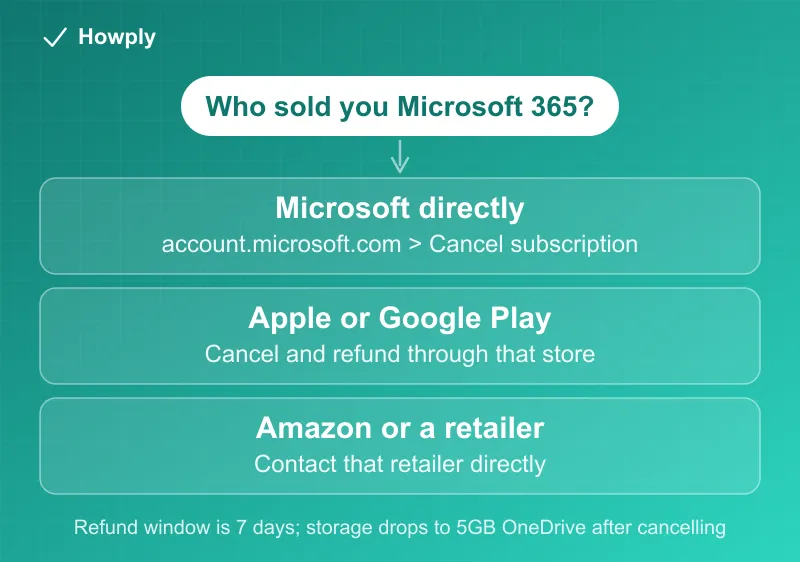
- Bought from Apple, Google, Amazon, or a retailer? Cancel with them, not Microsoft
- The catch: storage drops to 5GB OneDrive plus 15GB Outlook.com, and shared users are cut back too
Key facts at a glance
| Question | Answer |
|---|---|
| Where to cancel | account.microsoft.com/services/microsoft365 > Cancel subscription |
| Button says “Upgrade or Cancel” | Same thing; Microsoft varies the label by plan |
| Refund eligibility | Within seven days of start or renewal, possibly prorated |
| After seven days | No refund; recurring billing off prevents the next charge |
| Third-party purchase | Cancel and request refunds from that store or retailer |
| Storage after cancelling | 5GB OneDrive, 15GB Outlook.com |
| Family or Premium plans | Everyone you shared with loses their allowance too |
How to cancel
- Go to account.microsoft.com/services/microsoft365 and sign in with the same Microsoft account you bought the subscription with (households often have several; only the purchasing account can cancel)
- Select Cancel subscription, which may appear as Upgrade or Cancel
- Read the Please review section at the top of the cancel page. Microsoft surfaces alternative plans here, some cheaper than what you have
- At the bottom, choose I don’t want my subscription to proceed, or I want to keep my benefits to back out
If you see Turn on recurring billing rather than a cancel option, your subscription is already scheduled to expire on the date shown. You will not be charged again and can keep using it until then.
The seven-day refund window
Microsoft’s rule is tighter than most and worth acting on quickly:
- Cancel within seven days of the subscription starting or renewing and you may receive a prorated credit or refund
- Past seven days there is no refund, though canceling still stops the next charge
- Eligibility is checked after you cancel, not before, so canceling is the required first step to find out
- A separate list of countries (including Canada, Germany, Korea, and the Netherlands among others) carries statutory prorated-refund rights beyond the standard policy
If a renewal you did not want just hit your card, treat that seven-day clock as the priority.
Bought it somewhere other than Microsoft?
Microsoft cannot stop billing it does not control:
- Apple App Store or Google Play: cancel and request refunds through Apple or Google
- Retailers such as Amazon or an electronics chain: contact that retailer to manage the subscription and billing
What happens to your files (the real consequence)
This is the part that surprises people. After cancellation your storage allowance reverts to 5GB of OneDrive (including Outlook.com attachments) plus 15GB of Outlook.com storage. If you or anyone sharing your plan is over that free allowance:
- You cannot upload, edit, or sync new files to OneDrive, including Camera Roll backups
- Outlook.com sending and receiving is affected once you exceed the mail allowance
- On Family or Premium plans, every person you shared with has their allowance cut as well, not just you
The practical move: before you cancel, download anything above the free tier to a local drive or another cloud service, and warn the people on your plan so their phone backups do not silently stop.
Bottom line
Cancel at account.microsoft.com/services/microsoft365 with the purchasing account, move fast if you are inside the seven-day refund window, and get your files under 5GB before the plan ends. If a store sold you the subscription, cancel there instead. Which Microsoft 365 plans now include Copilot, and what each costs, is in our Copilot Pro and Microsoft 365 price guide.
Steps, refund rules, and storage consequences verified against Microsoft’s official support documentation as of July 25, 2026. If the process changes, this guide will be updated with the revision noted.