How to Cancel Netflix (and What Happens to Your Profile)
Canceling Netflix takes two clicks, your history survives 24 months, and a gift card balance keeps streaming after you cancel. The current rules, verified.
Netflix is one of the easier subscriptions to cancel, with one catch: the right path depends on who bills you. Here is each route, plus what actually happens to your profiles, list, and watch history after you cancel.
The quick answer
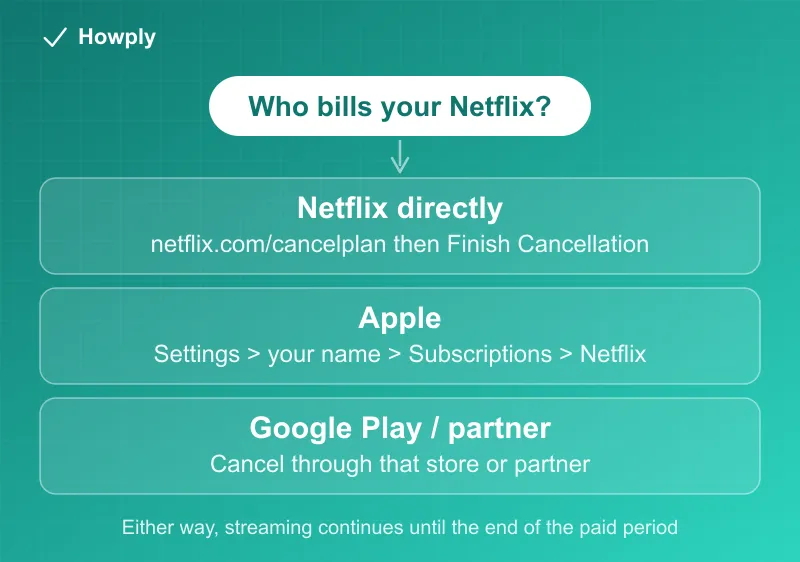
- Billed by Netflix directly: go to netflix.com/cancelplan (or Account > Manage membership > Cancel), then confirm with Finish Cancellation
- Billed through Apple: cancel in your device Settings > your name > Subscriptions > Netflix
- Billed through Google Play or another partner: cancel through that store or partner
- Access: streaming continues until the end of the paid period
- Important: signing out or deleting the app does NOT cancel billing
Key facts at a glance
| Question | Answer |
|---|---|
| Where to cancel (direct billing) | netflix.com/cancelplan, then Finish Cancellation |
| Billed through Apple or Google | Cancel in that store’s subscription settings, not on Netflix |
| When it takes effect | End of the paid period; streaming continues until then |
| Cancellation fee | None |
| Viewing history, recommendations, ratings | Kept for 24 months after the account closes |
| Gift card or promo balance left | Streaming continues for the months the balance covers |
| Account on hold | Closes immediately when you cancel |
| Cheaper alternative | Ad-supported plan via Account > Manage membership > Change plan |
Method 1: Canceling a direct Netflix subscription
- Sign in at netflix.com in a browser
- Go to Account, then Manage membership (or jump straight to netflix.com/cancelplan)
- Click Cancel, then Finish Cancellation on the confirmation screen
- Check for the confirmation email; keep it until your final billing date passes
Netflix’s own help pages confirm this is the only way to end billing on a direct subscription: logging out everywhere or removing the app changes nothing about charges.
Method 2: Billed through Apple or Google
If you originally subscribed inside the iOS app years ago or through Google Play, Netflix does not control your billing:
- Apple: Settings > your name > Subscriptions > Netflix > Cancel Subscription
- Google Play: Play Store > profile > Payments & subscriptions > Subscriptions > Netflix > Cancel
Not sure who bills you? Check the charge name on your card statement, or look at Account > Membership & Billing on Netflix, which names the billing partner.
What happens after you cancel
- You keep access until the end of the current billing period, so cancel right after a renewal and you lose nothing. One exception from the official page: if your account is on hold (a failed-payment state), it “will close immediately when you cancel,” with nothing left to run out
- Your history survives 24 months, not the 10 often cited. Per Netflix’s current help page, viewing activity is kept “for 24 months after your account closes,” along with recommendations, ratings, account details, gameplay history, and game saves. Rejoin inside two years and everything is where you left it (one caveat: games without cloud saves keep their data only on the device they were played on)
- No cancellation fees, and you can restart anytime with the same email
The gift card trick, and the bundle case
Two situations from the official page that change the cancel math:
- Gift or promotional balance on the account? Cancel anyway: “you can continue to use Netflix for as many months of service” as the remaining balance covers. Canceling early costs nothing while the balance rides out, and there is no renewal surprise at the end of it
- Switching to an internet, mobile, or TV package that includes Netflix? Do not cancel. Netflix’s guidance is to keep the existing account and link it to the new package, so your history and profiles carry over instead of resetting
After you cancel, lock the restart door
Anyone in your household who knows the password can restart the membership, and the charge lands on the payment method still attached. Netflix’s own recommendation: after canceling, change your password and check “Sign out of all devices.” Thirty seconds now beats discovering a surprise restart on next month’s statement, which is the exact scenario in our canceled but still being charged guide.
A cheaper alternative to canceling
If cost is the issue rather than the service, Netflix’s ad-supported plan is a fraction of the premium price. Downgrading (Account > Manage membership > Change plan) keeps your profiles active with no interruption.
Bottom line
Direct subscribers: two clicks at netflix.com/cancelplan and you are done, with access until the period ends. App-store subscribers: cancel where you pay. Ride out any gift card balance before worrying, change the password afterward so nobody restarts it for you, and if you might come back, your history now waits a full 24 months. If a cheaper tier would do instead of cancelling, the three plans and the extra member rules are in our Netflix plans guide.
Steps, retention windows, and edge cases verified against Netflix’s official Help Center as of August 10, 2026. An earlier version cited the old 10-month retention period; the current policy is 24 months. If the process changes, this guide will be updated with the revision noted.