How to Cancel Peloton (and the 60-Day Refund Window)
Peloton All-Access cancels from your membership page, App memberships cancel where you bought them, and refunds have a 60-day limit. Every path plus the pause option.
Peloton has two different memberships that cancel in two different places, and picking the wrong one is why people end up still being billed. There is also a refund rule with a hard deadline that most guides skip: 60 days from the billing date. Here is which membership you have, where each one cancels, and the pause option that may fit better.
The quick answer
- All-Access (the one your Bike, Tread, or Row needs): cancel at account.onepeloton.com/mymembership > Manage > Pause or cancel
- App Membership: cancel through whatever platform you bought it on (Peloton directly, Apple, or Google)
- Access: continues through the end of the current billing period
- Refunds: contact Member Support within 60 days of the billing date; after that Peloton does not issue refunds or credits
- Pause instead: All-Access can pause for 1, 2, or 3 months
Key facts at a glance
| Question | Answer |
|---|---|
| Which membership? | All-Access = hardware (Bike/Tread/Row). App = phone, tablet, or web only |
| Cancel All-Access | account.onepeloton.com/mymembership > Manage > Pause or cancel |
| Cancel App Membership | Through the platform you originally purchased on |
| When it takes effect | End of the current billing period, then it cancels rather than renews |
| Refund window | 60 days from the billing date, via Member Support |
| Pause option | 1, 2, or 3 months, starting at your next billing cycle |
| While paused | No access to Peloton content on any device |
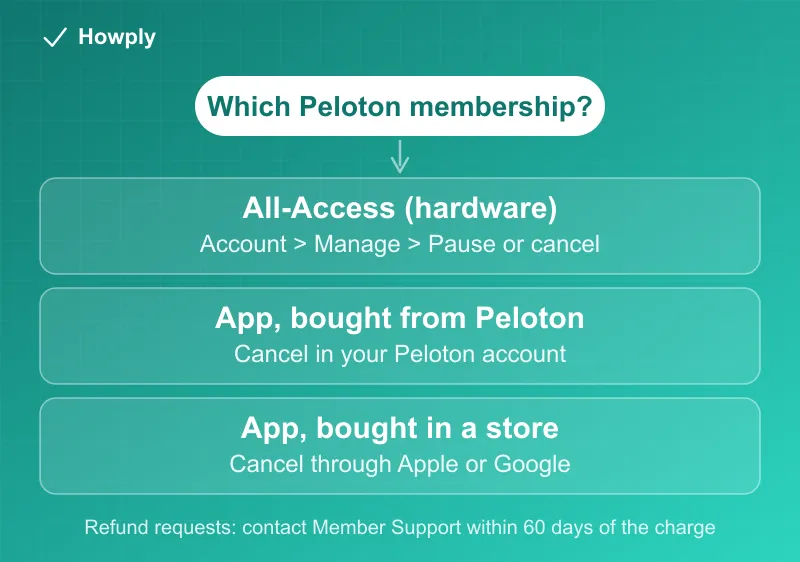
Step 1: Figure out which membership you have
This decides everything else. Go to account.onepeloton.com/mymembership and look under the Memberships section; your active membership is listed there.
- All-Access Membership is the one required to use content on a Peloton Bike, Bike+, Tread, Tread+, or Row. It bills monthly and covers the whole household
- App Membership is the app-only subscription for phone, tablet, or web, billed monthly or annually
Method 1: Cancel All-Access
- Go to account.onepeloton.com/mymembership and sign in
- Click Manage next to the subscription
- Choose Pause or cancel, then select cancellation and confirm
Peloton’s wording on what happens next is precise: you keep access to content through the end of your current billing period, at which point the membership cancels rather than renews. There is no immediate cutoff, and no proration for the remainder of the month.
Method 2: Cancel an App Membership
Straight from Peloton’s documentation: any change to App Membership billing, including cancellation, must be done through the platform used to purchase it originally.
- Bought directly from Peloton (“first-party”): cancel in your Peloton account settings
- Bought through the App Store: iPhone or iPad Settings > your name > Subscriptions > Peloton > Cancel Subscription
- Bought through Google Play: Play Store > profile > Payments & subscriptions > Subscriptions > Peloton > Cancel
If you cannot find a cancel option inside your Peloton account, that absence is the answer: an app store is billing you, not Peloton.
The 60-day refund window
This is the detail worth acting on quickly. Peloton’s policy states that if you want to dispute a membership charge, you must notify them within 60 days of the billing date by contacting Member Support. After that 60-day period, Peloton will not issue refunds or credits, except where law requires it.
Two practical readings:
- If you discovered months of charges for a membership you stopped using, only the charges inside the last 60 days are worth disputing
- Canceling does not itself trigger a refund; the refund request is a separate contact with Member Support
Pause instead of canceling
All-Access can be paused for 1, 2, or 3 months from the same Manage > Pause or cancel menu. What to know:
- The pause starts at the beginning of your next billing cycle, not immediately
- Billing automatically resumes at the end of the pause
- You lose access to all Peloton content while paused, on the hardware and in the app
- You can unpause any time from your Bike, Tread, Row, or the website
Peloton’s own guidance is that if you expect to be away longer than three months, cancel and reactivate later rather than stacking pauses.
Bottom line
Identify the membership first: All-Access cancels at account.onepeloton.com/mymembership under Manage > Pause or cancel, and App Memberships cancel wherever you bought them. Access runs to the end of the paid period either way, and if you want money back on a recent charge, contact Member Support inside 60 days.
Steps, refund window, and pause rules verified against Peloton’s official support documentation as of July 28, 2026. If the process changes, this guide will be updated with the revision noted.