How to Cancel Disney+ (Every Billing Path, Explained)
Disney+ cancellation depends on who bills you: Disney directly, an app store, or a bundle. The exact path for each, plus what happens to your watchlist.
Canceling Disney+ takes about two minutes if Disney bills you directly, and a different route entirely if you signed up through an app store, a carrier, or a bundle. Here is how to tell which case is yours, the exact steps for each, and what actually happens to your account afterward.
The quick answer
- Billed by Disney directly: sign in at disneyplus.com > profile icon > Account > Subscription section > Cancel subscription (or go straight to disneyplus.com/account/cancel-subscription)
- Billed through Apple, Google, Amazon, or a mobile carrier: cancel through that partner’s subscription settings, not Disney’s site
- Signed up on a Roku: cancel at DisneyPlus.com, not in the Roku menu. Disney’s third-party page says to “manage or cancel your subscription directly through Disney+” (details below)
- On a bundle (Disney+, Hulu, ESPN): canceling ends the whole bundle, so check what you are giving up
- Access: streaming continues until the end of the period you already paid for
- Refunds: cancellation takes effect at term end; Disney does not prorate the current period
- Prices rise again from October 21, 2026 for current subscribers: Disney+ with ads goes from $11.99 to $12.49 and Disney+ Premium from $18.99 to $21.49, starting with your billing cycle on or after that date. To avoid it, cancel or switch plans before that billing date
Key facts at a glance
| Question | Answer |
|---|---|
| Where to cancel (direct billing) | disneyplus.com > profile icon > Account > Cancel subscription |
| Billed through a third party | Cancel with Apple, Google, Amazon, or your carrier; a Roku signup is cancelled at DisneyPlus.com |
| When it takes effect | End of the paid term: current month, or the prepaid year for annual plans |
| Refund for the current period | No proration; cancellation applies at term end |
| Profiles, history, watchlists | Kept with your MyDisney account; rejoining picks up where you left off |
| On the Disney Bundle | Canceling ends Disney+, Hulu, and ESPN access together |
| Next price change | Your billing cycle on or after October 21, 2026, if you signed up before September 23 (Disney+ with ads $12.49, Premium $21.49) |
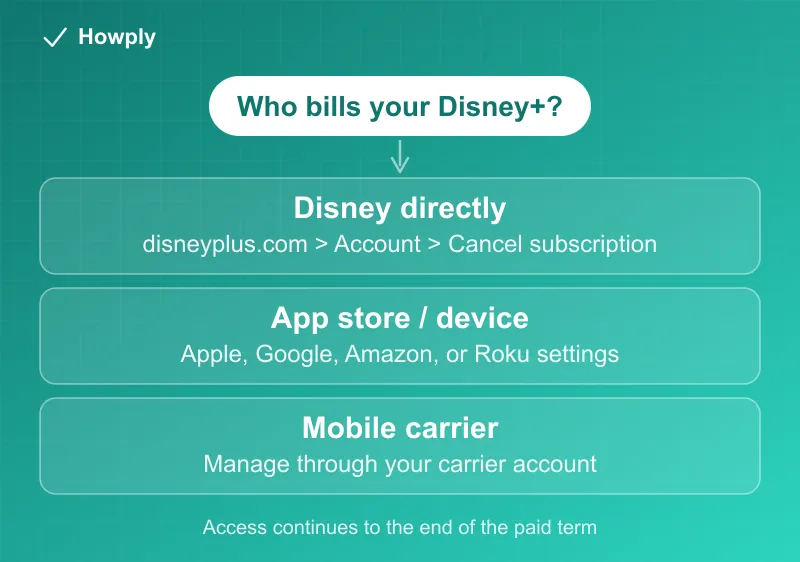
Step 1: Find out who bills you
Check your card or bank statement for the charge name, or open your Disney+ Account page and look at the Subscription section, which names the billing partner if there is one. This single check decides which path below applies.
Method 1: Canceling a direct subscription
- Sign in at disneyplus.com in a browser
- Click your profile icon, then Account
- In the Subscription section, select your plan, then Cancel subscription
- Disney will walk you through retention screens, sometimes including a cheaper plan offer. Keep confirming to complete the cancellation
- Save the confirmation email, which states the exact date your access ends
Annual subscribers keep access until the end of the prepaid year; monthly subscribers until the end of the current month.
Method 2: Billed through an app store or partner
Disney cannot stop billing it does not control:
- Apple: Settings > your name > Subscriptions > Disney+ > Cancel Subscription
- Google Play: Play Store > profile > Payments & subscriptions > Subscriptions
- Amazon: Your Account > Memberships & Subscriptions
- Roku: not in the Roku menu. Disney’s third-party billing page says that after signing up on a Roku device you “manage or cancel your subscription directly through Disney+,” and Roku’s own support article sends Disney+ subscribers to Disney+ “even if you’re billed through Roku.” Use Method 1 above; our Roku billing guide covers the bundle cases and the CIB lookup
- Mobile carrier promos: manage through the carrier account, and note that some carrier deals end automatically when your phone plan changes
One change on Disney’s page for anyone choosing a new biller: “New and returning subscribers are no longer able to sign up and pay for Disney+ through Apple,” and the same applies to Google. Existing Apple- and Google-billed subscribers are not affected and still cancel in those stores.
What happens after you cancel
- Your Disney+ account and MyDisney login are not deleted. Profiles, watch history, and watchlists stay attached to the account, so rejoining later picks up where you left off
- Canceling Disney+ does not affect other Disney services tied to the same MyDisney login
- If you are on the bundle, Hulu and ESPN access end with it. If you only want to drop one service, look at switching plans instead of canceling outright
The September 23 increase: what current subscribers pay from October 21
Disney announced a second round of increases on September 23. Its official plans page now opens with: “The following prices are for new subscriptions as of September 23, 2026. If you signed up for a Disney+ subscription prior to this date, you will see a price change in your billing cycle on or after October 21, 2026.”
| Plan | Before | New (September 23 for new, October 21 for existing) |
|---|---|---|
| Disney+ (With Ads) | $11.99 | $12.49 |
| Disney+ Premium monthly | $18.99 | $21.49 |
| Disney+ Premium annual | $189.99 | $214.99 |
| Disney+, Hulu Bundle Premium | $19.99 | $21.99 |
| Disney+, Hulu, HBO Max Bundle (With Ads) / (No Ads) | $19.99 / $32.99 | $21.99 / $34.99 |
| Disney+, Hulu Bundle (With Ads) | $12.99 | $12.99, unchanged |
| Disney+, Hulu, ESPN Select and Unlimited bundles | $21.99 to $44.99 | unchanged in this round |
The old prices are from Disney’s own sign-up page as captured by the Internet Archive on September 20, 2026. On a monthly plan billed on the 5th, the old price applies on October 5 and the new one on November 5; billed on the 25th, the new price starts October 25. By our arithmetic, the unchanged Disney+, Hulu Bundle with ads now costs 50 cents more than Disney+ with ads alone, so anyone keeping Disney+ with ads gets Hulu for $0.50 a month by switching to the bundle. The full list, including Hulu and Hulu + Live TV, is in our streaming price list, and our October price-increase tracker shows which billing dates see it first.
The August 2026 bundle price increase, and who pays it when
Disney raised prices on bundles that include ESPN Select, and its official plans page sets the two dates that matter:
- New subscriptions from August 20, 2026 pay the new prices: the Disney+, Hulu, ESPN Select Bundle Basic is $21.99/month, the Select Premium tier is $32.99/month, and the no-longer-purchasable Legacy bundle (Disney+ without ads, Hulu with ads, ESPN Select) now renews at $27.99/month
- Existing subscribers on an ESPN Select bundle see the new price on their first billing period on or after September 17, 2026
- Per the official note, only bundles that include ESPN Select are affected by this change
- Legacy bundle subscribers, read this before canceling: Disney’s page states the Legacy plan “is no longer available to purchase or switch into on Disney+. Existing subscribers will be able to keep their plan so long as they do not cancel or change it.” Canceling to dodge the $27.99 rate is permanent; you cannot resubscribe to that plan later (noted September 4, 2026)
Your plan name and next billing date are in the Subscription section of your account page, which is the same place the cancel flow starts. If the increase is your reason for leaving, the timing logic is the direct-biller pattern from our price increase guide: nothing changes mid-cycle, and the decision point is your first billing date after September 17. Remember that canceling a bundle ends Disney+, Hulu, and ESPN together; switching to a cheaper tier from the account page keeps the login and watch history intact.
Bottom line
Figure out who bills you first. Direct subscribers cancel in two minutes at disneyplus.com/account/cancel-subscription and keep access to the end of the paid term. Everyone else cancels where they pay: the app store, Amazon, or the carrier, except Roku signups, which Disney handles at disneyplus.com. If a different plan would do instead of cancelling, every Disney+ plan, bundle and add-on price is in our Disney+ plans guide.
Steps verified against Disney+‘s official Help Center as of July 19, 2026; the August 2026 bundle price changes and effective dates were added from Disney’s official plans page on August 23, 2026. Roku and app-store notes updated September 23, 2026 from Disney’s third-party billing page. The September 23 price increase and its October 21 date for existing subscribers were added on September 25, 2026 from Disney’s plans page, with the old prices from Disney’s sign-up page as captured by the Internet Archive on September 20, 2026. Plans and bundles vary; if the process changes, this guide will be updated with the revision noted.