Disney+ or Hulu Billed Through Roku? Cancel on Their Sites, Not on Roku
Roku processes the charge, but Disney+ and Hulu manage the subscription. Where the cancel button really is, how to prove who bills you, and the legacy bundle trap.
If you signed up for Disney+ or Hulu on your Roku and the charge on your card says “Roku,” the natural move is to press the Star button on the remote and look for a cancel option. For most Roku-billed apps that works. For Disney+ and Hulu it does not, and Roku says so itself: “Roku processes the charge, but Disney+, Hulu, and Sling TV manage the subscription.” Disney+ and Hulu agree, each pointing you to its own account page. Here is the loop that sends people in circles, the exact cancel path on each service, how to prove who bills you, and why the September price changes make the order of operations matter.
The quick answer
- Hulu billed through Roku: cancel at hulu.com, not on the Roku. Hulu’s Roku page: “If you’re billed for Hulu through Roku, you can cancel your Hulu subscription on Hulu.com”
- Disney+ signed up on a Roku: cancel at DisneyPlus.com. Disney’s third-party page: “Once you are signed up, manage or cancel your subscription directly through Disney+”
- Roku sends you there too: “even if you’re billed through Roku, contact Disney+ (888-905-7888), Hulu (877-824-4858), or Sling TV (888-394-6698) directly”
- You keep access to the end of the cycle, and Hulu confirms “your Roku account will not be charged for Hulu moving forward”
- This is the exception, not the rule. A standalone ESPN plan billed by Roku is cancelled in the Roku menu with Turn off auto-renew; Disney+ and Hulu are carved out by name
- If Disney+ or Hulu asks for a CIB to find your account, Roku says “you can get it from your Roku invoice”
Key facts at a glance
| Question | Answer |
|---|---|
| Who processes the payment | Roku (the charge reads “Roku” or “Roku for ___“) |
| Who manages the subscription | Disney+ or Hulu |
| Where to cancel Hulu | hulu.com Account page, Cancel under Your Subscription |
| Where to cancel Disney+ | DisneyPlus.com, Profile, Account, Cancel Subscription |
| Does the Roku Star menu cancel it | No, per Roku’s own article |
| Access after cancelling | Until the end of the current billing cycle |
| Pause instead (Hulu) | Roku-billed Hulu can pause “for up to 12 weeks” |
| Proof of who bills you | Hulu Account page, Payment Information; my.roku.com/subscriptions; the card statement |
| Account lookup code | CIB (Customer Identifier for Billing), on your Roku invoice |
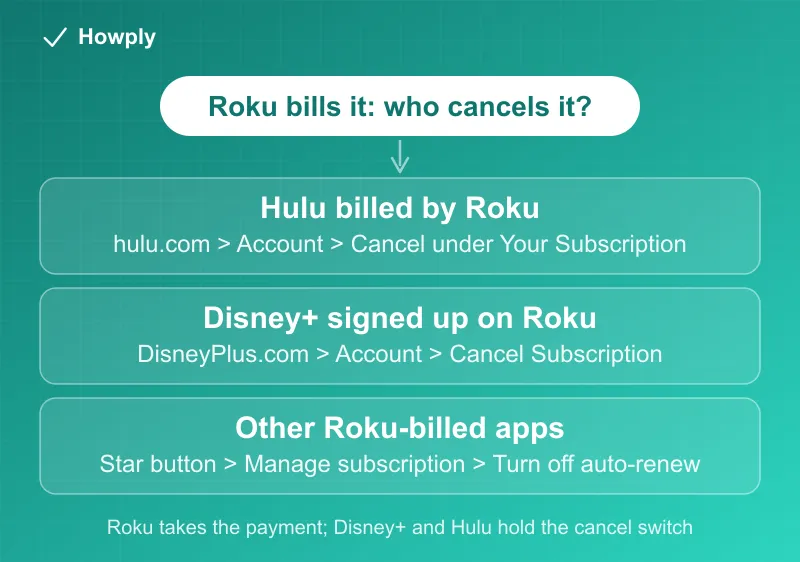
The loop, and why it is not actually a loop
Roku’s support article has a dedicated section for exactly three services: “To manage or cancel your Disney+, Hulu, or Sling TV subscription, even if you’re billed through Roku, contact Disney+ (888-905-7888), Hulu (877-824-4858), or Sling TV (888-394-6698) directly. Roku processes the charge, but Disney+, Hulu, and Sling TV manage the subscription.”
Read one way, that sounds like being bounced. Read the other two companies’ pages and it is a consistent instruction:
- Hulu’s Roku-billed account page: “If you’re billed for Hulu through Roku, you can cancel your Hulu subscription on Hulu.com”
- Disney+‘s third-party billing page, under “How do I pay for Disney+ through Roku?”: “You can subscribe to Disney+ through Roku by downloading the app and signing up on your supported Roku device… Once you are signed up, manage or cancel your subscription directly through Disney+”
So the money goes through Roku Pay, but the subscription record lives with Disney+ or Hulu, and that is where the cancel button is. Nobody is bouncing you; Roku simply does not hold the switch.
First, confirm that Roku is the biller
Three checks, from the companies’ own pages:
- Hulu: “You can confirm if you are billed by Roku on your Hulu Account page. Your billing party is listed in the Payment Information section”
- Roku: “To see if your subscription is billed and managed through Roku, go to my.roku.com/subscriptions,” and on the card statement, “Subscriptions billed by Roku appear as charges from ‘Roku,’ ‘Roku for ___,’ or ‘The Roku Channel’”
- Disney+: sign in at DisneyPlus.com and open Account; the Subscription section shows the plan and, for partner billing, who bills it
If Hulu’s Payment Information says Hulu, or the statement shows a charge from Hulu or Disney rather than Roku, you are a direct subscriber and the standard paths in our Hulu cancellation guide and Disney+ cancellation guide apply.
Cancel a Roku-billed Hulu subscription
Hulu’s cancellation page gives the steps for a browser, and the Roku-billed page confirms they apply to you:
- “Head to your Account page on a computer or mobile browser”
- “Select Cancel under Your Subscription”
- “Next, you may be presented with the option to pause your subscription. Select Continue to Cancel if you’re not interested”
- “Select Cancel Subscription”
Hulu’s confirmation: “After you’ve successfully canceled, the subscription status on your Account page should read: ‘Your subscription will be canceled.’ We’ll also send a confirmation email to the email address we have on file.” Keep that email. For the Roku side, Hulu states that “you’ll continue to have access to Hulu until the end of your current billing cycle, but your Roku account will not be charged for Hulu moving forward.”
Three Roku-specific details from Hulu’s page:
- Pausing is available. “If you’d just like to take a break from Hulu instead of cancel, you also have the option to pause your account for up to 12 weeks.” Most third-party-billed Hulu accounts cannot pause; Roku billing is one of the exceptions
- You cannot move to a bundle through Hulu. “Roku-billed subscribers cannot switch to a bundle plan through Hulu; however, they can sign up directly through Disney+”
- Switching to direct billing means cancelling first. “If you’d like to switch from Roku billing to Hulu billing, you will need to subscribe directly through Hulu. Existing Roku-billed subscribers will want to end their current subscription first. Once the remainder of your paid billing cycle is over, you can then resubscribe via Hulu.com/Welcome.” Do it in that order, or you will hold two subscriptions
Hulu + Live TV subscribers, one warning that applies regardless of biller: “Hulu + Live TV free trials will end immediately upon cancellation.”
Cancel a Disney+ subscription you signed up for on a Roku
Disney’s instruction is to treat it like a Disney-billed plan. From the How to cancel Disney+ page:
- “Log in to DisneyPlus.com through a computer or mobile browser”
- “Select your Profile”
- “Select Account”
- “Select your Disney+ subscription under Subscription”
- “Select Cancel Subscription”
Then: “You’ll continue to have access to Disney+ until the end of your current subscription term.” If the Account page does not show a Cancel Subscription option for your plan, use the phone route Roku lists (888-905-7888) and have your CIB ready. Roku’s tip is specific: “If Disney+ or Hulu asks for your CIB (Customer Identifier for Billing) to find your account, you can get it from your Roku invoice,” which is in the purchase history at my.roku.com.
Two facts on the same Disney page that matter if you are shopping for a new biller: “New and returning subscribers are no longer able to sign up and pay for Disney+ through Apple,” and the same sentence appears for Google. Existing Apple- and Google-billed subscribers are not affected and still cancel in those stores. Signing up on DisneyPlus.com is the route Disney points everyone to.
The bundle wrinkle
If you already had a Roku-billed Hulu account and later added a Disney+, Hulu, ESPN bundle through Disney+, you now have two subscriptions with two billers. Hulu’s page explains what cancelling each one does:
- “When you cancel your original subscription, your subscription to your Disney+, Hulu, ESPN+ Bundle will continue uninterrupted,” though any credit you were receiving toward the bundle price for the original plan “will end when you cancel your original subscription”
- “When you cancel your Disney+, Hulu, ESPN+ Bundle, your original Hulu, ESPN+, or third-party billed subscription will continue at the then-current price and terms (unless you also cancel the Hulu, ESPN+, or third-party billed subscription separately)”
Translated to the Roku case: cancelling the bundle on Disney+ does not stop the Roku charge for your original Hulu plan, and cancelling the Roku-billed Hulu plan on hulu.com does not stop the bundle. To end everything, cancel both, each on its own site.
Why ESPN on Roku works differently
Roku’s carve-out names Disney+, Hulu, and Sling TV only. A standalone ESPN Select or ESPN Unlimited plan billed by Roku is a normal Roku subscription: press Home, highlight the app, press the Star button, select Manage subscription, then Turn off auto-renew. Our ESPN on Roku guide walks through it. The difference is not the Disney ownership; it is which company holds the subscription record, and for ESPN’s own plan that is Roku.
If the price increase is why you are leaving
The September increases are now in effect, and Disney’s plans and prices page no longer carries the “on or after September 17” transition wording it showed earlier in the month. What it shows instead is the current price list, with the legacy Disney+ Premium, Hulu, ESPN Select bundle at $27.99 a month and this note: “Please note this plan is no longer available to purchase or switch into on Disney+. Existing subscribers will be able to keep their plan so long as they do not cancel or change it.”
Three consequences for a Roku-billed subscriber:
- Cancelling a legacy bundle is one-way. Once it is cancelled, Disney’s page says it cannot be purchased or switched into again
- Your Roku charge may not match the list. The same page carries the footnote “Pricing through third-party billing partners may vary,” so read the amount on your Roku invoice rather than the Disney+ table
- Timing still turns on the renewal date. Neither Disney+ nor Hulu refunds the remainder of a cycle, so cancelling the day after a renewal means paying a full cycle at the new price. Hulu shows the next billing date on the Account page; Disney+ shows it in the Subscription section
The other increases landing this month are in our price increase tracker.
If the Roku charge continues after you cancel
- Check the confirmation: Hulu’s Account page should read “Your subscription will be canceled,” and Disney+ should show the end date of the term
- Check the cycle: both companies bill through the end of the paid period, so one final charge that was already due is normal
- Check for a second subscription: a Roku-billed Hulu plan plus a Disney+ bundle is the common pair
- Then follow Roku’s instruction: “If you have a Disney+, Hulu, or Sling TV subscription, or a subscription through another streaming service, contact them directly for help.” Our still being charged guide covers the paper trail to keep
Bottom line
Roku takes the payment for Disney+ and Hulu, but it does not hold the cancel switch. Roku-billed Hulu is cancelled on hulu.com, from the Account page. Disney+ signed up on a Roku is cancelled on DisneyPlus.com, from Account. Confirm the biller first, in Hulu’s Payment Information or at my.roku.com/subscriptions, cancel before the renewal date if the price increase is your reason, and if you hold a bundle as well, cancel that separately on Disney+.
Steps and quotations verified on September 23, 2026 against Roku’s “Manage or cancel subscriptions on Roku” article, Hulu’s “Managing a Roku-billed Hulu account” and “How to cancel Hulu” pages, and Disney+‘s “Disney+ subscriptions through a third party,” “How to cancel Disney+,” and “Disney+ plans and prices” pages. The phone numbers are the ones Roku publishes. We have not placed a test call; the phone route is reported as Roku describes it.