How to Cancel Crunchyroll (Find Who Bills You First)
Crunchyroll cancellation depends on where you signed up: the website, an app store, or a service like PlayStation. The exact path for each, and the trap to avoid.
Canceling Crunchyroll Premium is simple once you answer one question: who actually bills you? Sign-ups happen on the website, in the mobile app, or through services like Amazon and PlayStation, and each has its own cancel switch. Here is how to check, the exact path for each case, and the mistake that keeps people paying after they think they quit.
The quick answer
- Step 1: check how you are billed at crunchyroll.com > profile icon > Settings > Membership Info
- Signed up on the website (card or PayPal): Membership Info > Cancel Subscription > confirm with Finish Cancellation
- Signed up in the iOS/Android app: cancel through your Apple or Google subscription settings, or in the app
- Signed up via Amazon, PlayStation, Roku, or YouTube: cancel through that service
- The trap: deleting the app, logging out, or removing your payment method does not stop billing
Key facts at a glance
| Question | Answer |
|---|---|
| Who bills me? | crunchyroll.com > Settings > Membership Info names the billing source |
| Website sign-up | Membership Info > Cancel Subscription > Finish Cancellation |
| App sign-up (iOS/Android) | Apple or Google subscription settings, or the Crunchyroll app |
| Amazon / PlayStation / Roku / YouTube | Cancel through that service, not Crunchyroll |
| When it takes effect | Premium perks continue until the end of the billing period |
| Does deleting the app cancel? | No; billing continues until you cancel where you signed up |
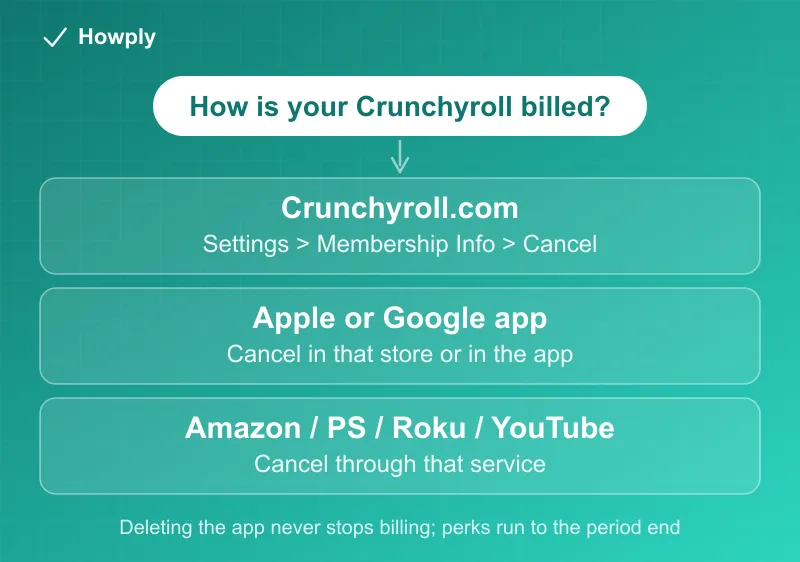
Step 1: Find out who bills you
Crunchyroll’s own help puts this first for a reason. Go to crunchyroll.com in a browser, log in, select your profile if asked, then click your profile icon > Settings > Membership Info. That page names your billing source: Crunchyroll itself, an app store, or a partner service like PlayStation. Whatever it says decides which path below applies to you.
Method 1: Signed up on Crunchyroll.com
If you subscribed directly with a credit card or PayPal:
- On the Membership Info page, select Cancel Subscription
- Crunchyroll will show retention offers; choose No thanks, Finish Cancellation
- Optionally share a reason, then submit and exit
- Keep the confirmation and note when your Premium access ends
Method 2: Signed up through the mobile app
If your subscription started inside the iOS or Android app, the billing lives with Apple or Google:
- Apple: Settings > your name > Subscriptions > Crunchyroll > Cancel Subscription
- Google Play: Play Store > profile > Payments & subscriptions > Subscriptions > Crunchyroll
Crunchyroll notes you can also manage it from inside the app, but if you did not subscribe through the app, no cancel option appears there. That absence confuses people every day; it just means your billing is elsewhere.
Method 3: Signed up via Amazon, PlayStation, Roku, or YouTube
If Membership Info shows a partner service, cancel through that service’s own subscription management. Crunchyroll cannot stop billing it does not control.
The trap that keeps people paying
Straight from Crunchyroll’s help pages: deleting the app, logging out, or removing your payment method will not cancel your subscription. Charges continue until you cancel through the method you originally signed up with. Cancel first, then clean up the app if you want.
After you cancel
You keep every Premium perk (ad-free streaming, simulcasts, offline viewing) until the end of the billing period you already paid for, so canceling right after a renewal costs nothing extra. Your account, queue, and watch history stay in place on the free tier, and resubscribing later picks up where you left off.
Bottom line
Check Membership Info first; it names who bills you. Website subscribers cancel right there with Finish Cancellation, app subscribers cancel through Apple or Google, and partner-billed subscribers cancel through Amazon, PlayStation, Roku, or YouTube. Whatever you do, remember that deleting the app cancels nothing.
Steps verified against Crunchyroll’s official help center as of July 24, 2026. If the process changes, this guide will be updated with the revision noted.