How to Cancel Amazon Music Unlimited: Settings, Alexa, and the Pause Option
Cancel in Your Amazon Music Settings or by asking Alexa; app-store and carrier plans cancel with that provider. The pause option, what goes gray, and the lost audiobook.
Amazon keeps two separate help pages for canceling its music plans, one for Amazon Music Unlimited and one for Amazon Music Standard, and the steps are nearly identical: open Your Amazon Music Settings, find the Subscription Renewal details, select Cancel, confirm. You can even do it by voice. The parts people miss are the pause option that only some plans qualify for, the rule that app-store and carrier-billed plans must be canceled with that provider, and a note on the Unlimited page that canceling also ends access to the audiobook you picked. Here is everything on Amazon’s two pages.
The quick answer
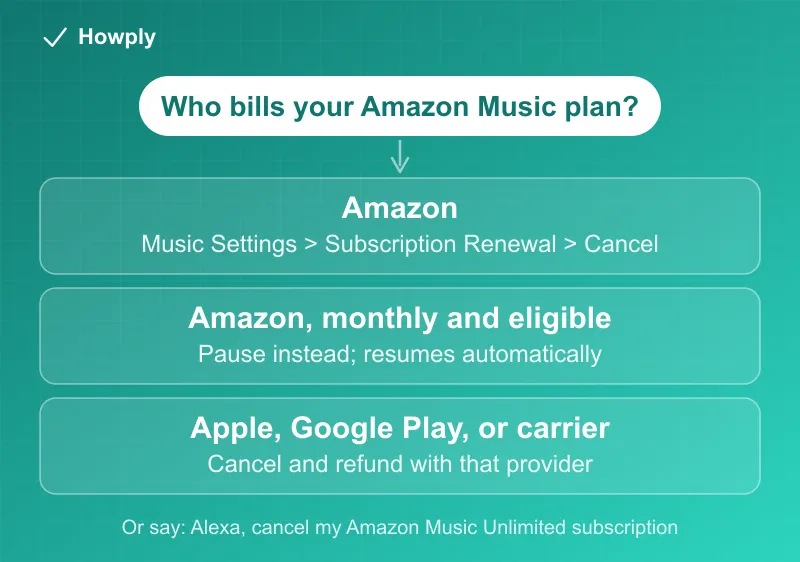
- Signed up through Amazon: go to Your Amazon Music Settings, open the Amazon Music Unlimited section, select Cancel in the Subscription Renewal details, and confirm.
- By voice: on an Echo or other Alexa device, say “Alexa, cancel my Amazon Music Unlimited subscription.”
- Signed up through Apple, Google Play, or a phone carrier: Amazon’s instruction is to “contact them to cancel or request a refund.” Their policies apply, and Amazon cannot cancel or refund those plans.
- Pause instead: eligible monthly plans can be paused; the pause starts at the end of the billing cycle and the plan resumes automatically or whenever you choose.
- Not pausable: annual plans, free trials, promotions, and any plan from an app store or carrier.
- After it ends: Unlimited songs and podcasts in your Library gray out and the Playback option disappears. Individual and Family plan holders also lose their selected audiobook at the end of the cycle.
Key facts at a glance
| Question | Answer |
|---|---|
| Cancel path | Your Amazon Music Settings > Amazon Music Unlimited > Subscription Renewal > Cancel > confirm |
| Voice command | ”Alexa, cancel my Amazon Music Unlimited subscription.” |
| Amazon Music Standard | Same path on its own help page: Settings > Subscription Renewal > Cancel |
| Bought through Apple, Google, or a carrier | Cancel and request refunds with that provider |
| Refund from Amazon | Not mentioned on either page; third-party refunds go through the third party |
| When access ends | You can keep listening until the plan ends |
| Pause | Monthly plans only, if eligible; effective at the end of the billing cycle |
| Cannot pause | Annual plan, free trial, promotion, app-store or carrier plan |
| What happens to your Library | Unlimited songs and podcasts gray out; the Playback option is removed |
| Audiobook perk | Lost at the end of the current billing cycle on pause or cancel |
First, who bills you?
The Amazon Music Unlimited cancel page opens with the one question that decides everything. If you subscribed through the Apple App Store, Amazon points you to Apple’s own instructions. More broadly: “If you signed up through Apple App Store, Google Play, or a mobile service provider, contact them to cancel or request a refund.” Amazon adds that their cancellation and refund policies apply, which means no refund request to Amazon will help for a plan Amazon never billed. If an iPhone is where you subscribed, our iPhone subscription cancel guide shows the Apple screen.
Canceling a plan billed by Amazon
For a subscription started through Amazon itself, the steps on the Unlimited page are:
- Go to Your Amazon Music Settings.
- Go to the Amazon Music Unlimited section.
- Select the Cancel option in your Subscription Renewal details.
- Confirm the cancellation.
Amazon also accepts the request by voice from an Echo or any Alexa-enabled device, with the exact phrase “Alexa, cancel my Amazon Music Unlimited subscription.” Either way you can keep using the plan until it ends.
Amazon Music Standard has its own cancel page with the same structure: Your Amazon Music Settings, the Subscription Renewal section, Cancel, confirm, or the matching Alexa phrase for a Standard subscription. If you are not sure which of the two you pay for, the section name shown in your Music Settings tells you, and the music streaming price guide lists the current tiers.
The pause option and who qualifies
Both pages offer a pause as an alternative, with the same mechanics: “The pause becomes effective at the end of the billing cycle.” The subscription then resumes automatically, or you can resume it at any time from Your Amazon Music Settings. The Unlimited page lists who cannot pause: anyone on an annual plan, a free trial, a promotion, or a plan from the Apple App Store, Google Play, or a mobile service provider. The Standard page repeats that an annual plan cannot be paused. For when a pause makes more sense than a cancellation, see our guide on pausing instead of canceling.
What changes when the plan ends
Amazon describes the after-state plainly. Once an Unlimited plan ends, the app will “Gray out your Amazon Music Unlimited songs and podcasts in your Library” and remove the Playback option. The Standard page says the same for Standard content. Your Library entries are not deleted, so resubscribing restores them.
One line on the Unlimited page is easy to skip: Individual plan subscribers and Family plan account holders who pause or cancel “lose access to their selected audiobook when their current billing cycle ends”. If you chose an audiobook through the plan and have not finished it, finish it before the cycle closes, or consider whether an Audible subscription is the right home for it instead.
If Prime is the real question
Amazon Music Unlimited bills separately from Prime. Canceling Unlimited does not touch Prime membership, and canceling Prime does not cancel an Unlimited plan billed on its own. If Prime itself is what you want to end, our Amazon Prime cancel guide covers the refund rules for that membership.
Bottom line
For a plan Amazon bills, canceling Amazon Music Unlimited or Standard is four clicks in Your Amazon Music Settings or one sentence to Alexa, and you keep listening until the paid period ends. For a plan billed by Apple, Google, or your carrier, Amazon sends you to that company for both the cancellation and any refund. Check whether a pause is available before you cancel, remember that annual plans, trials, and promotions cannot pause, and if you have an audiobook picked through the plan, finish it before the billing cycle closes.
Steps verified against Amazon’s official help pages for Amazon Music Unlimited and Amazon Music Standard as of October 30, 2026. If the process changes, this guide will be updated with the revision noted.