How to Cancel PlayStation Plus (Web, PS5, and PS4 Steps)
PlayStation Plus cancels from Account Management on the web or in console settings, and Sony's 14-day refund rule has a pro-rata catch. Every path, explained.
Canceling PlayStation Plus works from a browser or straight from your console, and unlike most subscriptions, Sony publishes a real refund rule: 14 days, with a catch. Here is the exact path on the web, PS5, and PS4, what survives after your membership ends, and how the pro-rata refund actually works.
The quick answer
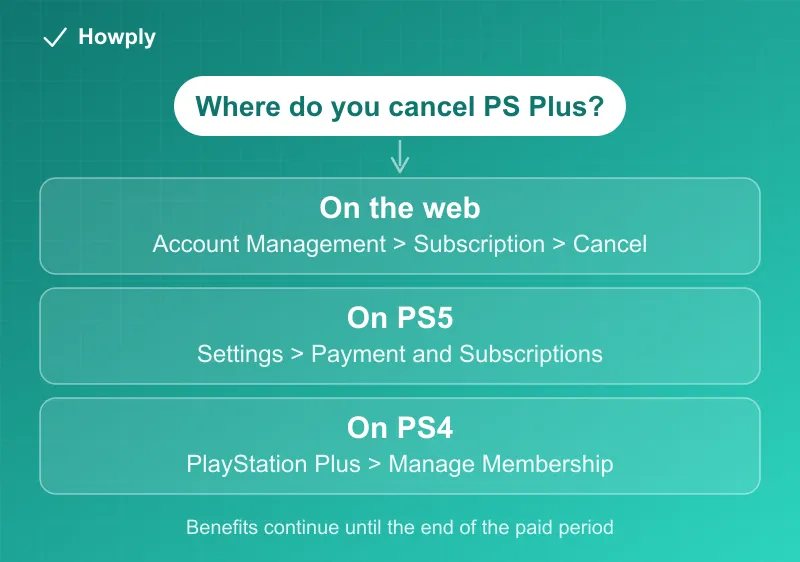
- Web: sign in to Account Management > Subscription in the left menu > Cancel Subscription next to PlayStation Plus
- PS5: Settings > Users and Accounts > Account > Payment and Subscriptions > Subscriptions > PlayStation Plus > Cancel Subscription
- PS4: PlayStation Plus > Manage Membership > Subscription > Cancel Subscription
- Access: benefits continue until the end of the paid period
- Refund: within 14 days of the transaction you can cancel and request a refund, reduced pro-rata for the use you have had
Key facts at a glance
| Question | Answer |
|---|---|
| Where to cancel (web) | Account Management > Subscription > Cancel Subscription |
| Where to cancel (PS5) | Settings > Users and Accounts > Payment and Subscriptions |
| Where to cancel (PS4) | PlayStation Plus > Manage Membership > Subscription |
| When it takes effect | End of the paid period; benefits run until then |
| Refund window | 14 days from the transaction, even after using the service |
| The refund catch | Reduced pro-rata for the days or benefits already used |
| What you keep | Redeemed PS Plus packs, avatars, and discounted purchases |
| What you lose at expiry | Monthly games, cloud storage, and online multiplayer |
Method 1: Cancel on the web
- Sign in to Account Management on playstation.com with the account that pays for the subscription
- Select Subscription from the menu on the left
- Click Cancel Subscription next to PlayStation Plus and confirm
- Save the confirmation and note the date your benefits end
Method 2: Cancel on a PS5
- Open Settings, then Users and Accounts
- Go to Account > Payment and Subscriptions > Subscriptions
- Select PlayStation Plus, then Cancel Subscription and confirm
Method 3: Cancel on a PS4
- From the home screen, open PlayStation Plus
- Select Manage Membership, then Subscription
- Choose Cancel Subscription and confirm
How the 14-day refund actually works
Sony’s official cancellation policy is more generous than most, with one catch worth understanding:
- You can cancel and request a refund within 14 days of the initial transaction, even after you start using the subscription
- The refund may be reduced pro-rata to reflect the use you have had. In practice it appears as two transactions: a full refund credited to your wallet, then a debit for the portion of the service period you used
- If you converted from a free trial, the 14-day clock starts when the paid order is accepted, and the trial time counts toward the window
- Past 14 days, there is no refund; cancellation simply stops the next renewal while benefits run to the end of the paid period
Refund requests go through PlayStation Support rather than the cancellation flow itself.
What you keep and what you lose
Canceling does not touch your account or purchases. Per Sony’s support page:
- Yours to keep: redeemed PlayStation Plus packs and avatars, plus anything you bought at a PS Plus member discount
- Gone when the period expires: the monthly games catalog, cloud save storage, and online multiplayer access
- Worth knowing: monthly games return to your library if you resubscribe later, since they were redeemed to your account
Bottom line
Cancel from Account Management on the web or the subscriptions menu on your console, keep playing until the paid period runs out, and if you are inside 14 days of the charge, ask PlayStation Support for the pro-rata refund. Everything you redeemed or bought stays with your account either way.
Steps and refund rules verified against PlayStation’s official support and Store cancellation policy pages as of July 23, 2026. If the process changes, this guide will be updated with the revision noted.