How to Cancel PayPal Automatic Payments (and What That Does Not Cancel)
Every merchant with standing permission to charge your PayPal lives on one settings page. The cancel path, the payment-method trap, and the second step people skip.
PayPal keeps a single list of every merchant you have ever given standing permission to charge you, and it is one of the most forgotten screens in personal finance. PayPal’s own help page calls these automatic payments, “also known as a subscription, billing agreement, or recurring payment,” and the same page has the cancel button. Here is the exact path, the payment-method detail on that screen that surprises people, and the distinction that matters most: canceling the PayPal side stops PayPal from paying, but it is not the same thing as canceling the subscription you signed up for.
The quick answer
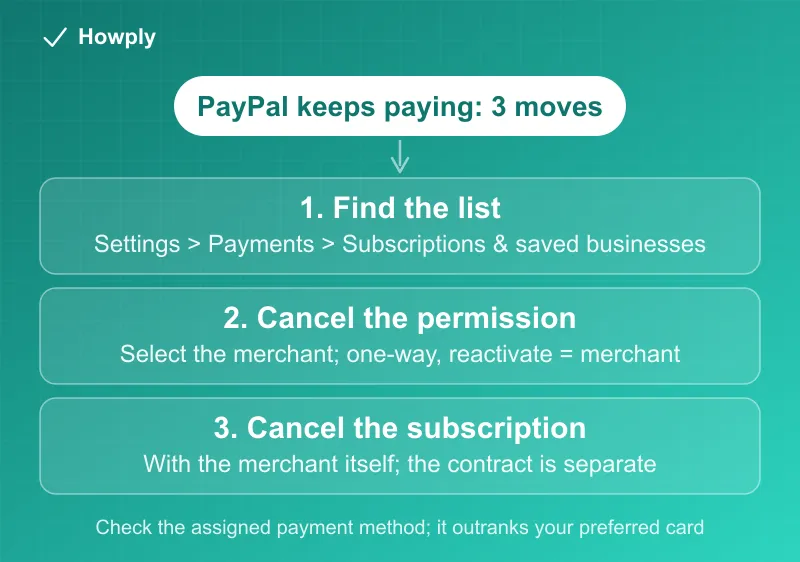
- The list: log in at paypal.com > Settings (gear icon) > Payments > Subscriptions and saved businesses (also labeled Automatic Payments). Every merchant with standing permission is there, per PayPal’s official steps
- To cancel: select the merchant, and the merchant’s page offers cancel the automatic payment. Treat canceling as one-way: PayPal’s help page describes no way to switch a canceled automatic payment back on, so plan on setting it up again with the merchant
- The deadline: PayPal’s User Agreement says a personal account “may cancel a recurring automatic payment 3 Business Days or more before the date of the next scheduled payment.” Inside that window the agreement makes no promise that PayPal can stop the charge, which the help article never mentions
- What it does not do: it ends PayPal’s permission to pay, not your agreement with the merchant. Cancel the subscription with the merchant too, or the service can bill another way, suspend the account, or treat the bill as unpaid
- The payment-method trap: an automatic payment can carry its own assigned funding method that overrides your normal preferred card or bank. The same screen changes it, and the backup method
- Statement decoder: recurring PayPal charges hit your card or bank as PAYPAL *MERCHANTNAME, which is why they are easy to misattribute
Key facts at a glance
| Question | Answer |
|---|---|
| Where the list lives | Settings > Payments > Subscriptions and saved businesses / Automatic Payments |
| Cancel path | Select the merchant > cancel the automatic payment |
| Cancel by | 3 Business Days or more before the next scheduled payment (User Agreement) |
| Other ways to cancel | PayPal Help Center, or calling (888) 221-1161 |
| Reactivate later | Not described on PayPal’s help page; plan on setting it up again with the merchant |
| Change what card it charges | Same screen > Change Payment Method (also the backup method) |
| Which card gets charged | The method assigned to that automatic payment wins over your general preferred method |
| Merchant contact info | Listed inside the automatic payment entry |
| Does canceling end the subscription? | No; the merchant agreement is separate. Cancel there too |
| Amounts that change | The seller owes you at least 10 days’ advance notice of the amount and date |
Step 1: open the list everyone forgets
On the PayPal website: Settings (the gear) > Payments > Subscriptions and saved businesses, which PayPal also labels Automatic Payments. On the current site the page itself is titled Autopay, lives at paypal.com/myaccount/autopay, and splits your agreements into Active and Inactive tabs:
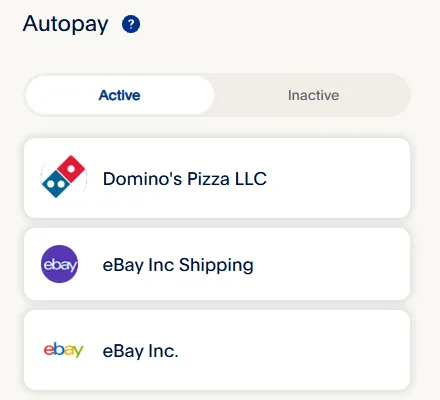
In the app, the same list lives under Subscriptions or Linked Businesses. What you find there is often years deep: PayPal states these agreements are created during merchant checkout when you choose to save PayPal for future purchases, and “we keep track of where your PayPal account is saved.” Note how ordinary the entries look in the screen above; a shipping-label agreement and a food-delivery login both count. In our subscription sweep guide, this is the ledger people most often skip, and where the oldest surprises live.
Step 2: cancel the automatic payment
Select the merchant. The entry shows the terms you agreed to, the merchant’s contact information (worth noting before you cancel; you will want it for Step 3), and the cancel option. Two properties of that cancel button:
- Treat it as one-way. PayPal’s help page describes no way to switch a canceled automatic payment back on, so if you ever want it back, plan on setting it up again with the merchant. Canceled entries move to the Inactive tab on the Autopay page
- It stops future PayPal charges from that merchant, which is exactly all it does
The three-business-day rule
The help article does not give a cutoff, but the User Agreement, last updated September 14, 2026, does. For a personal account, you “may cancel a recurring automatic payment 3 Business Days or more before the date of the next scheduled payment from your account settings or by contacting us through the PayPal Help Center, or by calling PayPal at (888) 221-1161.” The promise attached to it is specific: “If you order us to stop one of these payments 3 Business Days or more before the transfer is scheduled, and we do not do so, we will be liable for your losses or damages.”
Read that from the other side. The agreement makes no such promise for a payment scheduled sooner, so if your renewal is a day or two away, cancel with the merchant at the same time and keep the dated confirmation. The same section says canceling does not erase what you already owe: “you may still owe the seller money for purchases that have been authorized but not completed, or you may still have additional obligations to the seller for any goods or services that you receive but have not paid for.”
One more right worth knowing for bills that change from month to month: “you have the right to advance notice of the amount and date of the transfer from the seller at least 10 days before the transfer is made.” A varying charge that arrived with no notice is the one to question first.
Step 3: cancel the subscription itself, with the merchant
This is the step that separates “stopped paying” from “actually canceled.” The automatic payment is a payment permission; the subscription is a contract with the merchant. Ending the first without the second leaves the agreement alive: depending on the merchant, that can mean the service tries a different payment method on file, suspends your account with a balance owing, or keeps sending invoices. The CFPB’s guidance on stopping any automatic payment is built on the same two-step: revoke permission with the company and with the payment provider, and once both are told, further charges are errors you can demand back.
So use the merchant contact info from the entry, or the cancel flows in our guides for the big services, and end the subscription on their side too. The clean order is actually merchant first, PayPal second; PayPal-side first is the right move only when the merchant makes canceling hard, and even then follow through with them in writing.
The payment-method detail worth checking either way
PayPal’s page documents something most users never notice: an automatic payment can have a specific funding method assigned to it, and that method “will be prioritized for making the relevant automatic payment, even if you’ve chosen a different card or bank as your preferred way” to pay in general. In practice: you switched your preferred card months ago, but an old agreement quietly kept charging the old bank account. On the merchant’s entry you can Change Payment Method, link a new card or bank, and set the backup method that catches a failed charge. If you keep the subscription, point it at the card you actually monitor.
The User Agreement adds two details. First, “If you have available balance with PayPal, that balance may be used before your preferred payment method, depending on your applicable automatic payment agreement with the seller,” so a PayPal balance can pay a bill you thought was going to your card. Second, when your chosen method cannot cover a charge, PayPal moves down a fixed list: balance or PayPal Debit Card, bank account, PayPal co-branded credit card, debit card, credit card, and e-check. Canceling the agreement, not just changing the card, is what ends that fallback.
After you cancel
- Charges from that merchant through PayPal stop; anything that still lands is a dispute case, starting with the merchant and then PayPal’s Resolution Center, with the general escalation in the canceled but still charged guide. PayPal also replaced its dispute terms on September 14, which our PayPal dispute rules guide explains
- A refund you are owed back through PayPal follows its own timeline, covered in the PayPal refund guide
- Recurring statement lines reading PAYPAL *NAME belong to this list; if a name there means nothing to you, the entry’s terms and contact info are how you identify it before assuming fraud
Bottom line
One settings page holds every standing permission PayPal has to pay someone on your behalf: Settings > Payments > Subscriptions and saved businesses. Cancel the merchant’s permission there, treating it as one-way, then cancel the subscription with the merchant itself, because the permission and the contract are two different things. And while you are on that screen, check which card each surviving agreement actually charges; the assigned method outranks your preferred one, and that mismatch is where forgotten money leaks.
Paths and mechanics verified against PayPal’s official help article and the CFPB’s automatic-payments guidance, linked above, as of August 19, 2026 and rechecked on September 30, 2026, when a quoted reactivation sentence that does not appear on the help page was replaced with what the page does say, and again on October 4, 2026 against the PayPal User Agreement last updated September 14, 2026, which supplied the cancellation cutoff, the notice right, and the backup order; the Autopay page screenshot is from our own PayPal account on August 25, 2026. PayPal moves settings labels around (“Automatic Payments,” “Subscriptions and saved businesses,” and “Autopay” on the page itself); its help page is the source of truth. Rechecked as of October 18, 2026 against the same help page, the CFPB page, and the User Agreement; nothing had changed.