How to Cancel ESPN on Roku: Turn Off Auto-Renew, Not the App
If Roku bills your ESPN plan, espn.com cannot cancel it. The exact Roku steps on the remote and the website, the Disney bundle exception, and the price timing.
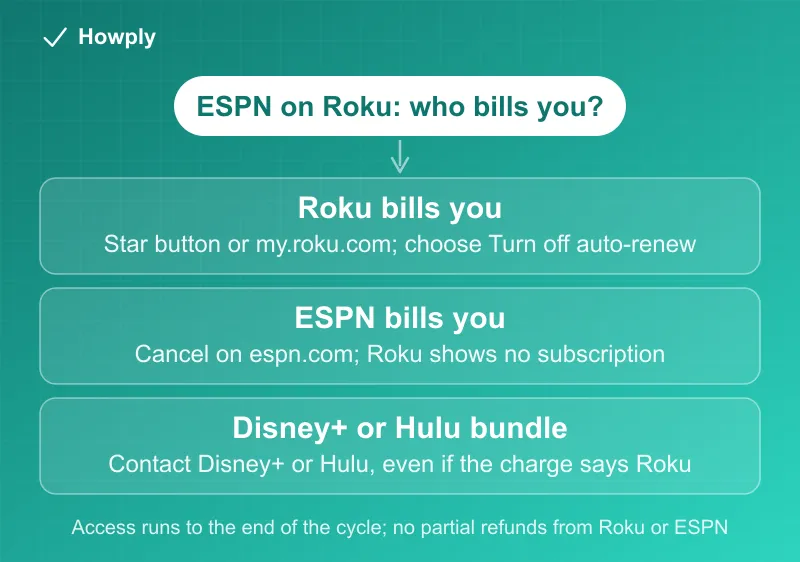
If you signed up for ESPN Select or ESPN Unlimited on your Roku, the Cancel button on espn.com will not work for you, because ESPN does not bill you. Roku does. ESPN’s own support page says so: “If your ESPN subscription is billed through a third party, such as Apple, Google, Roku, etc., you must visit the third-party partner’s website to manage or review your subscription options.” On Roku the control is not even called Cancel. It is “Turn off auto-renew,” and it lives behind the Star button on your remote or at my.roku.com. Here are the exact steps from Roku’s support article, the one case where Roku sends you elsewhere, and how the September 17 price increase lands on a Roku-billed plan.
The quick answer
- On the Roku: press Home, highlight the ESPN app, press the Star button, select Manage subscription, then Turn off auto-renew
- On the web: go to my.roku.com/subscriptions, pick ESPN under Active subscriptions, select Manage subscription, then Turn off auto-renew
- You keep access: “Your subscription will be active until the end of the billing cycle”
- No refund for the unused part: Roku says “No partial-term refunds are provided,” and ESPN says it does “not offer refunds or credits for partially used billing periods”
- Deleting the app cancels nothing. Only turning off auto-renew stops the charge
- Disney bundle exception: if your ESPN comes inside a Disney+ or Hulu bundle, Roku tells you to contact Disney+ or Hulu, “even if Roku is billing you”
Key facts at a glance
| Question | Answer |
|---|---|
| Who can cancel a Roku-billed ESPN plan | Roku, not ESPN |
| Name of the cancel control | Turn off auto-renew |
| Where on the device | Home, highlight ESPN, Star button, Manage subscription |
| Where on the web | my.roku.com/subscriptions, Active subscriptions |
| Access after cancelling | Until the end of the current billing cycle |
| Refund for unused time | None, per both Roku and ESPN |
| How to confirm Roku bills you | The plan is listed at my.roku.com/subscriptions; the card shows “Roku” or “Roku for ___“ |
| Roku PIN | Required to confirm if you set one for purchases |
| ESPN inside a Disney+ or Hulu bundle | Contact Disney+ (888-905-7888) or Hulu (877-824-4858) |
First, confirm that Roku is the one billing you
Watching ESPN on a Roku does not mean Roku bills you. Plenty of people subscribe on espn.com and only sign in on the Roku app. Roku’s support article gives two checks:
- “To see if your subscription is billed and managed through Roku, go to my.roku.com/subscriptions. Your subscription will be listed there”
- “You can check your billing statement, too. Subscriptions billed by Roku appear as charges from ‘Roku,’ ‘Roku for ___,’ or ‘The Roku Channel’”
If ESPN is not listed at my.roku.com/subscriptions and your statement shows a charge from ESPN or Disney instead, stop here. You have a different biller, and our full ESPN cancellation guide covers the espn.com path, the app stores, and the bundles.
Method 1: cancel on the Roku with the remote
Roku’s steps, in its own words:
- “Press the Home button on your Roku remote”
- “Use your remote’s arrow buttons to highlight the app you want to cancel.” Highlight ESPN, do not open it
- “Press the Star button on your remote”
- “Select Manage subscription to view the renewal date and access more options”
- “To cancel a subscription, select Turn off auto-renew. Your subscription will be active until the end of the billing cycle”
Two details trip people up, and both are in Roku’s article:
- The PIN. “If you’ve set a Roku PIN for subscriptions and purchases, enter it when prompted to confirm. The same PIN is required to turn auto-renew back on.”
- The missing menu. “Some options, like Manage Subscription, aren’t available from Quick Access. Scroll to the Apps section, then select the app, and press Star to find them.” If the Star button shows a short menu with no Manage subscription line, you are probably on a Quick Access tile. Go down to the full Apps row and try again
Step 4 is worth a pause even if you are not ready to cancel: the Manage subscription screen shows your renewal date, which is the date that matters for the price increase below.
Method 2: cancel on the Roku website
This works from a phone or computer, and it is the easier route if the remote is lost or the TV is in another room:
- “Go to my.roku.com/subscriptions” and sign in with the Roku account that owns the device
- “Under Active subscriptions, select the subscription you want to cancel”
- “Select Manage subscription and then select Turn off auto-renew to cancel your subscription”
Roku’s confirmation of what happens next: “When you cancel your subscription, you’ll still have access until your current billing cycle ends.”
If ESPN does not appear under Active subscriptions, you are signed in to the wrong Roku account or Roku is not your biller. Households often have more than one Roku account, and the subscription belongs to whichever account was signed in on the device when someone subscribed.
The Disney bundle exception
This is the case that sends people in circles. Roku’s article carves out three services by name: “To manage or cancel your Disney+, Hulu, or Sling TV subscription, even if you’re billed through Roku, contact Disney+ (888-905-7888), Hulu (877-824-4858), or Sling TV (888-394-6698) directly. Roku processes the charge, but Disney+, Hulu, and Sling TV manage the subscription.”
ESPN on its own is not in that list, so a standalone ESPN Select or ESPN Unlimited plan billed by Roku follows the two methods above. But if your ESPN arrives as part of a Disney+, Hulu, ESPN bundle, the subscription is a Disney or Hulu subscription, and Roku’s Turn off auto-renew may not be offered for it. Roku adds a practical tip for that call: “If Disney+ or Hulu asks for your CIB (Customer Identifier for Billing) to find your account, you can get it from your Roku invoice.” Hulu’s own Roku page confirms the direction: “If you’re billed for Hulu through Roku, you can cancel your Hulu subscription on Hulu.com.” Our guide to Disney+ and Hulu billed through Roku walks through both cancel paths and the bundle cases.
A quick way to tell which you have: a standalone ESPN plan costs $13.99 (Select) or $31.99 (Unlimited) a month on ESPN’s plans page. A different monthly amount on the Roku charge points to a bundle.
What cancelling does not do
- It does not refund the current period. Roku: “If you cancel with time left in your billing period, you can use your subscription until the end of the billing period. No partial-term refunds are provided.” ESPN says the same about its side
- It does not delete your ESPN account. ESPN: “canceling your subscription will not delete your ESPN account,” and you can still sign in to the ESPN app without a subscription
- Removing the ESPN app from the Roku home screen does not cancel. The subscription is attached to your Roku account, not to the tile. People who remove the app first then have to add it back to reach the Star menu, or use the website
The September 17 price increase on a Roku-billed plan
ESPN’s plans page lists ESPN Select at “$13.99/Month” and ESPN Unlimited at “$31.99/Month,” and states the timing for people who were already subscribed: “Anyone who subscribed prior to August 20, 2026, will retain that price until their first billing date after September 17, 2026.”
For a Roku-billed plan, that “first billing date” is the renewal date on Roku’s Manage subscription screen. If you want out before the higher charge, turn off auto-renew before that date. Because neither company refunds a partial period, cancelling the day after renewal means paying the new price for a full cycle you did not want. ESPN’s page does not describe any separate schedule for subscriptions billed through Roku, so treat the renewal date Roku shows you as the one that counts. The other September increases are in our price increase tracker.
If you are still charged after cancelling
Roku’s article covers this directly: “If you still see charges after canceling your Roku subscription and the billing cycle has ended, follow these steps to identify unrecognized charges. If you’re still having issues with your Roku subscription, contact Roku support.”
Before you call, check three things:
- Auto-renew is actually off. The subscription should no longer show a renewal date at my.roku.com/subscriptions
- The charge is not from a second Roku account in the household
- The charge is not a separate ESPN subscription billed by ESPN, Apple, or Google. Two active subscriptions to the same service is more common than it sounds, and our still being charged guide walks through sorting that out
Bottom line
If Roku bills your ESPN, cancel on Roku: Home, highlight ESPN, Star, Manage subscription, Turn off auto-renew, or the same three clicks at my.roku.com/subscriptions. You keep ESPN to the end of the cycle and get nothing back for unused days, so act before the renewal date Roku shows, which is also when the September 17 price increase reaches you. If your ESPN is part of a Disney+ or Hulu bundle, call Disney+ or Hulu instead, even though the charge says Roku.
Steps and quotations verified on September 21, 2026 against Roku’s support article “Manage or cancel subscriptions on Roku” and ESPN Fan Support’s cancellation article (updated April 13, 2026) and plans page. Menu names are Roku’s current labels; Roku calls the cancel control “Turn off auto-renew.” We have not tested the bundle path on a Roku-billed account, and that section reports what Roku’s article states.