How to Cancel Uber One (the 48-Hour Rule Decides the Charge)
Uber One cancels in the app under Manage Membership, but you need 48 hours before your billing day. The steps, the free-trial catch, and the 3-day repurchase lock.
Canceling Uber One takes four taps, and the number that decides whether you pay again is 48, not 24 like most subscriptions. Miss that window and the next charge lands. Here is the exact path, the free-trial rule that works opposite to the paid one, and an odd consequence of getting a refund that nobody mentions.
The quick answer
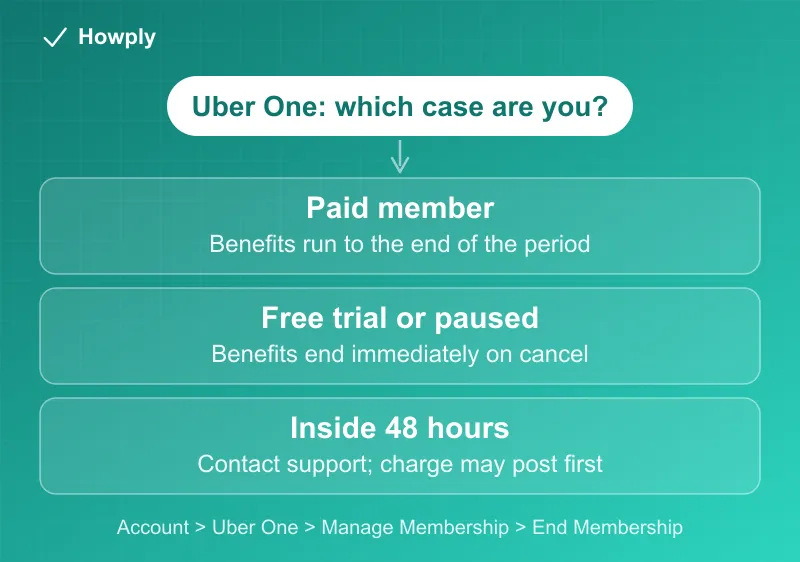
- Cancel in the app: Account > Uber One > Manage Membership > End Membership
- Deadline: cancel at least 48 hours before your billing day to avoid the next charge
- Inside 48 hours? Contact Uber support; a charge may land and then be refunded automatically
- Paid members: benefits continue until the end of the billing period
- Free trial or paused members: benefits end immediately on cancellation
- After a refund: you cannot repurchase Uber One for 3 days
Key facts at a glance
| Question | Answer |
|---|---|
| Where to cancel | Uber app > Account > Uber One > Manage Membership > End Membership |
| Deadline | 48 hours before your billing day |
| Cancelled inside 48 hours | Contact support; a charge may post and be refunded |
| Paid membership benefits | Run to the end of the current billing period |
| Free trial or paused membership | Benefits end immediately |
| After a refund is issued | Repurchase is blocked for 3 days |
How to cancel
- Open the Uber app and tap the Account icon
- Tap Uber One
- Scroll and tap Manage Membership
- Select End Membership and follow the prompts, choosing a reason when asked
You will get confirmation once it goes through. Keep it until your billing day passes.
The 48-hour rule (this is the one that costs money)
Most subscriptions use a 24-hour cutoff. Uber One’s documented rule is 48 hours before your billing day. Cancel with a day and a half left and you can still be charged for another cycle.
If you are already inside that window, Uber’s guidance is to contact support rather than assume the cancellation stops the charge. In practice, a charge that posts very close to a cancellation is typically refunded automatically, but the reliable move is to check your billing date first and act with two full days to spare. Your renewal date is shown on the Uber One screen in the app.
The free-trial catch works backwards
This is the part that surprises people, because it inverts the usual pattern:
- Paid members keep every benefit until the end of the period they already paid for
- Free-trial members and paused members lose benefits the moment they cancel
So if you are mid-trial and thinking “I’ll cancel now so I don’t forget,” you are giving up the rest of the trial. The better play is to note the trial end date, then cancel with more than 48 hours left but not before you have used what you wanted.
The 3-day repurchase lock
An unusual detail from Uber’s own documentation: if you receive an Uber One refund, you cannot repurchase Uber One for three days. This matters if you cancel, get refunded, then realize a big order was coming up. You cannot immediately re-subscribe to get the fee waived on that order. Plan around it rather than counting on an instant rejoin.
After you cancel
Paid benefits (the $0 delivery fee on eligible orders and the member discounts) keep working until the billing period ends, then orders return to standard pricing. Your Uber account, ride history, saved addresses, and payment methods are untouched. Watch your next statement, and if a charge appears after your period ended, contact Uber support with your cancellation confirmation.
Bottom line
Account > Uber One > Manage Membership > End Membership, at least 48 hours before your billing day. Paid time runs to the end of the period, trials end the instant you cancel, and a refund locks you out of rejoining for three days.
Steps and policies verified against Uber’s official help documentation as of July 27, 2026. If the process changes, this guide will be updated with the revision noted. This is general information, not legal advice.