How to Cancel HBO Max (Yes, It Is HBO Max Again) on Any Device
Max is HBO Max again as of 2025, and canceling depends on who bills you. The exact web steps, the app-store paths, and why deleting the app never stops the charge.
First, the name: the service went from HBO Max to Max in 2023, then back to HBO Max in July 2025. Same app, same login, same cancellation flow regardless of which name you still see on your device. Here is exactly how to cancel for every billing setup, and the trap that keeps people paying by accident.
The quick answer
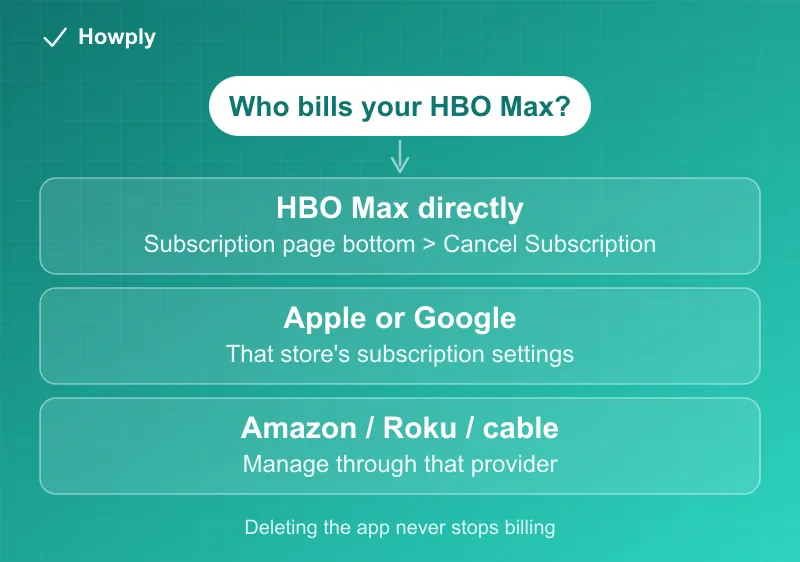
- Billed by HBO Max directly: sign in at the HBO Max subscription page > scroll to the bottom > Cancel Subscription and follow the prompts
- Billed through Apple: Settings > your name > Subscriptions > HBO Max (or Max) > Cancel Subscription
- Billed through Google Play, Amazon, Roku, cable, or wireless: cancel with that provider
- Access: continues until the end of the current billing period
- The trap: deleting the app, signing out, or removing a profile does not stop billing
Key facts at a glance
| Question | Answer |
|---|---|
| Where to cancel (direct billing) | HBO Max subscription page > scroll to the bottom > Cancel Subscription |
| Billed through a provider | Cancel with Apple, Google Play, Amazon, Roku, cable, or wireless |
| When it takes effect | End of the current billing period; access continues until then |
| Profiles and watch history | Retained if you resubscribe later |
| Does deleting the app cancel? | No; signing out or removing the app never stops billing |
| Max vs HBO Max | Same service and login; the name changed back to HBO Max in July 2025 |
Step 1: Find out who bills you
Check your card statement for the charge name, or open your HBO Max account settings, which show the billing method. This decides everything below: a direct subscription is canceled on HBO Max’s site, while a provider-billed one can only be stopped by that provider.
Method 1: Cancel a directly billed subscription
- Go to the HBO Max site and sign in with the account that pays
- Open your subscription or account settings page
- Scroll to the bottom and select Cancel Subscription
- Follow the prompts through any retention offer to the final confirmation
- Save the confirmation email and note the date access ends
Your subscription stays fully active until the end of the current billing cycle, so canceling right after a renewal is not the ideal timing; you keep the same access either way, but you lose fewer paid days by canceling later in the cycle.
Method 2: Billed through an app store or provider
HBO Max cannot cancel billing it does not control:
- Apple: Settings > your name > Subscriptions > HBO Max/Max > Cancel Subscription
- Google Play: Play Store > profile > Payments & subscriptions > Subscriptions > select HBO Max or Max > Cancel Subscription
- Amazon: Your Account > Memberships & Subscriptions
- Roku: Home > highlight the channel > options > Manage subscription > Cancel
- Cable or wireless bundle: manage through that carrier’s account
The delete-the-app trap
The single most common billing mistake is assuming that removing the app or signing out cancels the subscription. It does not. Recurring charges continue until you cancel through the correct billing channel above. Always cancel first, then delete the app if you want.
After you cancel
You keep watching until the current period ends, then the account drops to no active subscription. Your profiles and watch history are retained if you resubscribe later. If a charge appears after your confirmed end date, contact HBO Max support with your confirmation, and dispute with your card issuer if it is not resolved.
Bottom line
Ignore the name confusion; HBO Max and Max are the same service. Direct subscribers cancel at the bottom of the subscription page, app-store subscribers cancel where they pay, and everyone keeps access to the end of the cycle. Just remember that deleting the app is not canceling. If a cheaper tier would do instead of cancelling, the three plans, the Extra Member and the bundle rules are in our HBO Max plans guide.
Steps verified against HBO Max’s official help and account documentation as of July 20, 2026. If the process changes, this guide will be updated with the revision noted.